Participant
June 8, 2022
Answered

Quickly find/change the size of a certain character that appears in many different places

  • June 8, 2022
  • 3 replies
  • 135 views

The fast explanation: I am looking for a way to quickly select all of a certain text character or in this case a specific webding, and then replace it with a slightly bigger version of exactly the same webding.


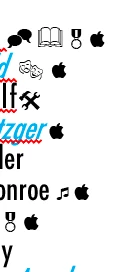
The not so fast explanation but with background and more detail: I am working on a graduation program with symbols that mean things like "Math Honors society" or "Music Honors Society" when they are placed next to someone's name. I need to adjust the size of certain symbols, for example the Music honor society symbol is tiny when compared to other symbols beside it and needs to be about two points larger everywhere it appear. The person who originally set up the document didn't use styles so that is out of the question.


I feel like I am missing something simple here. I have tried find/change, I see the glyph tab, and can find my glyph, however there doesn't seem to be an option to replace with same glyph only bigger.
 

This topic has been closed for replies.
Correct answer Brad @ Roaring Mouse

Nothing is preventing you on creating a new style even if none have been used so far

If all the music symbols will be the same new size, it's relatively easy:

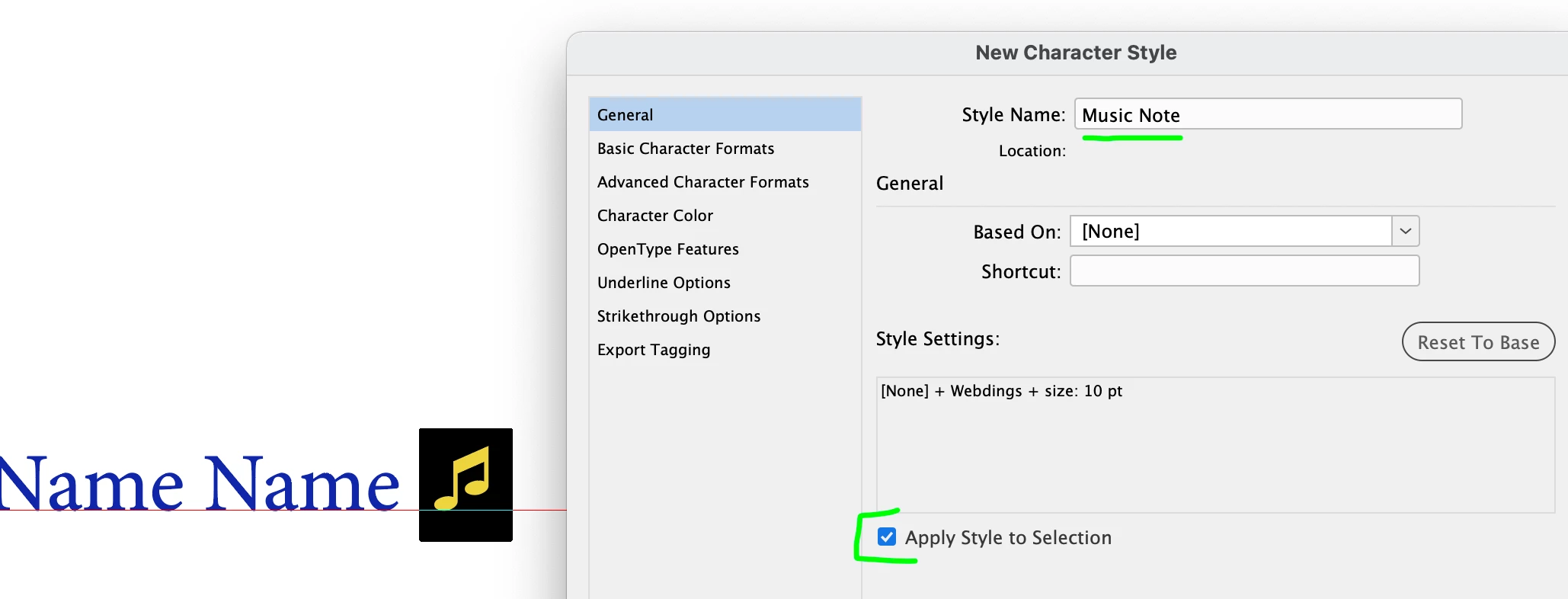
What you want to do is select your music symbol, increase it in size to what you want, then create a Character Style based on the resized character.

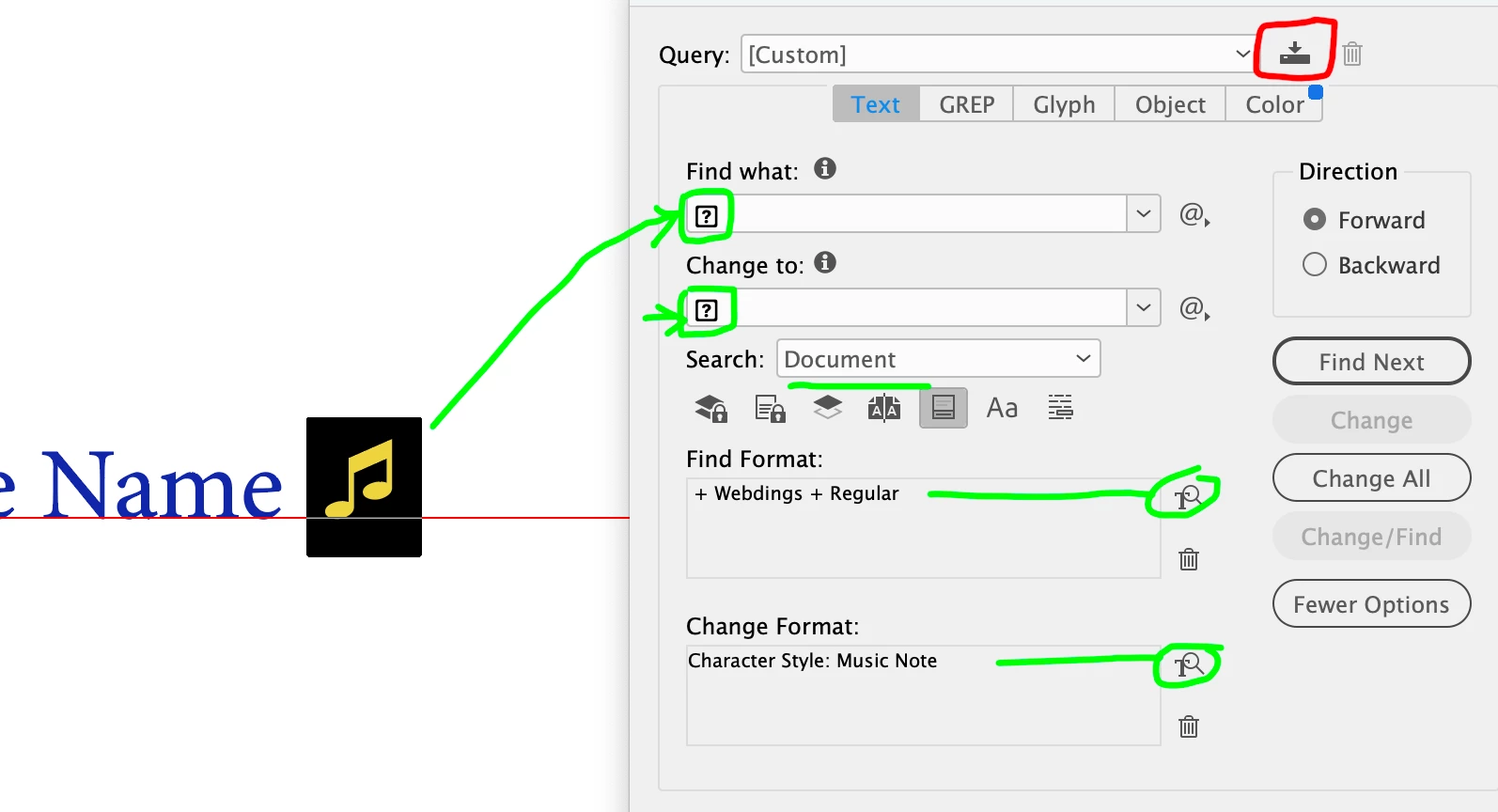
NOW, do a Find/Replace. Search for the Music Symbol (copy and paste it into the Find bar... don't worry, it won't look right). Next, in Find Format, click on the search attributes and select the font so you only select the right character in the right font. Paste the character again into the Replace bar, and then, in Change Format, click on the attributes and select the new Character Style.

It's helpful to save this action for later use... Click save at top rightand name this action!

3 replies

Brad @ Roaring Mouse
Community Expert
Brad @ Roaring MouseCommunity ExpertCorrect answer
Community Expert
June 8, 2022

Nothing is preventing you on creating a new style even if none have been used so far

If all the music symbols will be the same new size, it's relatively easy:

What you want to do is select your music symbol, increase it in size to what you want, then create a Character Style based on the resized character.

NOW, do a Find/Replace. Search for the Music Symbol (copy and paste it into the Find bar... don't worry, it won't look right). Next, in Find Format, click on the search attributes and select the font so you only select the right character in the right font. Paste the character again into the Replace bar, and then, in Change Format, click on the attributes and select the new Character Style.

It's helpful to save this action for later use... Click save at top rightand name this action!

James Gifford—NitroPress
Legend
June 8, 2022

For this pass and all to follow: use Find/Change to apply individual styles to each of these symbols. Then adjust the styles as needed.


Community Expert
June 8, 2022

What you could do is use the Grep tab dialog to search. Check the unicode value of the character you want to search by selecting it and checking the unicode displayed in the Info Panel. The search this unicode along with the font applied and change the format with applying the size you want. See an example screenshot using the link given below.

https://www.dropbox.com/s/bfwjghgz8ctqj3g/Screenshot%202022-06-08%20at%2010.07.37%20AM.png?dl=0

-Manan

-Manan