
Participating Frequently
March 24, 2022
Answered

Cannot import lrtemplate in new Lightroom Classic 11.2

  • March 24, 2022
  • 2 replies
  • 891 views

Currently I have download a collection of lrtemplate. But I'm unable to import these presets. Below are some actions that I have tried


1. Import from Develop tab --> Presets --> Import Presets

  Expected: Import preset successfully

  Actual: Got error "The preset file was the wrong type of preset"
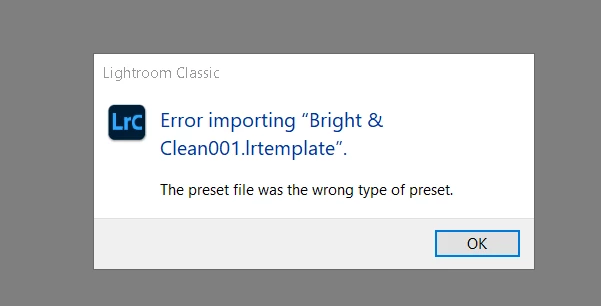
 

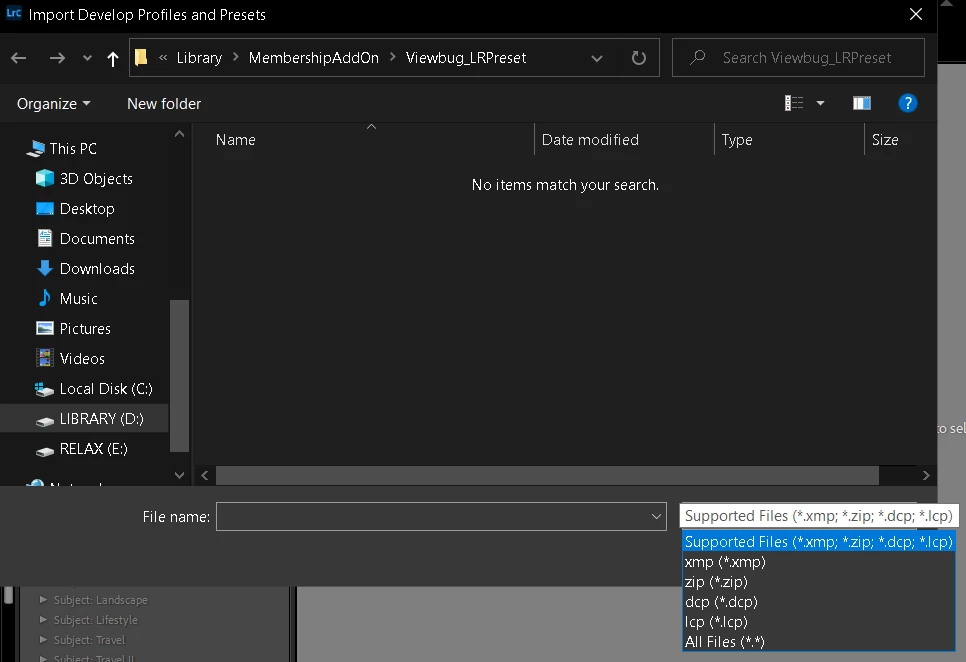
2. I turn to another way, use the File --> Import Develop Profile and Presets

  Expected: Should be able to import

  Actual: There is no lrtemplate in the supported file types
 

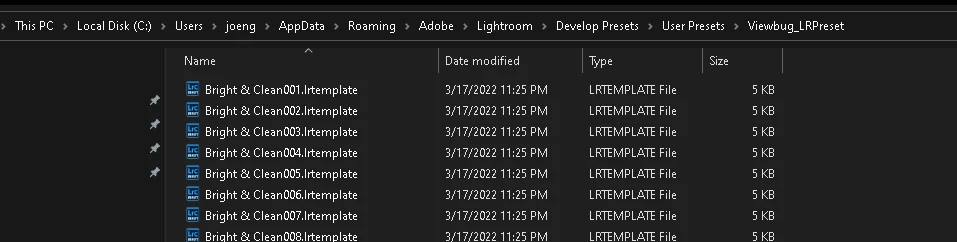
3. I tried one of the most suggested solution on internet, which is copy the files into this folder "C:\Users\....\AppData\Roaming\Adobe\Lightroom\Develop Presets\User Presets" and then restart lightroom, hoping it will automatically convert the lrtemplate to XMP format.

  Expected: LR Classic will convert the lrtemplate to xmp format

  Actual: nothing happens. I believe when converted, the LR Classic will automatically append "~~" in front of these lrtemplate.
 

Can you please help to advice what action should I take in order to use import successfully?

Thank you
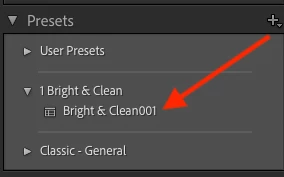
This topic has been closed for replies.
Correct answer johnrellis

Thanks for your reply. Please help to see the attachment.


[This post contains formatting and embedded images that don't appear in email. View the post in your Web browser.]


That file is a new-format preset and should have the extension .xmp, not .lrtemplate. When I changed its extension to .xmp, it successfully imported into my LR:


2 replies

johnrellis
Legend
March 24, 2022

"Develop tab --> Presets --> Import Presets... Got error "The preset file was the wrong type of preset""


That indicates the .lrtemplate file is not a Develop preset but some other kind of preset -- an Effect preset for Masks (formerly called local-adjustment or brush presets), an Export preset, or another kind of preset.  You can figure out the kind of preset by editing the .lrtemplate in a text editor and look for the line starting with "type =".  To install that preset, do Preferences > Presets > Show All Other Lightroom Presets, which will open Windows File Explorer on the Lightroom settings folder. Copy the .lrtemplate file into the corresponding subfolder. Restart LR. 


If you have trouble with this, attach the .lrtemplate file here and we can give you move detailed instructions.

Participating Frequently
March 25, 2022

Hi,

Thank you for your reply. Looks like it's just a normal type

I assume for this type, it should go to Develop Presets --> User Presets? But unfortunately this one doesn't work for me.

Attached is a .lrtemplate that I'm having issue to import. I would very appreicate if you can take a look.


Thank you

Participating Frequently
March 25, 2022

I cannot attached the .lrtemplate as the forum is complaining

Correct the highlighted errors and try again.
The attachment's attachement.lrtemplate content type (application/octet-stream) does not match its file extension and has been removed.

 I'm so confused.


Rob_Cullen
Community Expert
Community Expert
March 24, 2022

Use the (only reliable) method to Import (all types of ) Presets-

Click on the [+] on the Presets panel header-

Regards. My System: Windows-11, Lightroom-Classic 15.3, Photoshop 27.5, ACR 18.3, Lightroom 9.3, Lr-iOS 10.4.0, Bridge 16.0.3 .
Participating Frequently
March 25, 2022

Thank you for your reply. That's the 1st method that I used. But it doesn't work for me.