
Epson R3000: Switch from Luster paper/color printing to B&W on Velvet paper created output nightmare
I just started experiencing first-time problem with my Epson R3000. In any mode -- printing via Photoshop, Photoshop Elements, or the printer's own software -- the prints look something like a negative, with cartoonish colors (see attached -- I used various settings and got these same results). For the record, I have taken all the normal steps in an effort to fix the issue: delete the printer and add it again; uninstall the driver and reinstall the latest one (on both computers.) I checked all the settings - paper profiles, color management, etc. I also checked the nozzle (they were fine) and did a head cleaning. Yet, the issue repeats itself is the exact same way over and over, no matter the settings.
The problem manifested itself the moment after a successful printing session when I needed to switch from color printing on Epson Ultra Premium Luster paper to B&W printing on Epson Velvet Fine Art paper. I adjusted the necessary software settings and also changed the settings on the printer itself -- to accommodate the Velvet paper and print it through the front manual feed. I also switched the ink setting from Photo Black to Matte Black. And that might be the genesis of the problem. All of the B&W prints were out of whack (see attached image which shows a garish bluish cast -- other versions showed a similar cast only greenish). The Matte Black ink was old. I rarely use it. Could my issues have something to do with old ink messing up the entire printer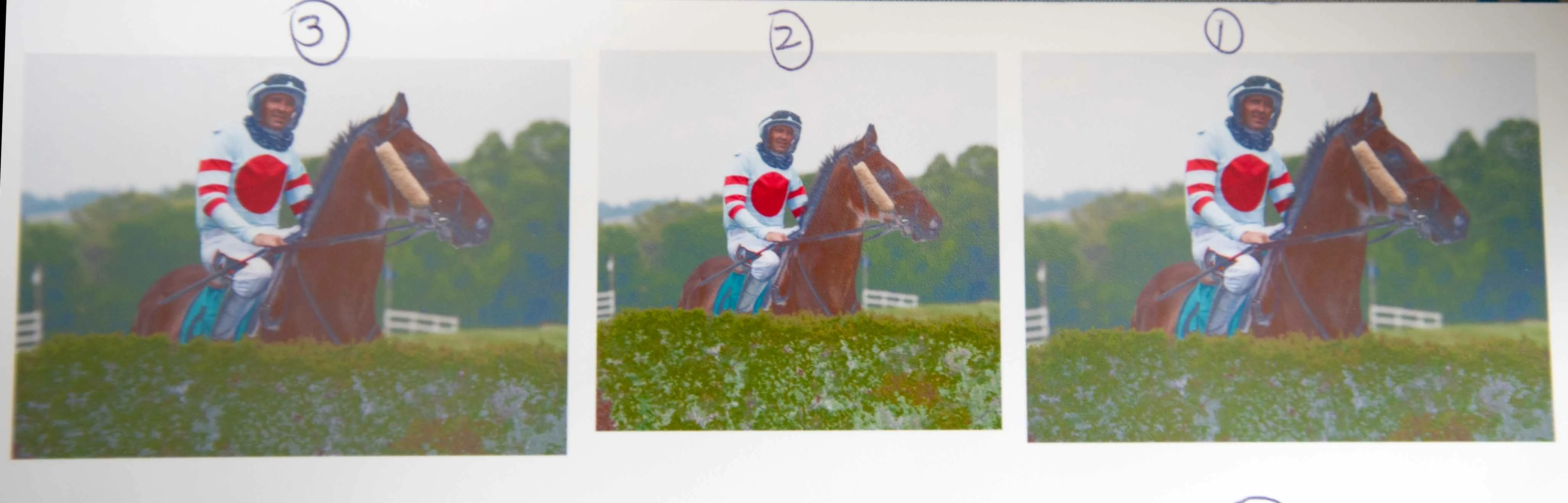
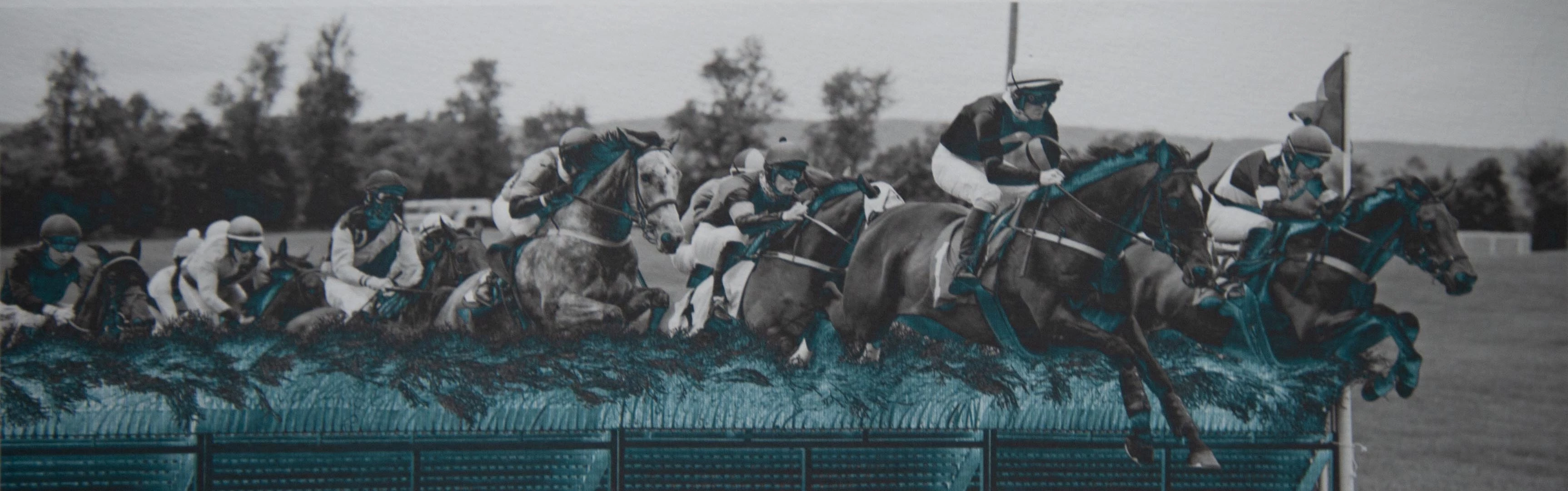 ? Even though there doesn't appear to be a clog, could it be responsible for the problem? I can't seem to solve this, try as I might. Any assistance is deeply appreciated.
 AdChoices