

bartonlew
Legend
November 6, 2017
Answered

export settings grayed out in Media Encoder

  • November 6, 2017
  • 1 reply
  • 9739 views

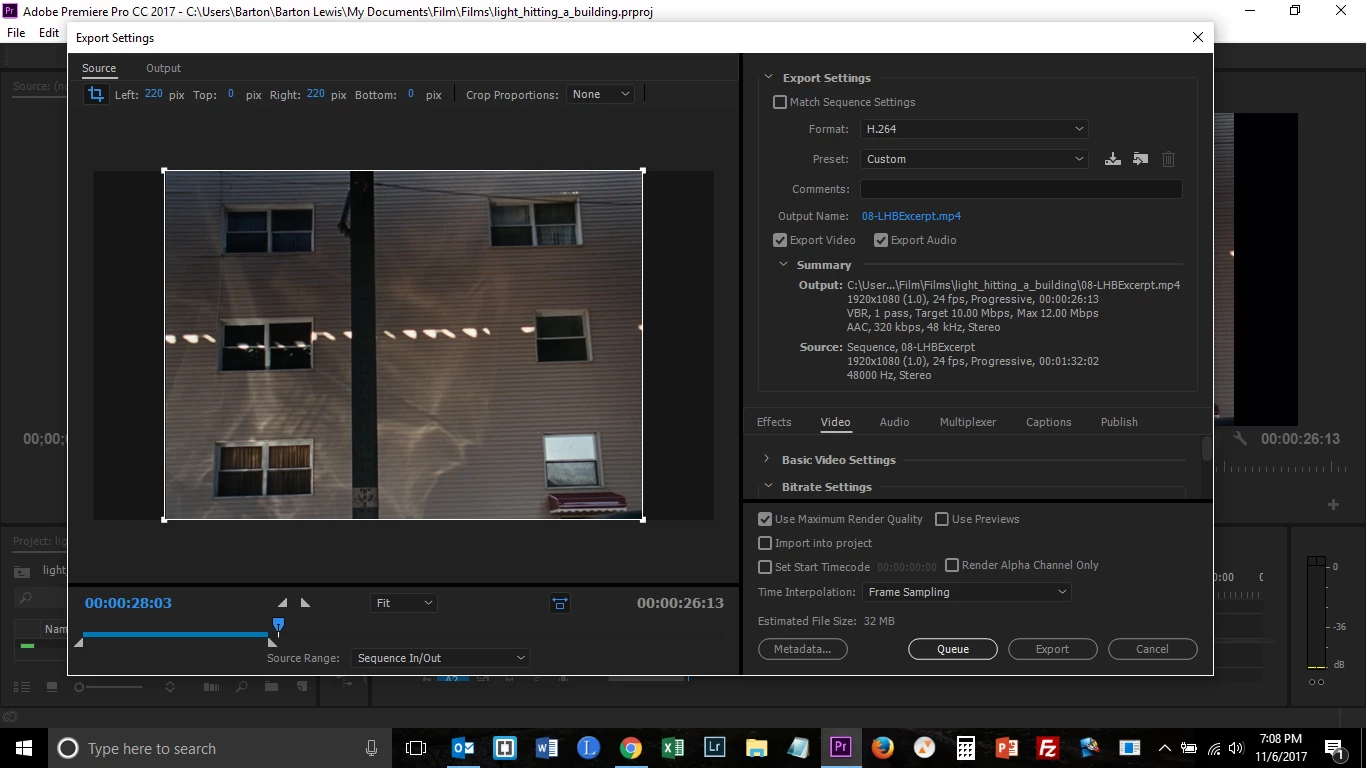
I need to get rid of pillar boxes in my 16mm footage using Media Encoder.  I was told to activate the crop function in the Export Settings under the Source tab.  After encoding my footage, I tried to select Edit > Export Settings, which I believe would bring up the Source and Output panels, the former of which would contain the crop tool I need.  However, Export Settings is grayed out.  What am I doing wrong here?  Thanks.
This topic has been closed for replies.
Correct answer R Neil Haugen

Thank you.  Does this do it?


Now you'd need to go into the Video tab of the export, and set the pixel width/height boxes to the aspect ratio of your crop.

Neil

1 reply

R Neil Haugen
Legend
November 6, 2017

Go directly to the Export dialog ... the crop controls are in the upper left corner.

Neil

Everyone's mileage always varies ...
bartonlew
bartonlewAuthor
Legend
November 6, 2017

Thank you.  I double clicked on the file in the queue & that brings up Export Settings.  I am clicking on the crop tool and dragging the left and right sides over to the edge of the image, getting rid of the pillar boxes.  Then I am clicking on OK which closes the Export Settings dialog.  Then I am clicking on the green arrow in the queue.  The file that is generated, however, still has the pillar boxes.  What am I doing wrong?  Thank you.

R Neil Haugen
Legend
November 6, 2017

That puzzles me, I'll check out when I get to my studio.

If you do this on s direct export from PrPro does this happen?

Neil

Everyone's mileage always varies ...