
Participating Frequently
December 29, 2016
Question

Video resolution standardisation: I thought it was 1920x1080, oops!

  • December 29, 2016
  • 4 replies
  • 2695 views

Dear Premiere Pro Pros,

I'm a novice, but just sat through 3 days of editing a half hour video of a musical we staged.

Shot all clips with Sony A6000 16:9 1080i 17M setting.

When I entered Premiere Pro, the first thing I did was make Sequence -> Sequence Settings -> Editing mode: Custom, Video -> Framesize 1920:1080.

My default clip in the sequence editor had black bars at the side, I assumed this was due to window size. See following frame:
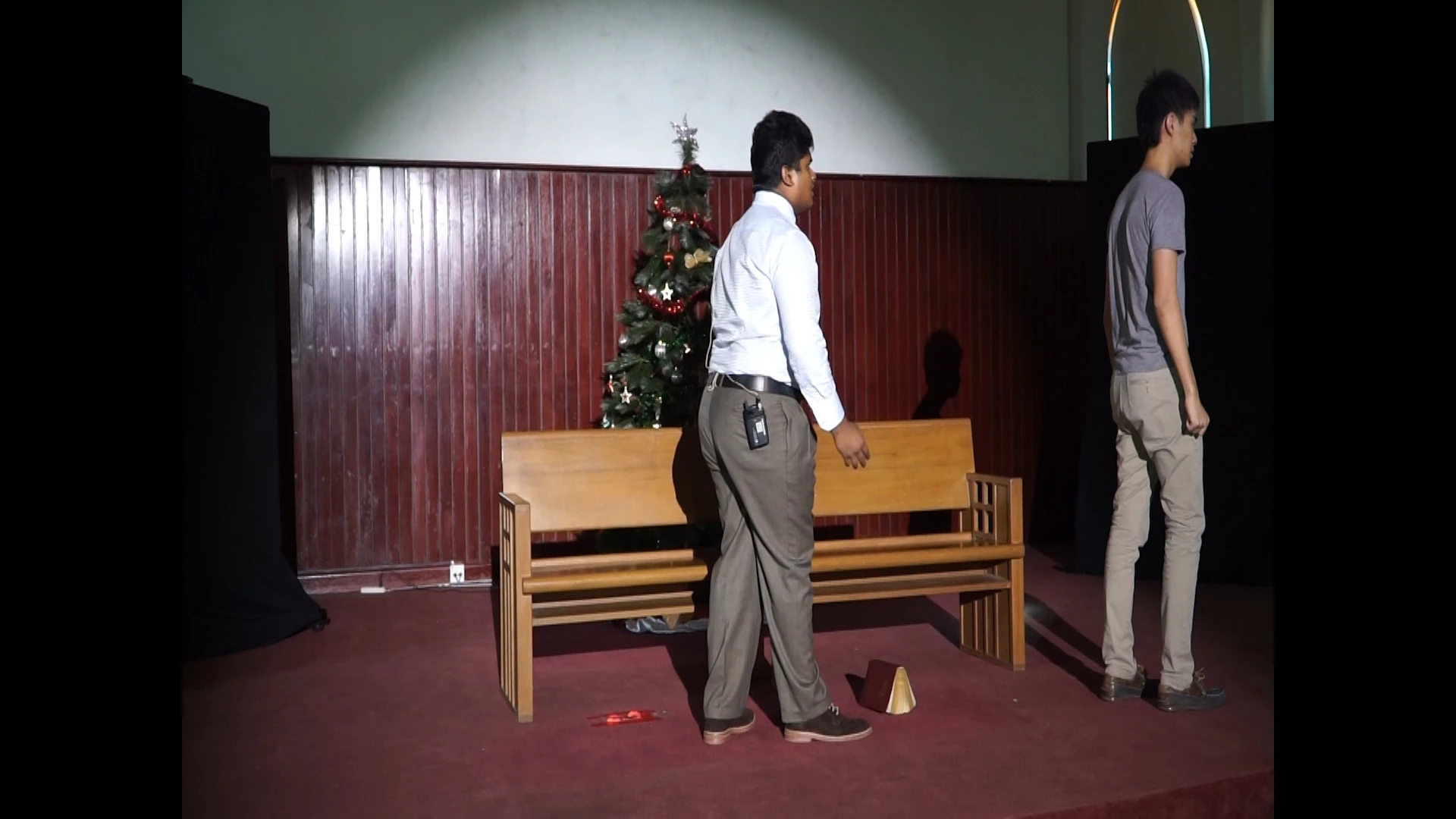
Thinking the final output would render a video without the black bars, I used scaling for alot of the clips, like the next frame:
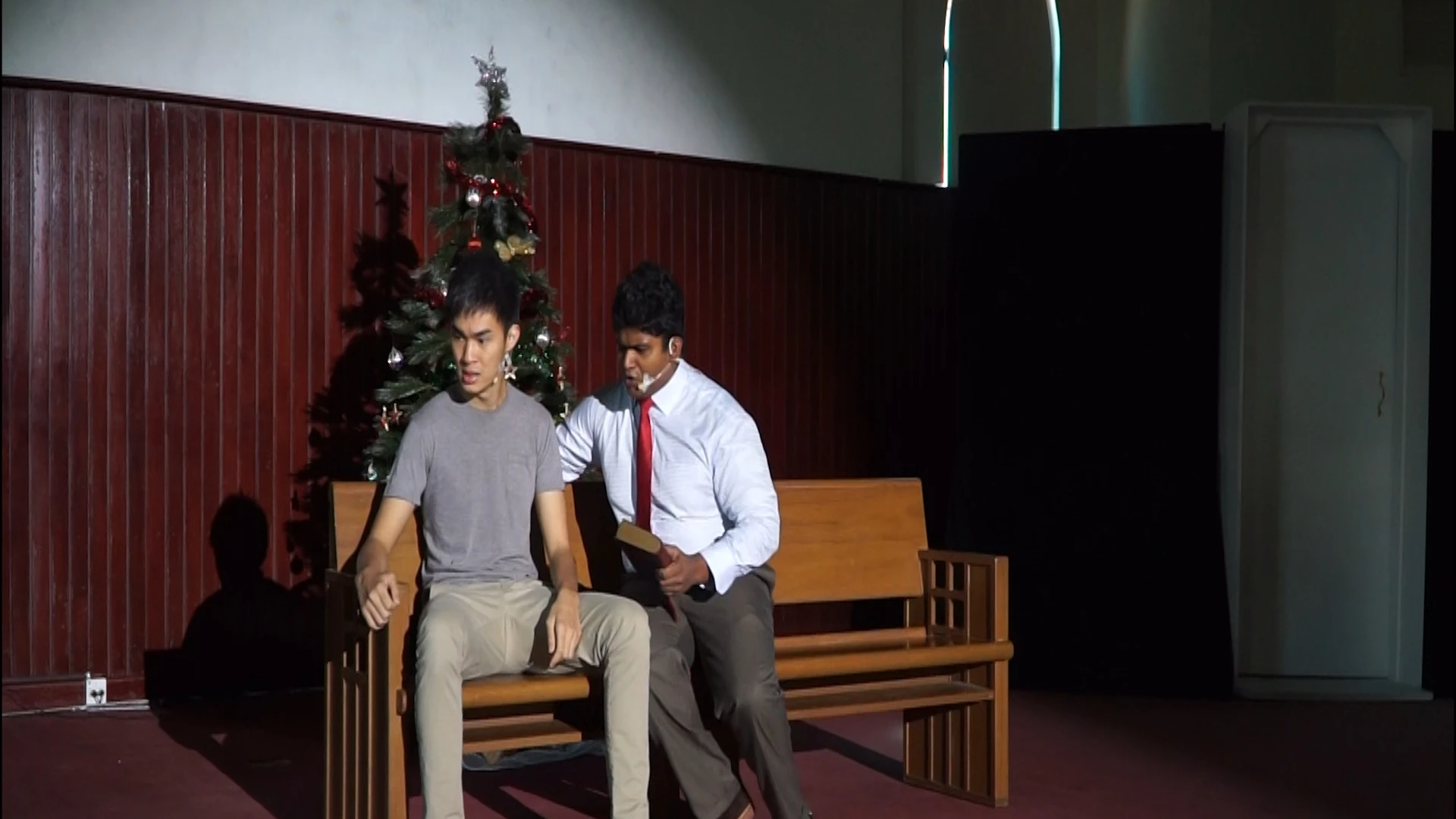
Because I scaled, the black bars went away, but I assumed the final video would crop at the previous position of the black bar (meaning the white door on the right would be gone).

However, when I File -> Export -> Media -> Format: H.264, Preset: Match Source - Medium bitrate, Video 1920:1080, I ended up with a final video product that 1. had the black bars in non-scaled footage, and 2. had varying amounts of black bars depending on what I scaled, just like in the sequence editor.

My aim is for the final video to only show what is in the frame as per the 1st example, and for it to crop the scaled images accordingly.

How do I go about this?

Thanks!

lenard

This topic has been closed for replies.

4 replies

Participating Frequently
January 2, 2017

Thank you all so much, questions answered!

Inspiring
December 29, 2016

lenn16753817 wrote:

When I entered Premiere Pro, the first thing I did was make Sequence -> Sequence Settings -> Editing mode: Custom, Video -> Framesize 1920:1080.

What did you set the pixel aspect ratio to? It should be set to Square.

Best practice for novice users is to create a new, empty timeline and the edit or drag into the empty timeline one of the clips from the camera. Premiere Pro will then prompt you to match the sequence settings to the source clip, say yes and you should be good to go.

MtD

Averdahl
Community Expert
Community Expert
December 29, 2016

It seems that the Pixel Aspect Ratio of the source video is interpreted incorrectly by Premiere Pro, thus the distorted image and the black bars. The screenshot Ann asks for would be great.

Ann Bens
Community Expert
Community Expert
December 29, 2016

Post screenshot of a clip in MediaInfo in treeview here on the forum.

Participating Frequently
December 30, 2016

here's the media info tree screenshot. hope i did that part right.

the pixel aspect ratio was HD Anamorphic 1080 (1.333) I'm guessing that was where I went wrong, since you guys said it should be square.

Now that I made it square, seems like it does fix it. I might've gotten used to the previous version after 3 days of editing though, now everything looks a bit taller and loses the widescreen effect, but it does seem like that's what i should have started with in the first place.

Does this process of correcting it in this way cause any loss in quality/formatting/captions etc?

While I'm at it, I plan to eventually render as File > Export > Media > Format: H.264 > Preset: Match Source - High bitrate. Will this give me the best quality? The platform is meant for thumbdrive distribution. If I mean it for Vimeo/youtube, I should set it to Vimeo/Youtube presets 1080p right?

Thank you so much for your help!

Participating Frequently
December 30, 2016

What's the best Audio settings as well? I'm even more clueless in terms of digital Audio processing. My original audio tracks were recorded with a dedicated recorder through clip on mics, and the files produced are mp3 files with 96 kbps.

Thanks a bunch!