
Important line thickness issue with engineering plans
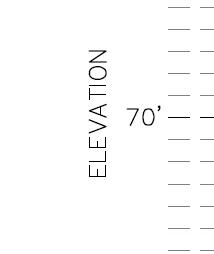
The issue that my organization is having is that 11"x17" PDFs do not always show up visually correct on a standard widescreen computer monitor using Adobe Acrobat Pro DC. As you can see in my screen clips below the lines do not appear to be the same thickness when zoomed out vs when zoomed in. The first clip is zoomed out to full page and you can notice that the text looks strange and that the dashed lines appear to all be the same thickness. The second clip is zoomed in 300% and you can finally start to tell the difference in the dashed lines and the text looks more normal. These clips are from a plan set that was created using Autodesk Civil 3D 2018 and plotted using the DWG to PDF option. Note that when printed, the line thickness shows up correctly.
I believe that this is a very important issue because organizations, including government agencies, are reviewing complex engineering plan sets on their computers rather than printing the plan set out. This is becoming almost the standard because it is convenient, cost effective, and eco-friendly (saving the trees). So what is happening is that the reviewers are sending plan sets back because some of the graphical line work does not show up properly and they think that it is an issue on the designers end when in reality it is because Adobe Acrobat DC does not show these lines correctly. Note that zooming in can make the plan set much more difficult to review.
What is needed is for the plan sets to look on the computer screen exactly as it looks when printed out. My question is, has Adobe addressed this issue at all and/or are they working on a permanent fix? And in the meantime are there any tools currently available to manually fix this issue?

 AdChoices