


Copy link to clipboard
Copied
Goal
Batch downsize several hundred PDFX files (print-ready files) that range from 100-400Mb so they are anywhere between 2 and 10Mb AND the text remains editable/searchable when the files are loaded into our Extensis Portfolio database.
First Attempts
I have tried creating several different Action Wizards, but I either get a file that is only slightly smaller (still near 100Mb with editable text) or I get nice small 1-2Mb files but the text is NOT editable/searchable. Image quality is not super important, but editable/searchable text is essential.
Action Wizard First Try
Preflight > Essentials > Convert all images to CMYK images and preserve text information. (files downsize to 1-2Mb, but text is not editable or searchable)
Action Wizard Second Try
Save > PDF Optimizer (settings below). The result is only a slightly smaller file (many still above 100Mb) with the desired editable/searchable text.

I've tried other preflight settings, but none give the desired results.
Anyone have a magic combination of preflight settings and/or save settings that will enable me to created an Action Wizard that can downsize large batches of large files?
Thanks!!


 Correct answer by
Clayton6th
AUTHOR
Correct answer by
Clayton6th
AUTHOR
Copy link to clipboard
Copied
A solution that works!
After some trial and error, I was able to batch process hundreds of large (100Mb+) files, reducing them to about 2Mb) while retaining text search capability. The trick was to first make a change in Preferences:
- Open Preferences
- Choose Documents in left column
- Under PDF/A View Mode, View documents in PDF/A mode: Choose “Never” from the drop down menu (see below).

Then, I created an Action using the following settings:

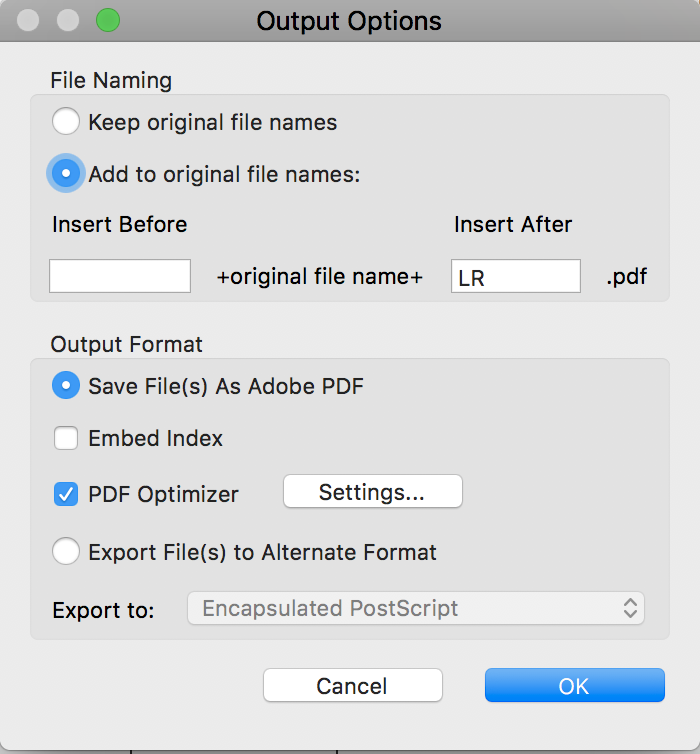


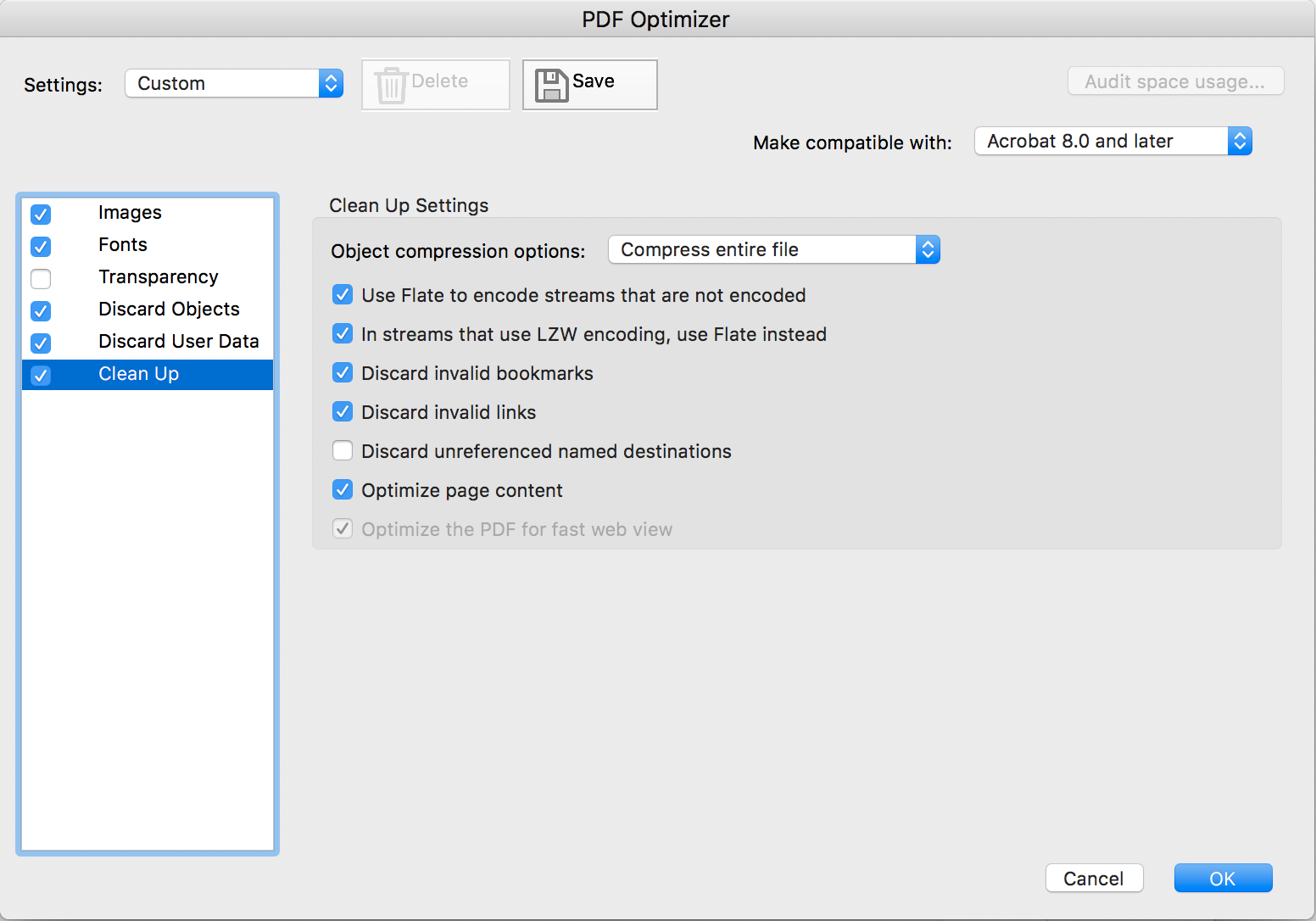
Once you choose all these settings, Save and rename your Settings, so the drop down in the upper left corner will include your custom settings. IMPORTANT NOTE: If you export or share the Action with others, these settings do NOT carry over. You have to recreate them on others' workstations.
Other steps that do NOT carry over with the .sequ file: Save to Local folder must be set up on each individual's computer.
One last note: It matters which Acrobat DC version you use. Last week, I experienced many crashes on random files. This week, with the updated version of Acrobat DC - no crashes.
 7
Replies
7
7
Replies
7


Copy link to clipboard
Copied
I took a look at this and don't have very encouraging news for you.
Actually the Preflight Profile you were trying is really Convert all pages into CMYK images and preserve text information. It converts all the contents of a page to 150 dpi high quality JPEG CMYK images, one image per page. Any underlying text is supposedly converted to invisible text that can be searched but NOT editable.
I tried this profile on a number of files and all were actually significantly increased in size. The only way that this profile would decrease file size would be if your pages consisted primarily of highly-complex, large, very high resolution CMYK images. And for better or worse, the text was not searchable. (I will check with our Preflight team to try to understand what is going on there!) And I would not expect it to be editable (you can't edit text under an image realized in a make-believe font).
And I am not surprised at your results with the PDF Optimizer.
Without some actual samples of your “before” files, it would be exceptionally difficult to give further advice other than to say that you really cannot legislate PDF file size. Something has got to give.
Again with some samples, maybe we can further assist you!
- Dov

Copy link to clipboard
Copied
Reducing files by 98% sounds an impossible dream to me. All you can really do is reduce image resolution, and you've tried that. Did you do an Audit Space Usage? What did it say?
Copy link to clipboard
Copied
Yes, the Preflight Profile I used was Convert all pages into CMYK images and preserve text information. And it significantly downsized my files. One example: single page PDFX file, 16" x 18" with 13 high-res graphics (400 dpi at actual size) for a total file size of about 150Mb. Using the Action Wizard First Try, the file comes down to 2.8Mb which is great. But text is not searchable or editable. I'm not interested in further editing capacity, but really want the files to be searchable.
Looks like we'll have to make two different PDF versions for our purposes - one small file for archiving, one large file for searching text. Not ideal.
I didn't know about the Audit Space Usage feature. Thanks for pointing that out. But because I'm working with PDFX files, the "Save as Optimized PDF" feature is grayed out and not available, so I can't get to the Audit Space Usage panel. I can only process files using the Action Wizard, and the "Audit Space Usage" is not active when creating/editing an Action Wizard.
Copy link to clipboard
Copied
Hmm, that's annoying (that it is blocked). Here's something that might work: EXTRACT all pages to make a new document, SAVE it, then try SAVE AS OPTIMIZED. Might no longer be blocked.
Copy link to clipboard
Copied
Okay, that worked. Even though these are one-page files, I can still use the Extract and Save As feature. Doing it this way, I was able to downsize a 40Mb file to 1Mb, which is great, and the text was still searchable, also great!
But I have over 800 single-page PDFX files to process, and more coming every week. I don't see anything in the Action Wizard options that would enable me to do this kind of multi-step process in a single Action. Open, extract, save as, etc.
Correct answer by
Clayton6th
AUTHOR
Copy link to clipboard
Copied
A solution that works!
After some trial and error, I was able to batch process hundreds of large (100Mb+) files, reducing them to about 2Mb) while retaining text search capability. The trick was to first make a change in Preferences:
- Open Preferences
- Choose Documents in left column
- Under PDF/A View Mode, View documents in PDF/A mode: Choose “Never” from the drop down menu (see below).
Then, I created an Action using the following settings:
Once you choose all these settings, Save and rename your Settings, so the drop down in the upper left corner will include your custom settings. IMPORTANT NOTE: If you export or share the Action with others, these settings do NOT carry over. You have to recreate them on others' workstations.
Other steps that do NOT carry over with the .sequ file: Save to Local folder must be set up on each individual's computer.
One last note: It matters which Acrobat DC version you use. Last week, I experienced many crashes on random files. This week, with the updated version of Acrobat DC - no crashes.

Copy link to clipboard
Copied
I am having the opposite problem. My image all need tpo be 300 dpi. At the moment I am editing them within Adobe Acrobat Pro DC
PDF but using Photoshop to increase dpi. But I am having to do each one individually.
Is there anywhere/way I can set it so that it automatically changes all images at once?
Thanks in advance.
Sharon


Get ready! An upgraded Adobe Community experience is coming in January.
Learn more
 AdChoices