


- Home
- Color Management
- Discussions
- Re: Color Management Discrepencies Between Bridge,...
- Re: Color Management Discrepencies Between Bridge,...

Copy link to clipboard
Copied
Hi - I've had a color management issue I can't wrap my head around which is similar to this infamous thread: http://forums.adobe.com/message/3235601#3235601
I'm hoping with a little more information provided I can get this figured out. The basic problem is that Bridge displays images markedly differently than either ACR or Photoshop. The most common issue is as follows:
With the external monitor as the primary display (and the laptop monitor as a secondary), I start Bridge. Photos will seem to be in the correct gamut for a moment, but it almost immediately desaturates them as if switching gamuts. Opening the image in ACR or Photoshop shows the correct color. See the below:

(Note: on my wide-gamut monitor, there's no clipping on the ACR version - that's how it should look)
There are various permuations to this problem depending on which monitor I have on when I start Bridge, but the above is my general workflow.
Some background:
Lenovo ThinkPad T430s w/ integrated Intel HD4000 graphics
ASUS ProArt Series PA246Q (Wide Gamut)
Photoshop CS6 (using 16-bit ProPhotoRGB as the standard workspace)
Datacolor Spyder4 calibrating both monitors
My settings:
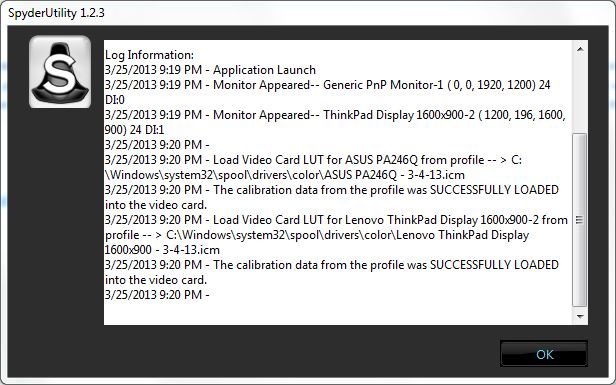


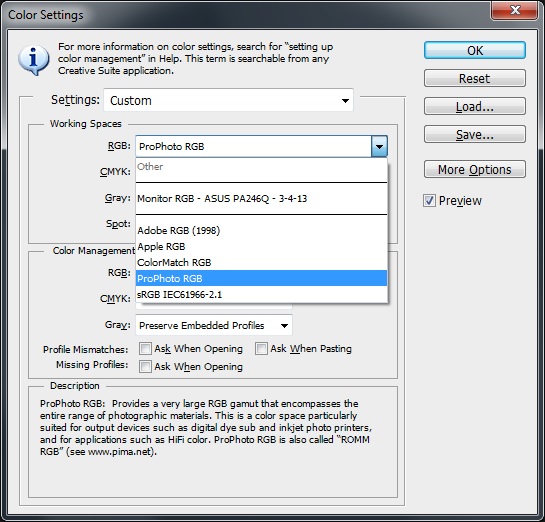


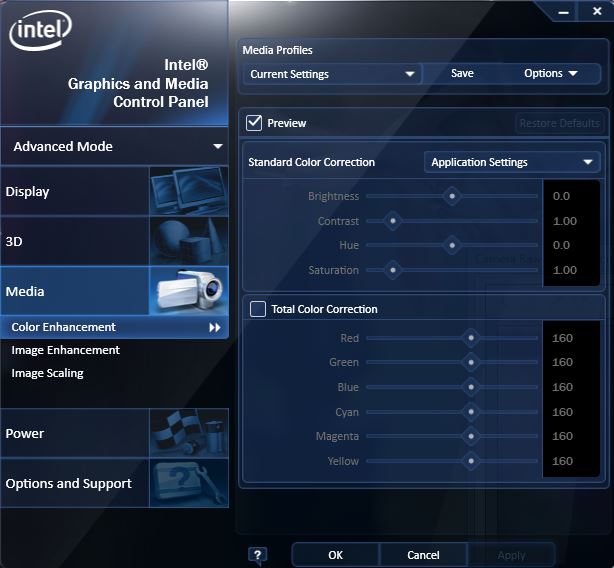
I know there are a bunch of variables, but does anybody see any glaring issues which might explain my problem?
Thanks!


 1 Correct answer
For anyone following this thread, just a heads-up for future reference. It's been confirmed all previews in Bridge are in fact in sRGB. It's a bit surprising, but apparently true. More details at this thread.

 63
Replies
63
63
Replies
63


Copy link to clipboard
Copied
The basic problem is that Bridge displays images markedly differently than either ACR or Photoshop.
those are all three color-managed application that each transform/convert colors to the monitor profile -- so if they are displaying differently -- i would first verify which source profile each app is using, and second, which monitor profile each app is displaying through on each monitor
external monitor as the primary display (and the laptop monitor as a secondary)
that's probably the debacle as you suspect, success is dependent on any number of factors including OS, video driver and app bugs/behavior
including hardware design limitations...
Copy link to clipboard
Copied
gator soup wrote:
those are all three color-managed application that each transform/convert colors to the monitor profile -- so if they are displaying differently --
Thanks for the reply. They are definitely displaying differently - to make the point more obvious, here's a TIFF in Bridge and Photoshop:

gator soup wrote:
i would first verify which source profile each app is using, and second, which monitor profile each app is displaying through on each monitor
Here's where I'm a little lost. As you can see, the Spyder software appears to have correctly piped the profile into the Windows; wide-gamut images appear correct in color-managed programs [since IE10 appears to be at leat partially color-managed, I don't think I have any non-color-managed programs on this windows 7 machine to test against].
I know Photoshop is using the correct profile - see the screenshots above. I don't know how to change the profile Bridge andACR are using, and I was told they should adopt whatever profile Photoshop is using. Let me know if that's wrong and how I can remedy it.
Thanks!
Copy link to clipboard
Copied
to make the point more obvious, here's a TIFF in Bridge and Photoshop:
try downloading a copy of the tagged WhackedRGB PDI reference image and open it in Br & Ps (use the embedded profile, do not convert colors)
set Br and Ps side-by-side and take one screenshot of the two windows (embed the profile) keep your zoom ratios the same 25% 50%...
Be sure to show the entire Ps window including the top bar with the name and the Document Profile showing in the low/left corner
do this on each monitor
post your results...
Copy link to clipboard
Copied
here is how to verify what monitor profile Photoshop is using:

there is a problem with some setups running two monitors off one video card (even off two separate cards) that Ps only uses the default monitor profile for both displays (that is likely what's going on, unless you have a source profile or softproof issues)...
Copy link to clipboard
Copied
gator soup,
See the below screenshot - I see a slight difference (see the woman's face), but not very pronounced, and perhaps attributable to my inability to get them to be the exact same size... hmmm...

Here it is again with the ProPhoto profile embedded:
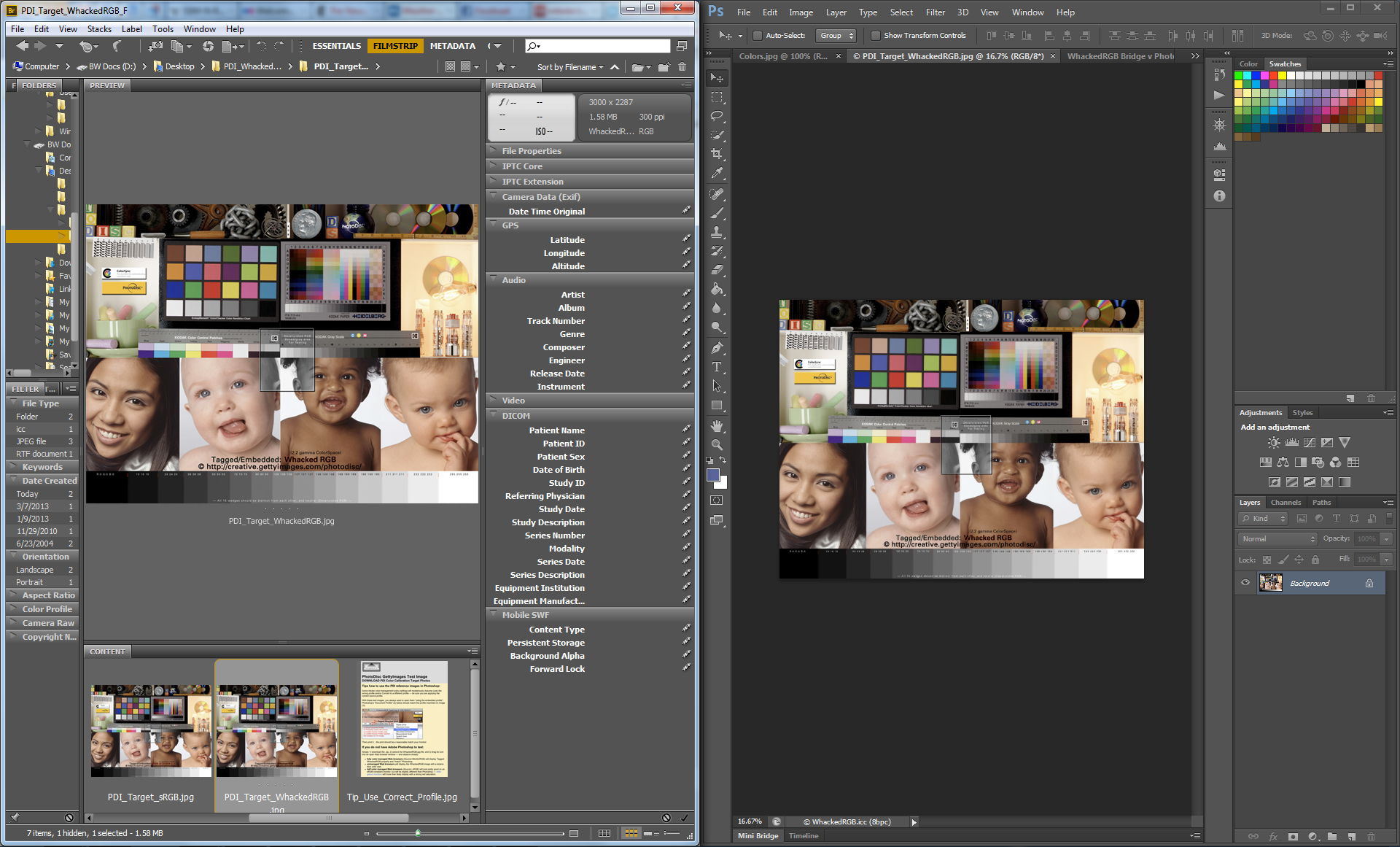
I posted my Photoshop profile settings above - here it is again:

Much obliged!
Copy link to clipboard
Copied
i don't see any difference in the two apps BUT YOU DIDN'T INCLUDE A PROFILE IN YOUR SCREENSHOT
you are applying the Whacked profile in Ps and are not in proof colors mode
it looks like Br and Ps are displaying consistent on that monitor?
try setting your Ps Color Management Policies to:

that may help trap at least one of the problems...
Copy link to clipboard
Copied
your second screenshot just added (with profile embedded post #5) you have profile issues going on that you need to resolve...
your over-saturated screenshot has ProphotoRGB Profile Embedded, it looks like you used Assigned Profile —— wrong move —— most screenshots should have Monitor RGB embedded (that's what you should upload so we can see what you see)
as a whole not seeing a difference on the monitor...
it is hard to tell because i don't know the correct profile to use (you stripped it, and Assigned the wrong, it looks like)...
Copy link to clipboard
Copied
Sorry about that - makes sense that a screenshot should have monitor profile.
Here's the whacked example:

Here's a CR2 example:

Copy link to clipboard
Copied
Realized that and put it in the second one - see edit above.
But yes, as a whole not seeing a difference on the monitor...
Copy link to clipboard
Copied
try doing the whacked example on the second monitor (I don't see any problem in your Whacked Example post #9) -- the CR2 example is hard for me to evaluate without getting eyestrain
you should be using the profile embedded during the capture (not having to Assign it)
on a Mac, a screen capture can deposit the file on the desktop (with the embedded monitor profile that can be a clue) not pasting it in Ps
Copy link to clipboard
Copied
i have to step out, but
be sure your Source documents have the proper embedded profile
and that you "Use" that profile in Photoshop
any display discrepencies after that are likely tied to any number of factors including OS, video driver and app bugs/behavior
including hardware design limitations...
Copy link to clipboard
Copied
No problem, thanks for the help! On my PC, screen capture using the Prnt Scrn button must be pasted into a program or taken/saved using the snipping tool. Either way the result appears to be untagged.
Here are a few more examples if you get a chance to look in the future. I'm making sure the proper profiles are embedded correctly (you can confirm in both Photoshop [lower left] and Bridge [upper right]😞
Primary, wide-gamut monitor (sample includes embedded profile) - Viewing PSD w/ embedded ProPhoto RGB:
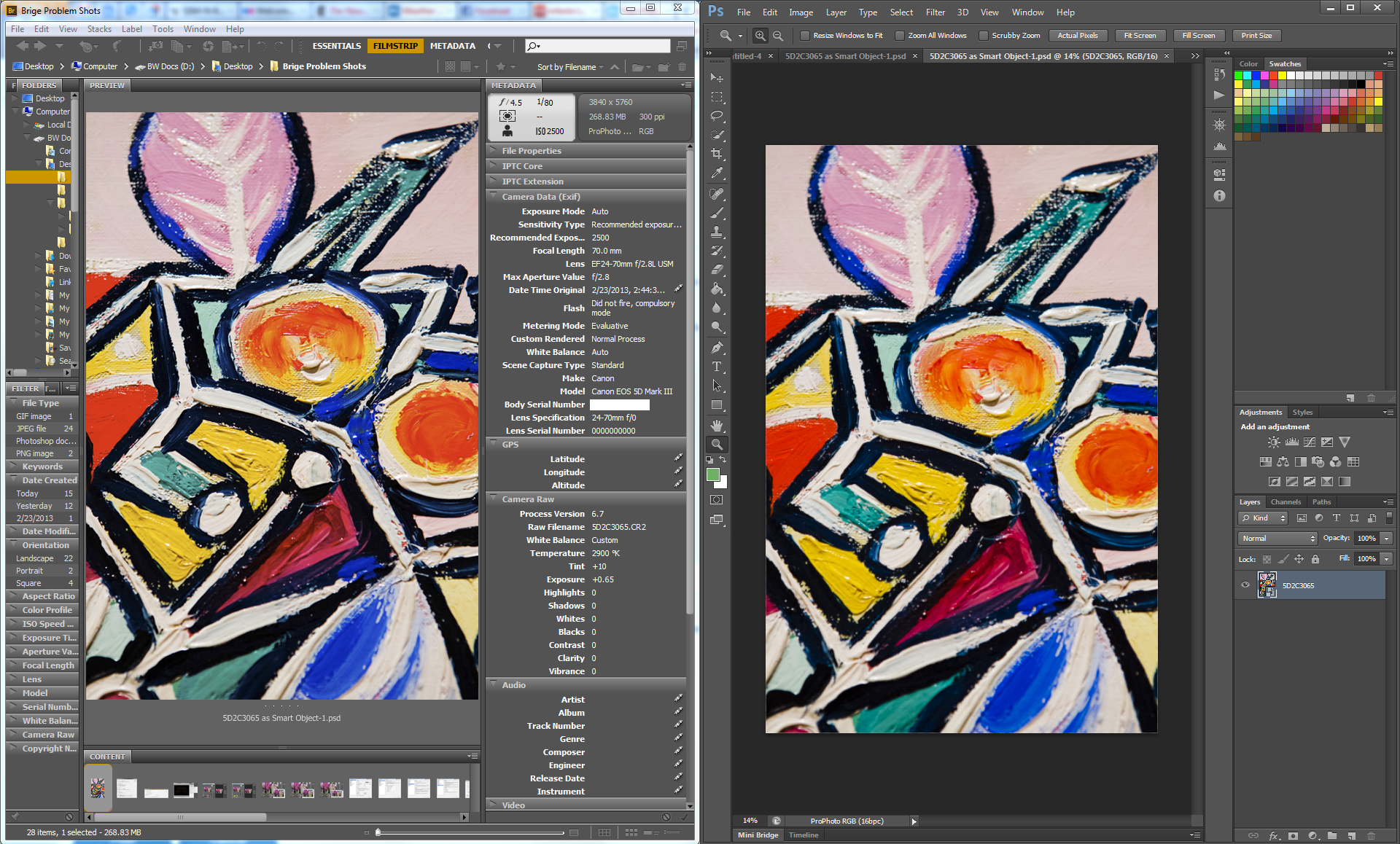
Secondary, laptop monitor (sample includes embedded profile) - Viewing PSD w/ embedded ProPhoto RGB:

Primary, wide-gamut monitor (sample includes embedded profile) - Viewing WhackedRGB Sample w/ embedded profile:

Secondary, laptop monitor (sample includes embedded profile) - Viewing WhackedRGB Sample w/ embedded profile:

Primary, wide-gamut monitor (sample includes embedded profile) - Viewing Sample Lowrez ProPhotoRGB w/ embedded profile:
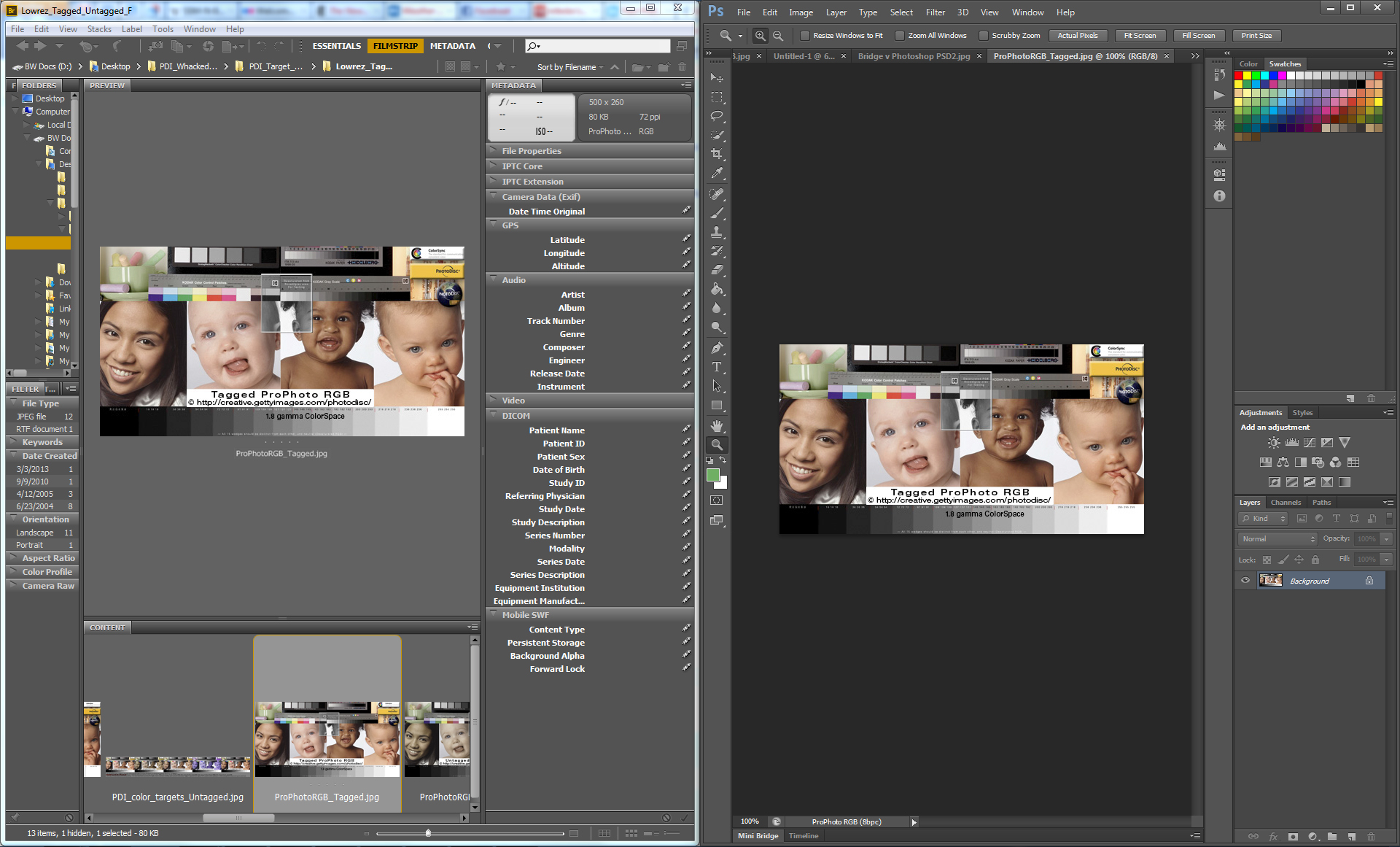
Secondary, laptop monitor (sample includes embedded profile) - Viewing Sample Lowrez ProPhotoRGB w/ embedded profile:
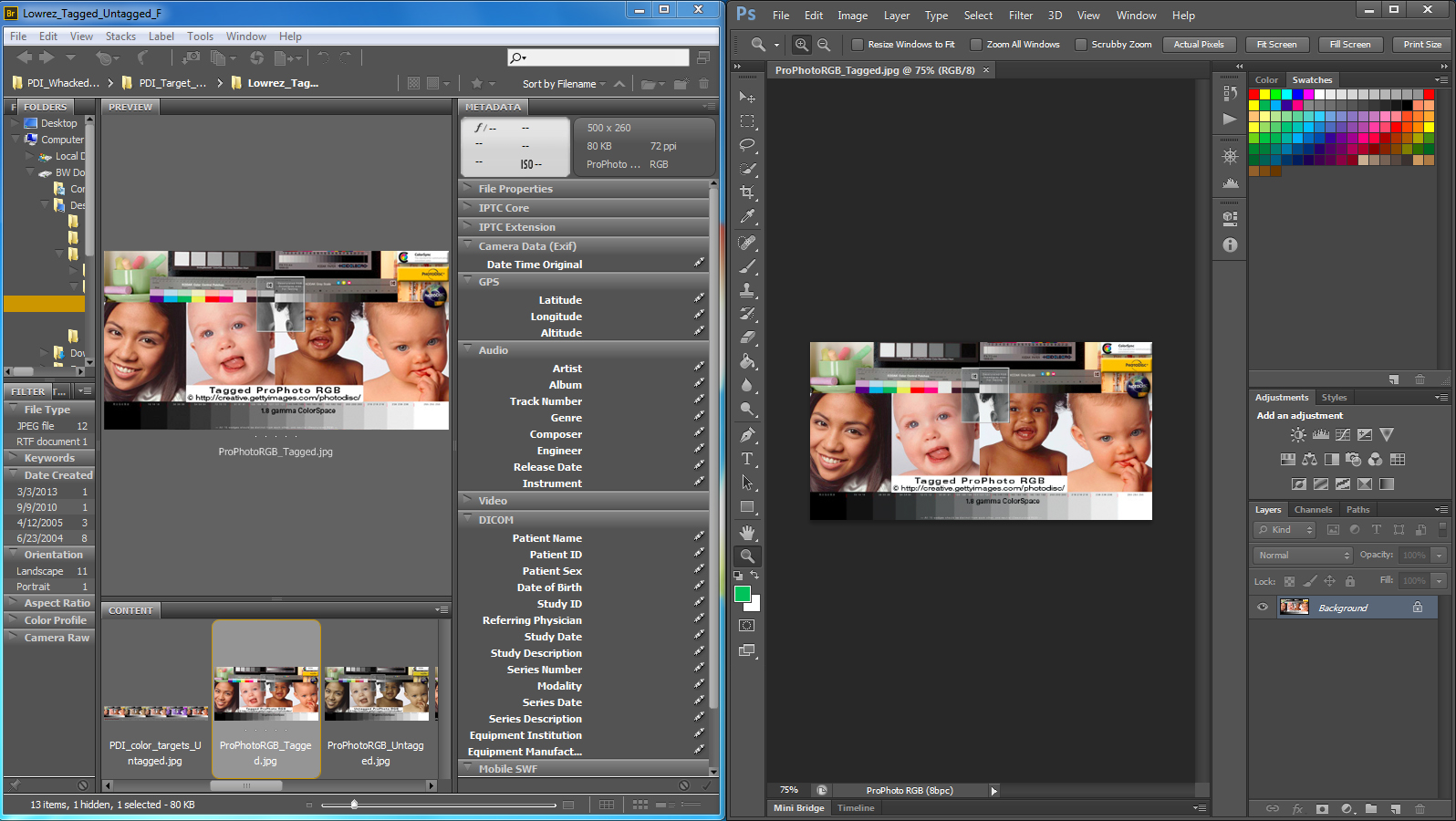
So the WhackedRGB sample looks ok and the ProPhotoRGB samples look ok here, but it doesn't look like the WhackedRGB or ProPhoto samples have anything outside the sRGB range.
Note what happens when I edit the WhackedRGB and ProPhoto samples simply by adding colors on the extremes of the gamut...
Primary, wide-gamut monitor (sample includes embedded profile) - Viewing WhackedRGB Sample w/ embedded profile EDITED with gamut extremes:

Primary, wide-gamut monitor (sample includes embedded profile) - Viewing Sample Lowrez ProPhotoRGB w/ embedded profile EDITED with gamut extremes:

The issue is back - the colors are very different! At this point, it's probably a bug, right...?
Thanks again!
Copy link to clipboard
Copied
P.S. - As a control, here's an edited version of their tagged sRGB. As expected, even with colors at the extremes, I can't see a difference. So is it possible Bridge is only generating sRGB previews/thumbnails?
Primary, wide-gamut monitor (sample includes embedded profile) - Viewing Sample Lowrez sRGB w/ embedded profile EDITED with gamut extremes:

Here are the edited samples for reference:


Copy link to clipboard
Copied
it doesn't look like the WhackedRGB or ProPhoto samples have anything outside the sRGB range.
not sure i follow, try opening the tagged Whacked & ProPhoto targets, then Edit> Assign Profile: sRGB
The issue is back - the colors are very different!
not sure i follow, i sampled your color spots (in your last screenshot post #12) and yes they have changes i would NOT expect, yet the PDI image remains close if not equal
let me do a simple test here...
Copy link to clipboard
Copied
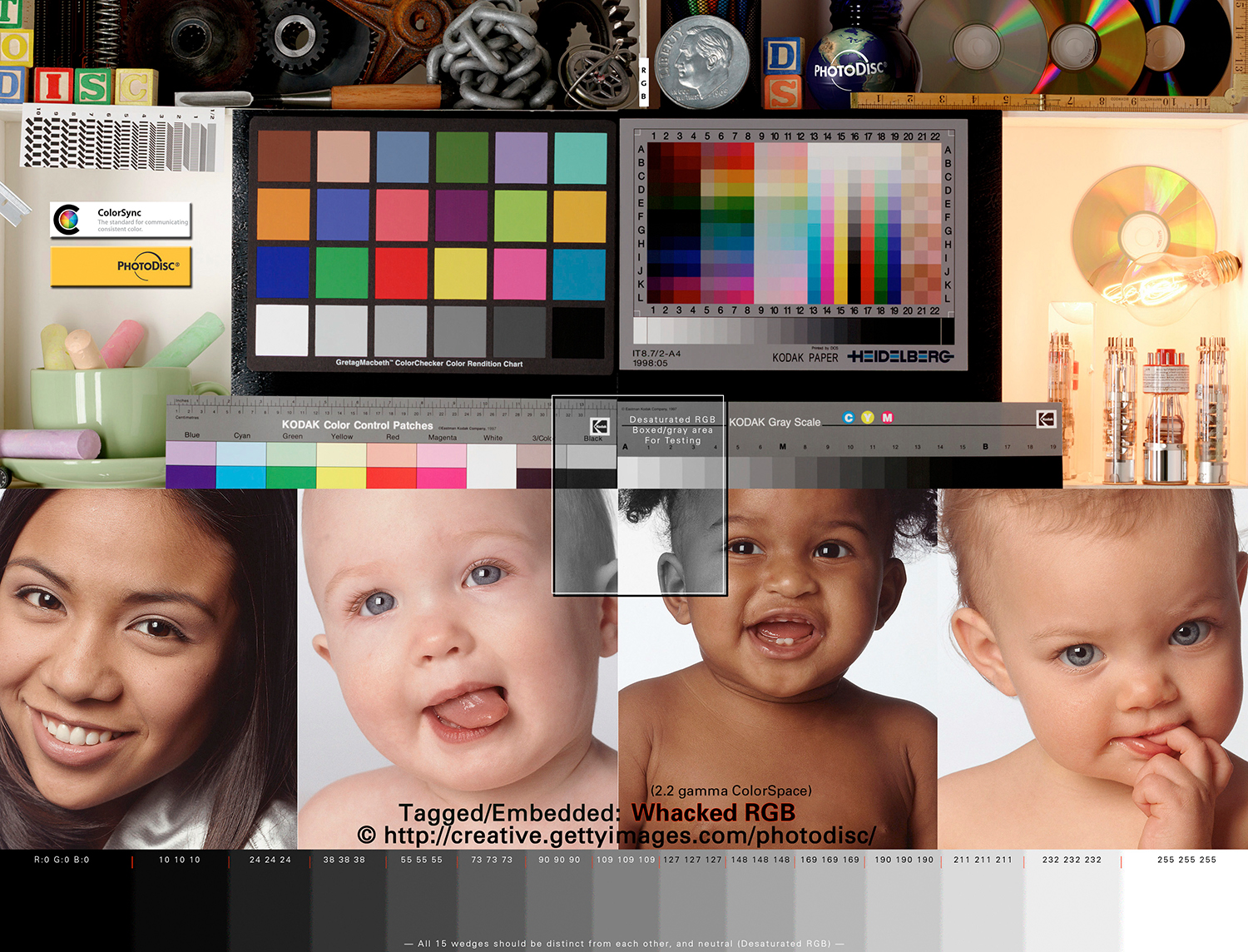
Assigning the WhackedRGB sample to sRGB makes it blue, as expected. However converting the WhackedRGB sample to sRGB does not result in any color changes (to my eyes), which would seem to mean that every color used in the sample is already within the sRGB gamut.
See the below:
WhackedRGB converted to sRGB
Copy link to clipboard
Copied
i filled the box in Photoshop as noted (Br right, Ps left) using sRGB as my Source profile
i saved the .tif and opened in Br and Ps, then took this screenshot

i opened my screenshot and Converted MonitorRGB to sRGB, Saved and uploaded it with sRGB profile embedded
while i had a hair of wobble in both Hex values -- my Bridge is a virtual "match" to Photoshop display
you are getting into color science, maybe one of the geniuses can take to to the next step and teach us both something...
Copy link to clipboard
Copied
converting the WhackedRGB sample to sRGB does not result in any color changes (to my eyes), which would seem to mean that every color used in the sample is already within the sRGB gamut.
that's a real tough statement for me to understand -- all of the PDI targets on my site were Converted to the packaged spaces from the original Photodisc freeware target (AdobeRGB)
obviously, visually, moving extreme colors from theoretical ultra-wide-gamut spaces like ProPhotoRGB to much smaller color gamuts like Monitor RGB and sRGB and Print spaces is a challenge for the math and technology to maintain visual appearance between devices
one can always argue that a monitor (or any device) is not even capable of "proofing" the full theoretical color gamut of ProPhotoRGB, but it a useful tool no less...
Copy link to clipboard
Copied
With your example I wouldn't expect a color shift. It's only when using a wider gamut than sRGB where trouble crops up. I guess my real questions is:
Does Bridge on your system show previews with colors outside the sRGB gamut for images in wider gamuts (specifically ProPhotoRGB and WhackedRGB)? i.e. Do all of the following look the same to you in Bridge? What does it look like when you place the following images side-by-side in Bridge and PS?
ProPhotoRGB:

WhackedRGB:
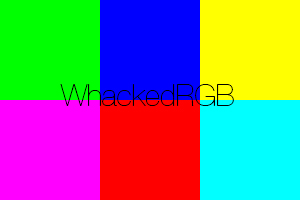
sRGB:

If the answer is that they look different to you in Bridge, then there's a bug or hardware limitation on my end. If they look the same to you in Bridge, then Bridge simply does not generate anything but sRGB previews, which would be very unfortunate. I suspect the former.
For me, all three images look the same in Bridge, but different in Photoshop.
Also, I think you meant to say Bridge is on left, Ps is on right, correct?
Thanks for jumping through these hoops with me!!! I know we're on the outer limits of color-management, but I'm pretty sure we're on the same page, and I'm just experiencing a difficult to articulate bug.
Copy link to clipboard
Copied
Does Bridge on your system show previews with colors outside the sRGB gamut for images in wider gamuts (specifically ProPhotoRGB
Bridge most certainly displays its previews like Photoshop (tagged Source colors are faithfully converted to MonitorRGB, Source>MonitorRGB) how else could both apps display tagged ppRGB and wRGB the same
from your screenshots, it appears your Br and Ps are displaying the tagged PDI consistantly as expected
at that point you should be able to run your own color patch tests and draw your own conclusions
a color scientist may be able to clear this up better than me...
IT IS THE THEORY THAT DECIDES WHAT WE CAN OBSERVE.
-Albert Einstein
Copy link to clipboard
Copied
Look at the Chromaticity diagrams of ppRGB and sRGB

In another ProPhoto RGB Source> MonitorRGB example:
Think of ProPhoto RGB (Source) as a semi-trailer truck full of RGB numbers that has to be fit inside a pickup truck bed (Monitor RGB) — a lot of RGB information needs to be compressed, remapped and/or deleted in real time to perform this routine, on-the-fly, behind-the-scenes Photoshop color management magic trick (Source> Monitor).
User options to influence or control HOW the remapping of color information is calculated during a Profile conversion include two basic Rendering Intents: Perceptual & Relative Colorimetric. Perceptual is said to "compress" the color information into the smaller Space; Relative Colorimetric is said to "clip" the out-of-gamut information (and discard it).
Photoshop Soft Proofing images (documents) on the monitor in various device-specific ICC Profiles can effectively demonstrate the visual effects of this remapping of color gamuts, including the dreaded out-of-gamut-color phenomenon.
Copy link to clipboard
Copied
Gator soup, I understand the basics of color management. My issue is much simpler - does Bridge generate only sRGB previews of images (even when they have an embedded wider gamut), as has been suggested by others on this forum, or am I experiencing a bug?
In short, do all three color swatches I generated look the same to you in Bridge on a wide-gamut monitor or not?
from your screenshots, it appears your Br and Ps are displaying the tagged PDI consistantly as expectedI disagree here - if you look at the 7th or 8th images at post 12, you should see a major difference between the red and the green. Yes, the PDI portion of the shot is the same, but there should be no discrepency between Photoshop and Bridge, in any portion of the colors. Both images are from the same files with the same embedded profiles. That summarizes the problem.
I frequently take pictures with colors outside the range expressed in the PDI chart (i.e. outside the sRGB gamut), so there are practical problems if the answer is that Bridge does not display these colors.
Thanks
Copy link to clipboard
Copied
does Bridge generate only sRGB previews of images (even when they have a wider gamut), as has been suggested by others on this forum, or am I experiencing a bug?
i will guess it is safe to say any color-managed digital display is only "softproofing" a source document in monitor RGB
and since displays are limited to sRGB or aRGB, it will have anomalies such as what you are seeing when monitor proofing extreme 'native' ProPhoto RGB colors of the types you are talking about because they have to be substantially clipped or compressed into the much smaller gamut proofing space
there are those who frequent here with more knowledge than me, pls stay tuned...
Copy link to clipboard
Copied
in other words, to not exploit the color problems you are setting up using ppRGB source space, you would need a ProPhotoRGB proofing device (monitor)
Copy link to clipboard
Copied
Gator soup - I have to disagree with you there. The exact same problem exists in the commonly used RGB color space. Since my monitor displays 100% of RGB, I frequently see it in in fabrics, flowers, lights, the sun and any other source of extreme color. Essentially, you are saying there is no practical difference between sRGB and RGB since the exact same problem exists there.
Here's a real-life example in the RGB color space:

As you can see, theres a difference between the sRGB preview (of the RGB tagged image) from Bridge (on the left) and the same RGB image in Photoshop (on the right). It's not enormous, but for something like clothing color, where accuracy can be crucial, it can be problematic.

Find more inspiration, events, and resources on the new Adobe Community
Explore Now
 AdChoices