Exit
  • Global community
    • Language:
      • Deutsch
      • English
      • Español
      • Français
      • Português
  • 日本語コミュニティ
  • 한국 커뮤니티
0

Illustrator showing white parts in transparent png

Community Beginner ,
Oct 25, 2017 Oct 25, 2017

Hi, I used white boxes to mask certain parts of the logo I'm working on but when I export as a png, those white boxes show up. How do I cut them out of the image completely? For instance, I know in Photoshop you can use the magic wand tool to select a certain color and delete that color. I basically need a solution for that. I already know you can export as a PNG and select "Transparent" for the background but even when I do that, the white boxes still show.

Thanks!!

6.3K
Translate
Report
Community guidelines
Be kind and respectful, give credit to the original source of content, and search for duplicates before posting. Learn more
community guidelines
Adobe
Community Expert ,
Oct 26, 2017 Oct 26, 2017

Turn on the Transparency Grid to see what you are creating: View > Show Transparency Grid.

Use Illustrators editing tools to remove unwanted parts of your artwork.

Translate
Report
Community guidelines
Be kind and respectful, give credit to the original source of content, and search for duplicates before posting. Learn more
community guidelines
Guide ,
Oct 26, 2017 Oct 26, 2017
LATEST

Maybe change those white boxes, where you want the transparency, to just a black fill, (if more than one you will need to group them together).

Make sure they are above the logo,

Select both the shapes and the logo,

go:

Window > Transparency

And in the panel use these settings
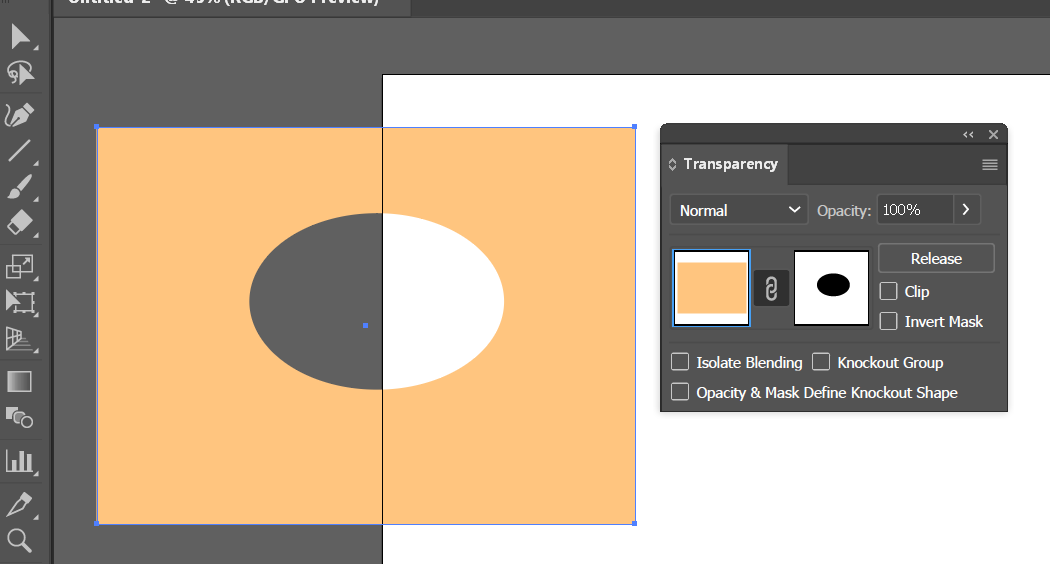
I've just temporally moved  the object off the artboard to make sure the 'hole' is really there.

Or as Tom suggests: View > Show Transparency Grid.

Then export as you did before

Translate
Report
Community guidelines
Be kind and respectful, give credit to the original source of content, and search for duplicates before posting. Learn more
community guidelines

