Exit
  • Global community
    • Language:
      • Deutsch
      • English
      • Español
      • Français
      • Português
  • 日本語コミュニティ
  • 한국 커뮤니티
0

round number at x and y cordinate,

Engaged ,
Aug 23, 2022 Aug 23, 2022

Dear all, please help me on this

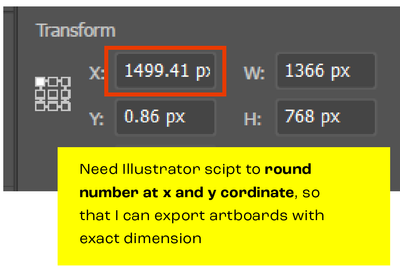
Need Illustrator scipt to round number at x and y cordinate, so that I can export artboards with exact dimension
 

jkhakase_0-1661250072646.png


TOPICS
Scripting
2.0K
Translate
Report
Community guidelines
Be kind and respectful, give credit to the original source of content, and search for duplicates before posting. Learn more
community guidelines

correct answers 1 Correct answer

Guide , Aug 23, 2022 Aug 23, 2022

Thanks @Ton Frederiks.  In which case, this should round the left and top positions of artboards. 


var ABs = app.activeDocument.artboards;
for (var i = 0; i < ABs.length; i++) {
    var ABR = ABs[i].artboardRect;
    var dx = Math.round(ABR[0]) - ABR[0];
    var dy = Math.round(ABR[1]) - ABR[1];
    ABs[i].artboardRect = [
        Math.round(ABR[0]), Math.round(ABR[1]), 
        ABR[2] + dx, ABR[3] + dy
    ];
}


Translate
Adobe
Community Expert ,
Aug 23, 2022 Aug 23, 2022

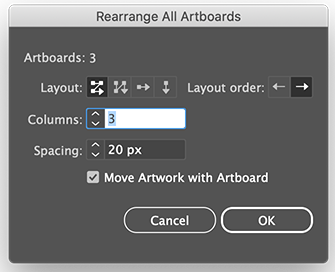
Rearrange All Artboards will align them to round pixel coordinates. You could make an action and record: Object > Artboards > Rearrange All Artboards.

Translate
Report
Community guidelines
Be kind and respectful, give credit to the original source of content, and search for duplicates before posting. Learn more
community guidelines
Engaged ,
Aug 23, 2022 Aug 23, 2022

Rearranging all artboards disrub my visual placement of other artobards as well, looking something will work on selected artboards by the script

Translate
Report
Community guidelines
Be kind and respectful, give credit to the original source of content, and search for duplicates before posting. Learn more
community guidelines
Engaged ,
Aug 23, 2022 Aug 23, 2022

The X and Y cordinates don't actually affect the size of your output. However, you can use the Align tool to align your artboard(s) to another artboard (Select both artboards and the align options appear)

Translate
Report
Community guidelines
Be kind and respectful, give credit to the original source of content, and search for duplicates before posting. Learn more
community guidelines
Community Expert ,
Aug 23, 2022 Aug 23, 2022
quote

The X and Y cordinates don't actually affect the size of your output. However, you can use the Align tool to align your artboard(s) to another artboard (Select both artboards and the align options appear)


By @chrisg11235813


They do, if they contain fractions, rounding will occur and additional pixels will be generated.

Translate
Report
Community guidelines
Be kind and respectful, give credit to the original source of content, and search for duplicates before posting. Learn more
community guidelines
Engaged ,
Aug 23, 2022 Aug 23, 2022

I always figured that when you move the X or Y positions, the Width and Height shift with the dimentions remaining static (?)

Translate
Report
Community guidelines
Be kind and respectful, give credit to the original source of content, and search for duplicates before posting. Learn more
community guidelines
Guide ,
Aug 23, 2022 Aug 23, 2022

You seem to be using pixels. Illustrator scripting uses points. Converting points to pixels involves multiplying by a repeating decimal and you'll always end up with a decimal. So what you want is not possible.

Translate
Report
Community guidelines
Be kind and respectful, give credit to the original source of content, and search for duplicates before posting. Learn more
community guidelines
Community Expert ,
Aug 23, 2022 Aug 23, 2022

1 point in Illustrator equals 1 pixel.

The default is 72 ppi which is the same as 72 points in an inch.

No complex conversions are necessary.

Translate
Report
Community guidelines
Be kind and respectful, give credit to the original source of content, and search for duplicates before posting. Learn more
community guidelines
Guide ,
Aug 23, 2022 Aug 23, 2022

Thanks @Ton Frederiks.  In which case, this should round the left and top positions of artboards. 


var ABs = app.activeDocument.artboards;
for (var i = 0; i < ABs.length; i++) {
    var ABR = ABs[i].artboardRect;
    var dx = Math.round(ABR[0]) - ABR[0];
    var dy = Math.round(ABR[1]) - ABR[1];
    ABs[i].artboardRect = [
        Math.round(ABR[0]), Math.round(ABR[1]), 
        ABR[2] + dx, ABR[3] + dy
    ];
}


Translate
Report
Community guidelines
Be kind and respectful, give credit to the original source of content, and search for duplicates before posting. Learn more
community guidelines
Community Expert ,
Aug 23, 2022 Aug 23, 2022

Perfect @femkeblanco works like a charm!

Translate
Report
Community guidelines
Be kind and respectful, give credit to the original source of content, and search for duplicates before posting. Learn more
community guidelines
Community Expert ,
Aug 23, 2022 Aug 23, 2022

And it is a much better solution than Rearranging Artboards, which does not work when there is only a single artboard and it shuffles the artboards around which is (as j.khakase mentioned) not always what you want.

Translate
Report
Community guidelines
Be kind and respectful, give credit to the original source of content, and search for duplicates before posting. Learn more
community guidelines
Community Expert ,
Aug 23, 2022 Aug 23, 2022

@femkeblanco  I was too quick calling it perfect 😞

It is almost perfect...

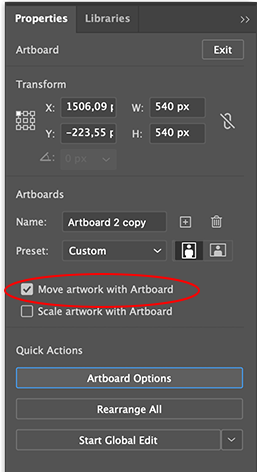
It does round the coordinates, but leaves the artwork in the original place, which can give faint anti-aliased pixels at the edges.

Rearrange Artboards has the option to Move artwork with Artboard. If that could be part of the script, it would be perfect.
Screenshot 2022-08-23 at 22.40.43.png Screenshot 2022-08-23 at 22.57.25.png

Translate
Report
Community guidelines
Be kind and respectful, give credit to the original source of content, and search for duplicates before posting. Learn more
community guidelines
Guide ,
Aug 23, 2022 Aug 23, 2022

@Ton Frederiks  Unfortunately, there is no quick fix for this.  Artwork will have to be moved item by item. 

Translate
Report
Community guidelines
Be kind and respectful, give credit to the original source of content, and search for duplicates before posting. Learn more
community guidelines
Engaged ,
Aug 23, 2022 Aug 23, 2022

Would resetting the rulers have the same effect as setting the top left corner to a round number?

Translate
Report
Community guidelines
Be kind and respectful, give credit to the original source of content, and search for duplicates before posting. Learn more
community guidelines
Community Expert ,
Aug 23, 2022 Aug 23, 2022

@chrisg11235813  Yes, but only for that particular artboard, other artboards can be still off. Rearrange Artboards fixes it for all artboards.

Translate
Report
Community guidelines
Be kind and respectful, give credit to the original source of content, and search for duplicates before posting. Learn more
community guidelines
Community Expert ,
Aug 23, 2022 Aug 23, 2022

@femkeblanco  That's unfortunate, you were so close to the perfect solution.

Translate
Report
Community guidelines
Be kind and respectful, give credit to the original source of content, and search for duplicates before posting. Learn more
community guidelines
Engaged ,
Aug 24, 2022 Aug 24, 2022

Thank you so much @femkeblanco and all for your valuable comments.

The above pice of code works fine for me. and I get the exact what I want.

Translate
Report
Community guidelines
Be kind and respectful, give credit to the original source of content, and search for duplicates before posting. Learn more
community guidelines
Community Expert ,
Aug 24, 2022 Aug 24, 2022

Be careful, it is perfect for empty artboards, but check the edges if there is artwork on the artboards.

Translate
Report
Community guidelines
Be kind and respectful, give credit to the original source of content, and search for duplicates before posting. Learn more
community guidelines
Engaged ,
Aug 24, 2022 Aug 24, 2022
LATEST

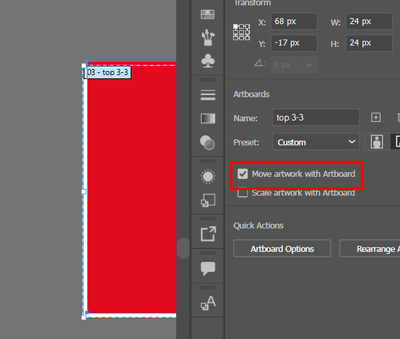
I just observe one more thing, the artwork doesn't move even respective check mark selected before run the script. and get 1 and half pixcel gap at edges as shown below image
jkhakase_0-1661406276642.png


Translate
Report
Community guidelines
Be kind and respectful, give credit to the original source of content, and search for duplicates before posting. Learn more
community guidelines
Mentor ,
Aug 23, 2022 Aug 23, 2022

i think you're thinking about mm here. there's no clean conversion from pt to mm.

Translate
Report
Community guidelines
Be kind and respectful, give credit to the original source of content, and search for duplicates before posting. Learn more
community guidelines
Engaged ,
Aug 23, 2022 Aug 23, 2022

It might be too late for this, but here is a video that might work. you can quickly "snap to" the pixel grid. moving artwork with your artboards. 

https://www.youtube.com/watch?v=K-KdA0E4Y64

Illustrator - Pixel Perfect Artboards - One Click Size & Position Solution See how quickly and easily you can align your artboards to the pixel grid and, at the same time, make sure your artboards are a whole number of pixels wide and tall. This can eliminate problems with added pixels in your ...
Translate
Report
Community guidelines
Be kind and respectful, give credit to the original source of content, and search for duplicates before posting. Learn more
community guidelines
Engaged ,
Aug 23, 2022 Aug 23, 2022

basically, select artboards. Object>Make Pixel Perfect

Translate
Report
Community guidelines
Be kind and respectful, give credit to the original source of content, and search for duplicates before posting. Learn more
community guidelines
Community Expert ,
Aug 23, 2022 Aug 23, 2022

The problem with this is that it not only moves but resizes your artboards. A 540 pixel artboard not aligned to the grid can become a 541 pixel artboard when made pixel perfect.

Translate
Report
Community guidelines
Be kind and respectful, give credit to the original source of content, and search for duplicates before posting. Learn more
community guidelines