 Adobe Community

- Home
- Illustrator
- Discussions
- Unite objects but keep different fills?
- Unite objects but keep different fills?

Copy link to clipboard
Copied
I have quite some experience with Illustrator, but today I ran into a problem I can't seem to solve. I'm not sure if my brain is really letting me down, or if this is something I just never had to do before.
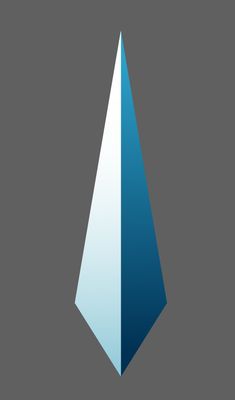
I made a compass rose pointer (for a GUI I'm working on) with 2 different fills, and I want to round the corners. However, in the lower and upper corner where the shapes come together, the corners of both shapes become round seperately. So I need to unite the shapes, but keep te different fills. How can this be done? 😐



 1 Correct answer


You cannot unite the shapes and keep different fills.
What you could do is start with a single shape, round the top and bottom corners.
Draw a vertical line from above the top to below the bottom in the center of the shape, select it and choose Object > Path > Divide Objects Below.
Color the 2 resulting shapes and group them.

Explore related tutorials & articles
 7
Replies
7
7
Replies
7

Copy link to clipboard
Copied
You cannot unite the shapes and keep different fills.
What you could do is start with a single shape, round the top and bottom corners.
Draw a vertical line from above the top to below the bottom in the center of the shape, select it and choose Object > Path > Divide Objects Below.
Color the 2 resulting shapes and group them.
Copy link to clipboard
Copied
Thanks Ton!! Of course, why haven't I thought of that myself! Good to know it can't be done the other way though, that's valuable knowledge as well. Thanks for your help, much appreciated! ^_^
Copy link to clipboard
Copied
Good to hear that helped, Mark.
But with Illustrator there are often ways to accomplish what you thought could not be done.
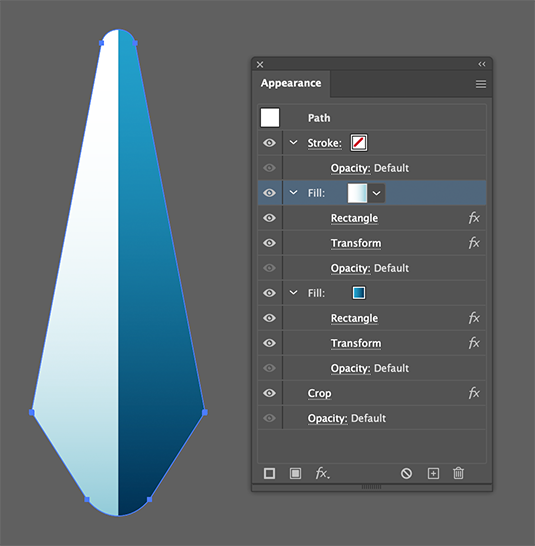
I found a way to fill one shape with 2 gradients. It looks more complicated than the solution I described above, but why make it easy if it can be done difficult?
Create a shape and round the top and bottom corner.
In the Appearance panel, add 2 fills with different gradients.
Convert the fills to a rectangle using the Convert to Shape > Rectangle Effect.
Move the fills to the left and right using the Transform Effect.
Add a Pathfinder > Crop Effect and move it below the other items in the Appearance panel.
Copy link to clipboard
Copied
I realize that the second method is not very useful, the resulting object cannot be rotated, scaled horizontally or vertically without re-transforming the gradients.
Copy link to clipboard
Copied
Whoa that's genius! I love making things complicated too haha! Simply for the purpose of finding new ways to do things and being awesome. 👌 Although this might not be the most useful method, I was not familiar with this option, and I really learned something new today! Thanks for taking the time to try things out, that is so kind! 😊

Copy link to clipboard
Copied
I'd just
select all
copy
paste in front
path finder > unite
select all
object > clipping mask > make
select the mask and then pull on the radius anchors as required.
Copy link to clipboard
Copied
Or create 2 rectangles with the gradients, Cut.
Select the object, click the Draw inside icon and Paste.


 AdChoices