

Kris Hunt
Legend
May 13, 2012
Question

Gradient tool doesn't work with gradients on strokes?!

  • May 13, 2012
  • 8 replies
  • 35225 views

Okay, so one of the new flagship features of Illustrator CS6 is gradients on strokes, but you can't use the Gradient Tool with them? I just get a crosshairs pointer with a "no" sign next to it. What's up with that?? I can see why this wouldn't work with shapeburst mode, but linear and even angular gradients (to set the center point) should be no problem.
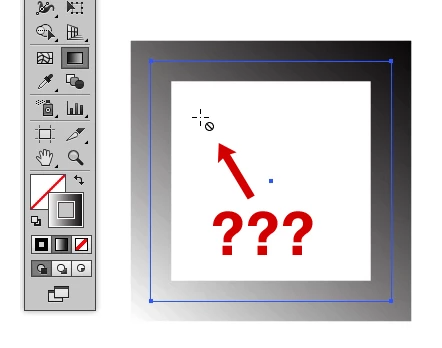
In addition to this, here is another bug I discovered:

In earlier versions of Illustrator, you were allowed to use the Gradient Tool to adjust the direction of a shape's gradient even when the shape's stroke was in the foreground. Now that Illustrator can apply gradients to strokes, it is understandable that, if a shape has a transparent stroke, Illustrator will prevent you from using the Gradient Tool on the shape if the stroke is in the foreground.

But the opposite should also be true: if you have a shape with a gradient stroke and a transparent fill, Illustrator should prevent you from using the Gradient Tool if the fill is in the foreground. But it doesn't. Illustrator will happily respond to the new gradient direction, but the gradient of the stroke will not change, and the fill stays transparent.

    8 replies

    Participant
    January 29, 2025

    13 years later and this still is the same and so frustrating to see that "no" sign next to the pointer.

    GraysonG263
    Participant
    February 4, 2026

    It’s honestly insane

    Community Expert
    February 4, 2026

    The challenge with adding a gradient annotator for stroke-based gradients is two entirely new kinds of annotators would be needed. The standard gradient annotator for object fills would only work for the "within stroke" setting.


    A new gradient annotator for the "along stroke" setting would have to follow the length of the path as well as any bends or corners in the path. It would be nice to have something like that since the standard gradient panel is not very big, which makes gradients a little challenging to adjust (the panel can be stretched though).


    A gradient annotator for the "across stroke" setting would open a can of worms. Most line strokes are not very thick. At a normal zoom level the color stops on the annotator would be a cluster of blocks sitting on top of each other. The user would have to zoom in very tight to have an annotator big enough to make adjustments.


    I have my own complaints about the standard gradient annotator for object fills. I don't like the current implementation where the position of the gradient is adjusted at one end and the length and rotation angle of the gradient is adjusted at the other end.


    It would just be easier if users could manually move either end of the gradient annotator to the position they wanted. Better yet, if either end of the annotator could be manually moved the ends could be snapped to other objects or guidelines. That would allow multiple objects to be stacked and have their gradient fills aligned for more complex, cool looking effects. That sort of thing is not easy/fast to do with the current gradient annotator.


    It's likely quite a few Illustrator users like the current gradient annotator. I'd like an option in Preferences for the other approach.

    rcraighead
    Legend
    August 16, 2017

    Adding to this old thread.

    I don't use "gradient on stroke" much so I am surprised I still cannot use the Gradient Annotator to control a "stroke fill" gradient in CC 2015 or 2017. Why not?

    Jeff Witchel, ACI
    Community Expert
    Community Expert
    August 16, 2017

    You're right, with Gradients on Strokes, you still can't use the Gradient tool. You may want to try a feature request: Feature Request/Bug Report Form

    You can change the Angle of the default Gradient Stroke in the Gradient panel, but that's about it.

    With Gradient Along Path and Gradient Across Path, I guess it makes some sense that the Gradient tool does not work.

    If I want to use the Gradient tool on a "Stroke," I use the old workaround instead, two Fills with the bottom Fill Offset and a Gradient added. Still works great!

    Participating Frequently
    September 23, 2014

    Thank you so very much! Gradient has to be in the foreground. Wow, this was driving me nuts.

    Again, Thanks!

    Inspiring
    September 18, 2012

    Here are some thoghts you might consider before wishing you had such a tool.

    Considering the weight of a straoke can be quite thin and quite heay and everything in between

    1 Does the a too orient it self according the the weight of the stroke or to the shae of the path?

    2. how would it work on a thin stroke if the tool only spanned the with of the stroke. Is zooming in a feasible way to work

    3. How would the tool work if you were running the gradient along the strokes path, does it folow and conform to the shape of the path?

    4 If The Gradient ran across the stoke's width then you would have to zoom in a lot if it were a very thing stroke or even a medium weight stroke?

    5 Does it help you to have the tool when applying the standard gradient to the Stroke would it work like the fill gradient tool?

    6 What haapens whebn you have fill and stroke gradient do both tools show up? Would that be too much clutter?

    OK I  can think of more but You get the point.

    Although I think it is a very difficult thing to figure out how to impliment such a feature I also think I have a way the interface could actually work.

    Inspiring
    January 16, 2013

    with gradients along a stroke,

    is there a way to get it to "start at a different anchor besides a corner anchor (if I have it on a square).

    I can only use the reverse tool to reverse the gradient itself, but i want the gradient to start in the middle of a side of the square...and work its way around to the end of the gradient on my gradient line.

    _scott__
    Legend
    January 16, 2013

    Change the gradient. Add the end color to as an aditional stop at the beginning. Using this method you can completely control where the gradient changes.

    Participant
    September 18, 2012

    After scouring the internet this is what I've managed to find:

    "Perhaps Photoshop will make it work. Copy the object in Illustrator and paste it into a blank document in Photoshop. Photoshop should prompt you with options on how to paste. Select "Paste As: Path". The path should already be selected as a default function of the paste. Click File > Export > Paths to Illustrator... It will now prompt you to save the path as an AI file. Save it in the desired location. Open the new file of your path in Illustrator. Make sure this documents window is made smaller so as to stay on screen while also revealing the original .AI document behind it. You can make the window smaller by dragging the tab for the file into the work area. Now select the path in your new document and drag it onto the window of your original document. The document should now contain your new path, free of effects, fills, and strokes."

    Haven't tried this yet, but it sounds promising.

    Kris Hunt
    Kris HuntAuthor
    Legend
    September 18, 2012

    I don't know what that has to do with the topic at hand. Also, that convoluted list of steps you pasted can be duplicated by simply selecting "Clear Appearance" from the Appearance palette.

    Participant
    September 18, 2012

    When you Clear Appearance it still seems to feel the permanent effect of the stroke and doesn't allow you to reintroduce a gradient. This other way appears to get around that. You get the path back and can reapply gradients. My problem, which I guess was somewhat different than yours, was that I had a shape with a gradient fill and an inside or outside stroke. Due to having applied the stroke at all it seemed to disable my ability to adjust the applied gradient, even after trying the "Clear Appearance" method. This other way seemed to get around that issue.

    Is there an easier way to duplicate a path without duplicating the existing effects?

    August 30, 2012

    Like John, gradients on strokes was one of the main new features I was looking forward to with this upgrade. I really like being able to apply the gradient within the stroke along the stroke and across the stroke. However, It's very frustrating to recieve this feature half baked. As John mentions, gradients on strokes don't work with inset and offset strokes. That's easy enough to work arround, but the real killer to this feature is not being able to adjust with the gradient angle tool. You can adjust the gradient's angle by typing in the dialog box, but this is frustratingly unintuative.

    For now I've found my old work around of just creating offset fills in the appearance panel to be a better solution. What a shame that an old clunky and needlessly convoluded solution is easier to work with than a newly implemented feature.

    Participant
    May 16, 2012

    I'm also noting some conflicts between the stroke alignment (inside, outside or centered on the perimeter of the shape), and the type of stroke gradient you are applying. 

    I thought I could use stroke gradients for an inner shadow/glow effect - bright or dark on the outside of the stroke, transitioning to transparent on the inside of the stroke.  In theory, this should give a fade to light or dark along the perimeter of any shape.  For some reason, however, the menu is blocking me from having the stroke on the inside of the shape, while at the same time applying the 'gradient across stroke' function. 

    Believe it or not, this was one of the main reasons I just upgraded to CS6.  Thought I could finally stop using workarounds for this.  What a letdown.

    _scott__
    Legend
    May 13, 2012

    I beleive there were hurdles when trying to implement the annotator with strokes. So they provided the 3 gradient types.

    At least at this time, the Gradient Tool should exclusively effect fills in all instances regardless of what is in the foreground. But... perhaps there are plans in the works and the current behavior is something to get used to? Not really sure to be honest.

    Scott Falkner
    Community Expert
    Community Expert
    May 13, 2012

    THis makes sense. Adobe tends to introduce half a feature, then abandon it and never develop it further.

    Inspiring
    May 13, 2012

    Or charge for the fix in CS7!  (careful - we're going to attract Hans/skullmaker with this kind of talk)