 Adobe Community

- Home
- Lightroom ecosystem (Cloud-based)
- Discussions
- no GPS or geotag info in LR mobile .dng files expo...
- no GPS or geotag info in LR mobile .dng files expo...

Copy link to clipboard
Copied
Hello,
I use the LR mobile app to taking pics in .dng file format.
I then export the originals to my Cameral Roll on my iPhone.
I have several apps that can read GPS info from photos taken with the standard iPhone camera app (.jpg) and also from raw files taken with the Camera + (third-party) app.
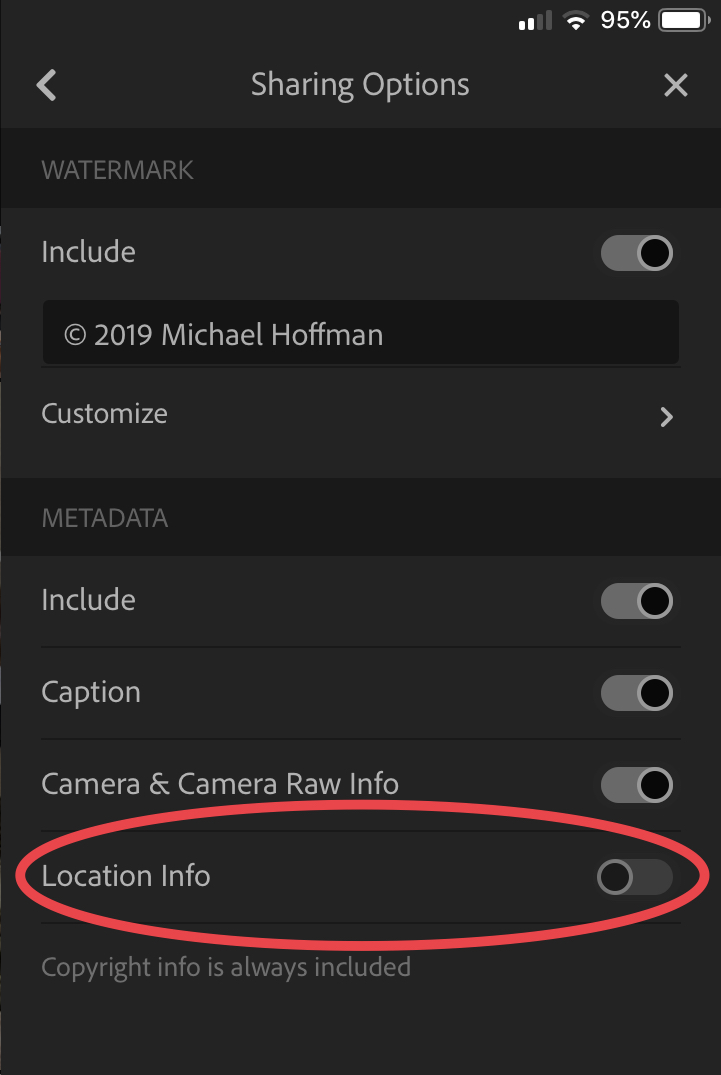
Why is this not working for LR mobile? Yes, I have location info turned ON under Metadata in the LR mobile app.


 1 Correct answer
Thanks, Mike.
Yes, I did have that "Location Info" turn on (see the end of my original post).
It's kind of weird...This was on a new iPhone I just set up (it as working correctly on my older iPhone)...I checked it again this morning after not making any changes (Location Info was still on) and now it's working!
Not quite sure what changed overnight, but there you go!
Thanks for taking the time to reply. 🙂

 5
Replies
5
5
Replies
5


Copy link to clipboard
Copied
Hi Dadu,
From the grid or album view, go into Settings > Sharing Options and “Enable” the setting to include Location Data. This is off by default. (See below).
This is controls only the export. Photos taken in Lightroom will always have location data (provided you’ve allowed this on your device) and imported photos that already contain location data will have that preserved.
Mike
Correct answer by
dadu007
AUTHOR
Copy link to clipboard
Copied
Thanks, Mike.
Yes, I did have that "Location Info" turn on (see the end of my original post).
It's kind of weird...This was on a new iPhone I just set up (it as working correctly on my older iPhone)...I checked it again this morning after not making any changes (Location Info was still on) and now it's working!
Not quite sure what changed overnight, but there you go!
Thanks for taking the time to reply. 🙂

Copy link to clipboard
Copied
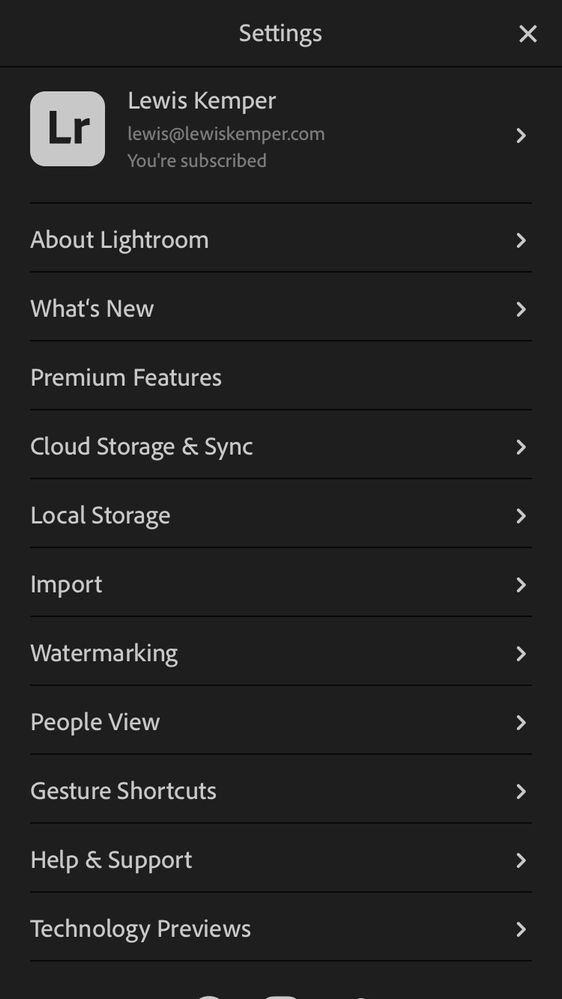
hi Michael, I am having a similar problem. The GPS data for images taken with Lightroom camera as dng shows up. But images taken with my iPhone camera, that end up in "All Photos" and get synced to my Lightroom Classic, do not have GPS info. I tried following your advice above but when I am in gallery view and go to settings I see this and there is no "Sharing Options"

Copy link to clipboard
Copied
In the ios version, choose the export symbol, then choose export as, then choose JPG and then More Options. There you can choose to export with location data included. These options do not appear for DNG though. Hope this helps.

Copy link to clipboard
Copied
Thanks for letting us know. It would be great to set exporting with location as standard even for the direct export to camera roll option.


 AdChoices