Exit
  • Global community
    • Language:
      • Deutsch
      • English
      • Español
      • Français
      • Português
  • 日本語コミュニティ
  • 한국 커뮤니티
0

How to mimic the effect of "progressive lens" distortion?

Community Beginner ,
May 09, 2023 May 09, 2023

I have a project requiring a lens from a pair of progressive glasses to sit over background text, and distort that text appropriately.

It's a fairly complex kind of distortion, and I can't figure out how to accomplish it in Photoshop.

Looking for methodology or technique suggestions.

2.9K
Translate
Report
Community guidelines
Be kind and respectful, give credit to the original source of content, and search for duplicates before posting. Learn more
community guidelines

correct answers 2 Correct answers

Community Expert , May 11, 2023 May 11, 2023

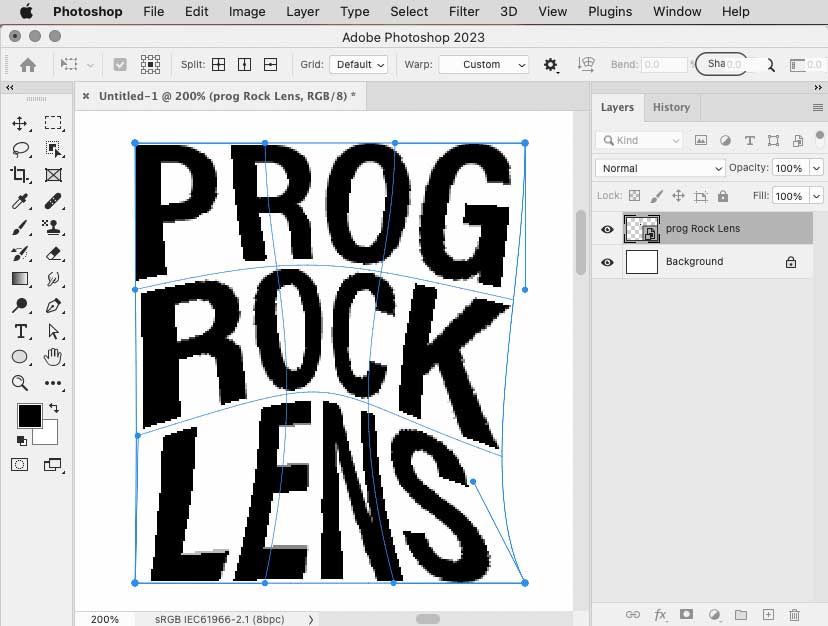
Is this the kind of distortion you need, a spatial distortion? If so, the way this was done was to select the type layer and choose Layer > Smart Objects > Convert to Smart Object, then choose Edit > Transform > Warp. Then in the options bar at the top, make sure Warp is set to Custom, and that will get you this custom warp grid that you can bend freely by dragging the warp grid intersections and handles.


This is only for the spatial distortion. To simulate uneven blur, follow the advice alrea

...

Translate
Community Expert , May 12, 2023 May 12, 2023

Screenshot 2023-05-12 at 17.35.31.pngScreenshot 2023-05-12 at 17.35.41.png

Translate
Adobe
Community Expert ,
May 09, 2023 May 09, 2023

Can you post example?

Translate
Report
Community guidelines
Be kind and respectful, give credit to the original source of content, and search for duplicates before posting. Learn more
community guidelines
Community Beginner ,
May 11, 2023 May 11, 2023

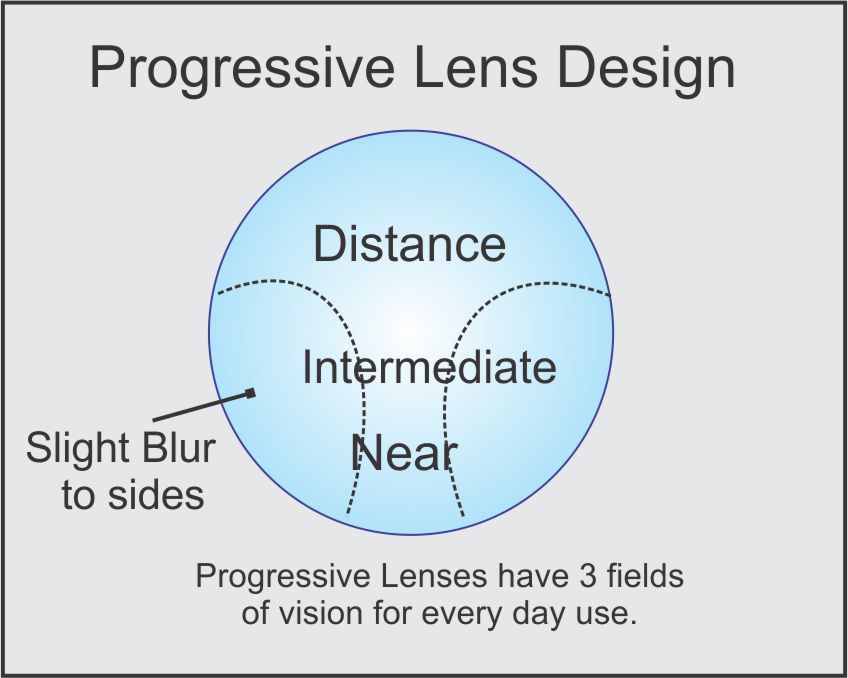
Here's the best example I could locate:

Translate
Report
Community guidelines
Be kind and respectful, give credit to the original source of content, and search for duplicates before posting. Learn more
community guidelines
Community Expert ,
May 10, 2023 May 10, 2023

The distortion one might be able to handle with the Filter Displace and an appropriate Displacement Map, the Blur with Field Blur. 


But as @Bojan Živković already indicated you have not made clear what the actual distortion would be yet. 

Translate
Report
Community guidelines
Be kind and respectful, give credit to the original source of content, and search for duplicates before posting. Learn more
community guidelines
Community Beginner ,
May 10, 2023 May 10, 2023

Thanks – those suggestions sound promising, though I'll have to research how to use them!


I'm not actually looking for the blur effect, it's the distortion I'm after.


I've attached the best example I could find, it's not been easy to locate...

Translate
Report
Community guidelines
Be kind and respectful, give credit to the original source of content, and search for duplicates before posting. Learn more
community guidelines
Community Expert ,
May 11, 2023 May 11, 2023

Is this the kind of distortion you need, a spatial distortion? If so, the way this was done was to select the type layer and choose Layer > Smart Objects > Convert to Smart Object, then choose Edit > Transform > Warp. Then in the options bar at the top, make sure Warp is set to Custom, and that will get you this custom warp grid that you can bend freely by dragging the warp grid intersections and handles.


This is only for the spatial distortion. To simulate uneven blur, follow the advice already given about the various customizable blur filters.
 

Photoshop-distort-progressive-lens.jpg

Translate
Report
Community guidelines
Be kind and respectful, give credit to the original source of content, and search for duplicates before posting. Learn more
community guidelines
Community Beginner ,
May 11, 2023 May 11, 2023

Ah, interesting – I think that will work, thank you!

Translate
Report
Community guidelines
Be kind and respectful, give credit to the original source of content, and search for duplicates before posting. Learn more
community guidelines
Community Expert ,
May 11, 2023 May 11, 2023

A little more background: Converting the text layer to a Smart Object was necessary to be able to get to the Custom warp option, if none of the canned warp options is good enough. If you need to edit the text later you still can, if you double-click the Smart Object in the Layers panel to open that up, edit the text, save, and then switch back to this document.

Translate
Report
Community guidelines
Be kind and respectful, give credit to the original source of content, and search for duplicates before posting. Learn more
community guidelines
Community Expert ,
May 12, 2023 May 12, 2023

Screenshot 2023-05-12 at 17.35.31.pngScreenshot 2023-05-12 at 17.35.41.png

Translate
Report
Community guidelines
Be kind and respectful, give credit to the original source of content, and search for duplicates before posting. Learn more
community guidelines
Community Beginner ,
May 12, 2023 May 12, 2023

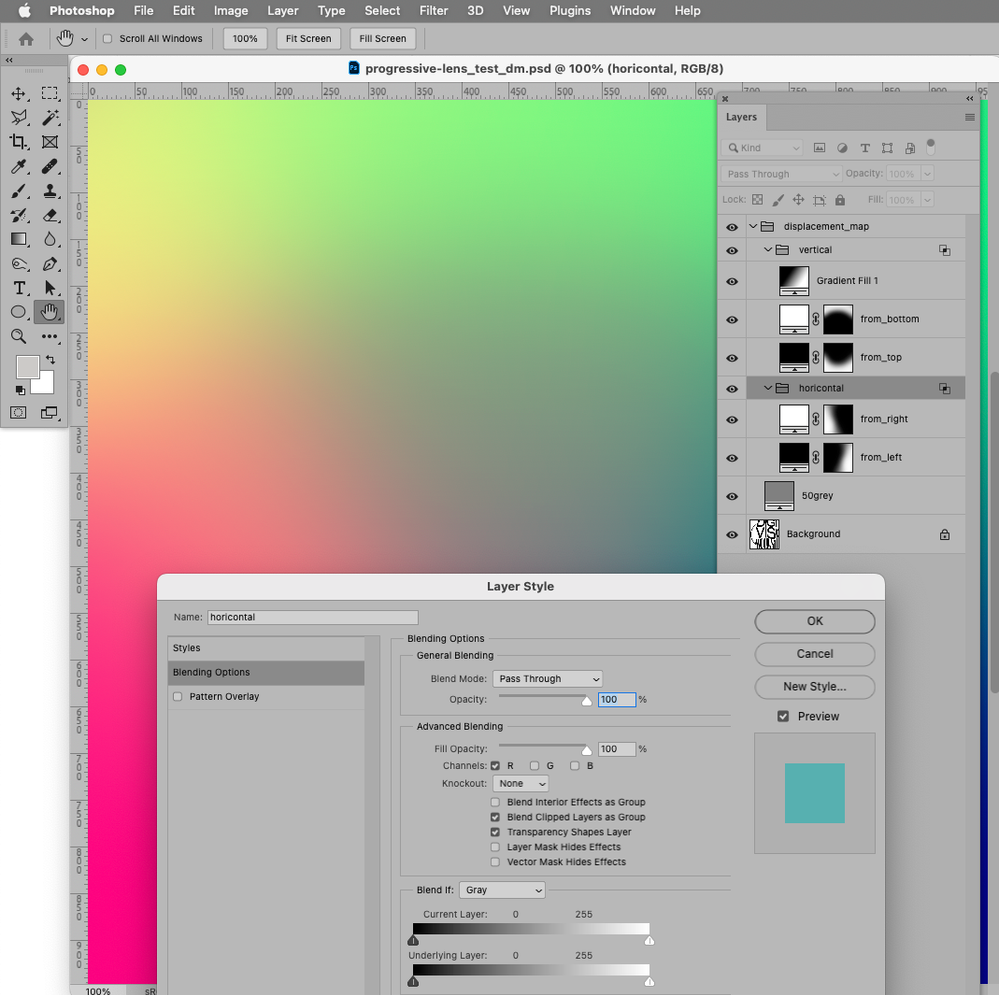
This looks to be the right solution – but what did you actually use as the displacement map?

Translate
Report
Community guidelines
Be kind and respectful, give credit to the original source of content, and search for duplicates before posting. Learn more
community guidelines
Community Expert ,
May 13, 2023 May 13, 2023
LATEST

I painted it. 

The Red Channel for horizontal, the Green Channel for vertical. 
Screenshot 2023-05-13 at 11.43.36.png


But Warp may produce better results (especially for large images).

For a couple of versions Warp has allowed adding additional grid-lines manually; unfortunately the feature has not been implemented in a truly sensible fashion in my opinion.

Translate
Report
Community guidelines
Be kind and respectful, give credit to the original source of content, and search for duplicates before posting. Learn more
community guidelines