


- Home
- Photoshop Elements
- Discussions
- Can't find the character panel. It's not under the...
- Can't find the character panel. It's not under the...
Can't find the character panel. It's not under the Windows menu

Copy link to clipboard
Copied
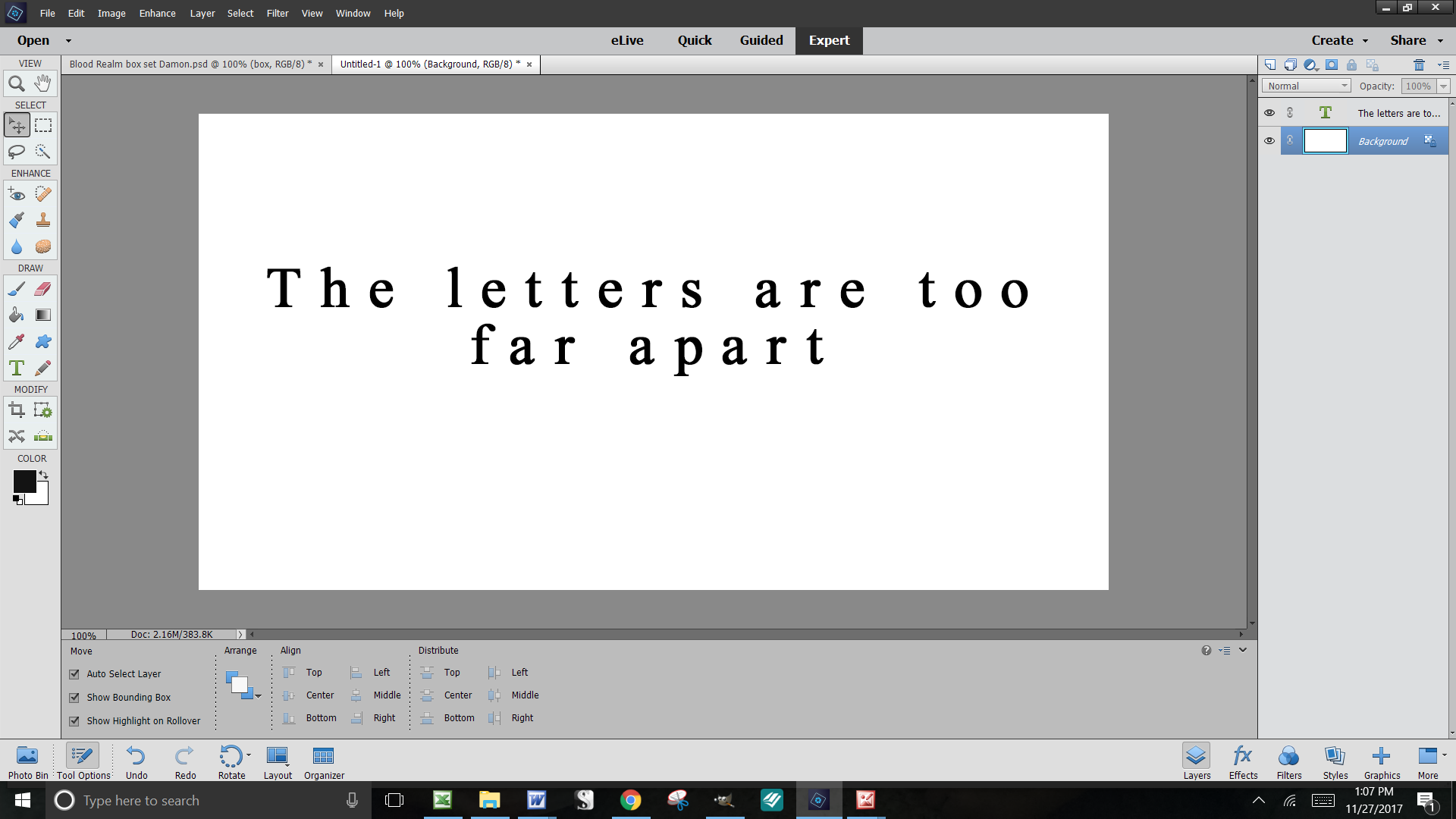
Hi, I'm trying to adjust the spacing between letters in my text. For some reason, every font I try puts a ridiculous amount of space between each letter. I know it's called kerning, and I know I need to access the character panel, but I cannot find the character panel. Every article I find says it's under the Window menu, but it's not there.

Help?


 9
Replies
9
9
Replies
9



Copy link to clipboard
Copied
Photoshop Elements does not have a Character panel like the Pro version or known as Adobe Photoshop CC 2018. But it does have few settings accessible using the text tool options.
You can look at the following video for better understanding - Add text to photos in Photoshop Elements 11
Adobe Certified Instructor, Professional and Expert
Copy link to clipboard
Copied
That was an interesting video, but there was no mention of kerning or how to fix the spacing between letters. Right now, the default on my program (which I just installed yesterday, brand new) seems to be stupid far apart. The letters in the video are much closer together, so there has to be a way to fix this?
Copy link to clipboard
Copied
Hi,
Try reseting the preferences of Photoshop elements as follow-
- Press and hold Alt+Control+Shift (Mac: Option+Command+Shift) immediately after Photoshop Elements begins launching. Click Yes to delete the Adobe Photoshop Elements settings file.
or
- Go to Edit > Preferences (Mac: Photoshop Elements > Preferences > General), click the Reset Preferences on next launch button, and then click OK. When you restart Adobe Photoshop Elements, all preferences are reset to default settings.
Adobe Certified Instructor, Professional and Expert
Copy link to clipboard
Copied
I wouldn't have thought that would work since I just bought the program and I didn't change any type settings. But it did. Thank you!
Just to be clear though, this means that Photoshop Elements 2018 does not have any option for adjusting kerning? There's no way for me to manually change the spacing between characters? This did fix my problem, but as soon as I want to change the spacing again (sometimes I do want more space between letters) I'll be back here asking where the kerning option is again.
Jenny
Copy link to clipboard
Copied
Sounds like you really wanted a professional tool. Though to be clear, many would say no to Photoshop for typography! It’s a photo editor with basic captioning as far as I’m concerned.


Copy link to clipboard
Copied
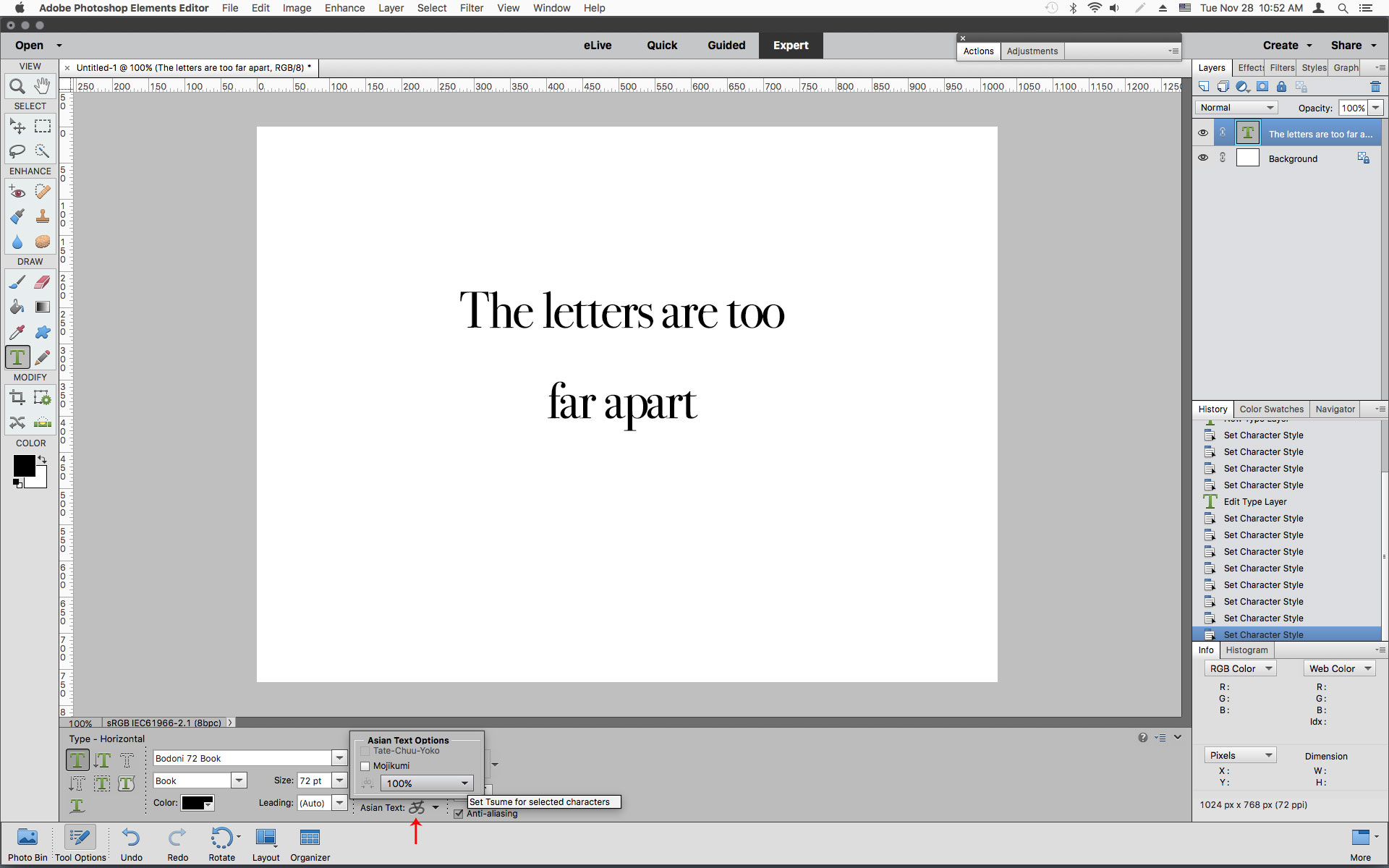
There is a way to "kern" in photoshop elements or at least as close as any of the Type formatting tools in pse get.
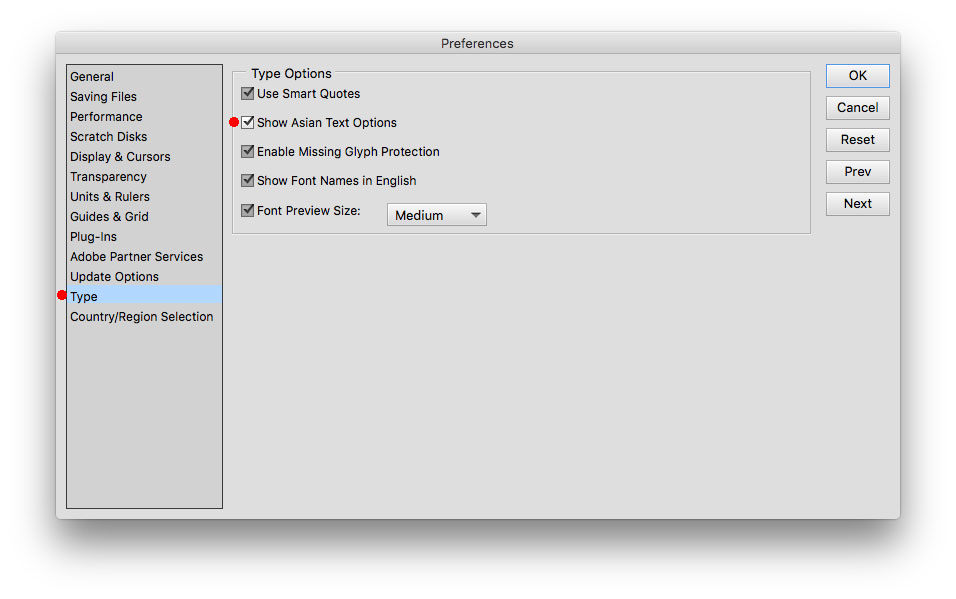
Enable Asian Test Options in the photoshop elements Preferences>Type>Show Asian Text Options
Then click on the Asian Text and adjust the Tsume.

Copy link to clipboard
Copied
Hey Jennifer:
I'm going to move this to the Photoshop Elements forum for you.
~Barb
Copy link to clipboard
Copied
I'm sorry, I thought I put it in the Photoshop Elements forum. I certainly tried to. Sigh.
Copy link to clipboard
Copied
No worries! It happens all the time. 
~Barb


Get ready! An upgraded Adobe Community experience is coming in January.
Learn more
 AdChoices