Copy link to clipboard
Copied
Hello, I have Adobe Photoshop Elemtns 2021 and have never been able to get pen pressure working for my Wacom tablet. I have been searching for a solution, and followed a guide to add a .txt file to "C:\Users\[USER]\AppData\Roaming\Adobe\Adobe Photoshop 2021\Adobe Photoshop 2021 Settings" called "PSUserConfig.txt"
Except I cannot find the final folder in the destination. I have "Show hidden files, folders, and drives" enabled. I even tried typing it in manually, but only got an error message, attached below.
Note from Moderator: Post moved to Photoshop Elements forum
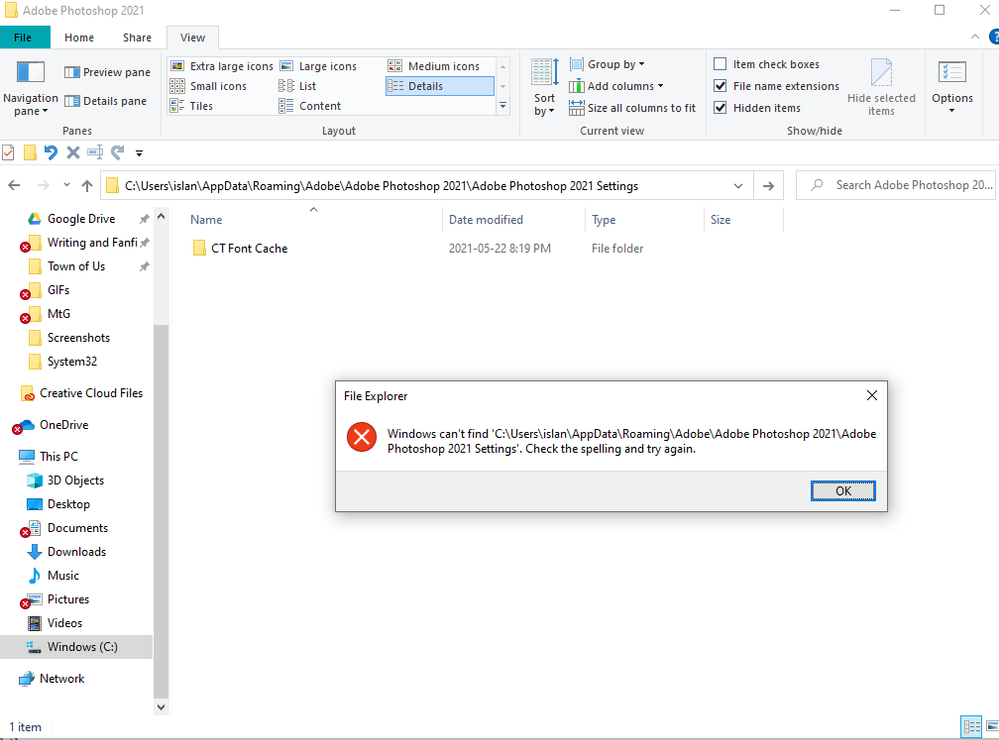
Any help would be greatly appreciated. I feel I am so close to solving my pen pressure issue, and yet so far.
Copy link to clipboard
Copied
Hi,
I believe the solution you are trying is for Adobe Photoshop CC and will not work for Adobe Photoshop Elements 2021.
It uses the Optional Extensions feature of Photoshop CC which I don't think is part of the Photoshop Elements application:
Enable Optional Extensions | Photoshop
See if these steps work instead:
- Update Elements 2021 to the latest version: Photoshop Elements 2021 update (version 2021.2)
- Open the Wacom tablet properties
- Click on the Photoshop Elements Application
- Choose the MappingTab (Pen/Eraser/Mapping)
- Uncheck "Use Windows Ink"
This has fixed a number of issues in the past (but I'm not 100% certain whether it fixes pressure issues too).
Copy link to clipboard
Copied
Thanks for your help, I didn't realize there was a seperate forum for Elements. That expains why I couldn't find the folder, I never would have come to that answer on my own.
Thank you also for the advice on fixing my tablet. It didn't work, but I appreciate you trying. This support forum seems to be full of awesome supportive people like you, and I'm very grateful for it.
Get ready! An upgraded Adobe Community experience is coming in January.
Learn more
