 Adobe Community

- Home
- Premiere Pro
- Discussions
- Re: 5 second freeze when start playback or select ...
- Re: 5 second freeze when start playback or select ...
5 second freeze when start playback or select clip

Copy link to clipboard
Copied
I'm working in a fairly large and complex project (15 minute episode of a lifestyle webseries). When I press the spacebar/play button to resume playback, there's a ~5 second pause before it plays, and it's starting to drive me nuts.
Here's a video of the issue:
Once playback gets going, there's no lag at all - I can play at full resolution without any dropped frames. And if I pause it for a just a second or two and then resume, it'll pick right back up. But if I go idle for more than ~30 seconds, there's always that hangtime when I press play. Doesn't matter if I'm in my massive main sequence or a 10 second nest, there's always that pause.
The same thing happens when I try to select a clip in the timeline. I click, nothing happens for 5s, and then the clip gets selected. If I then immediately click on other clips, they select instantly, but if I wait 30 seconds and try again, the 5s lag is back.
It almost feels like my processor goes into an idle state after a bit, and then it needs to ramp up to a certain speed before playback will start or clips will select. My processor (Ryzen 9 5900x) is only a few months old though and typically hovers between 20-40% utilization during playback (on the left side of my video above you can see real time performance). Don't think RAM is the issue either as I have 64GB and typically ~30% utilization during playback.
Interestingly, when I copy over just the last 60 seconds of the main sequence to a new project, I can play back that section in the new project without any lag (see 0:30 in my video) - *even when the laggy project is open at the same time*. But when I copy over the entire project bin into the new project, the 5s lag returns. Perhaps it's something to do with the amount of files/media I have in the project bin? I already went through and removed every non-essential file I could find, so unfortunately there's no more fat to trim.
System specs:
- Windows 10
- Premiere Pro 15.4.1
Ryzen 9 5900x
RTX 2060
64GB RAM
Internal 1TB NVMe SSD 1 (OS + software)
Internal 2TB NVMe SSD 2 (project files + source media + cache + scratch disks)
Things I've tried:
Copied project content to a new project
Made sure cache and scratch disks are on a different drive than the OS/software
Deleted cache and scratch disks
Reset preferences
Made sure there's plent of space on SSDs (currently 500GB+ unused on each)
- Updated my GPU
Optimize rendering for Performance
Made sure GPU Acceleration (CUDA) is on
Disabled Mercury Transmit
Set Default Input to No Input in Audio Hardware
Have any of you encountered this five second lag issue before? Any ideas for a fix?


 12
Replies
12
12
Replies
12


Copy link to clipboard
Copied
Anyone?


Copy link to clipboard
Copied
You have a decent machine, but why are you rendering the timeline.
Does not say what kind of footage is used or origin.
Post screenshot of clip in MediaInfo in treeview.
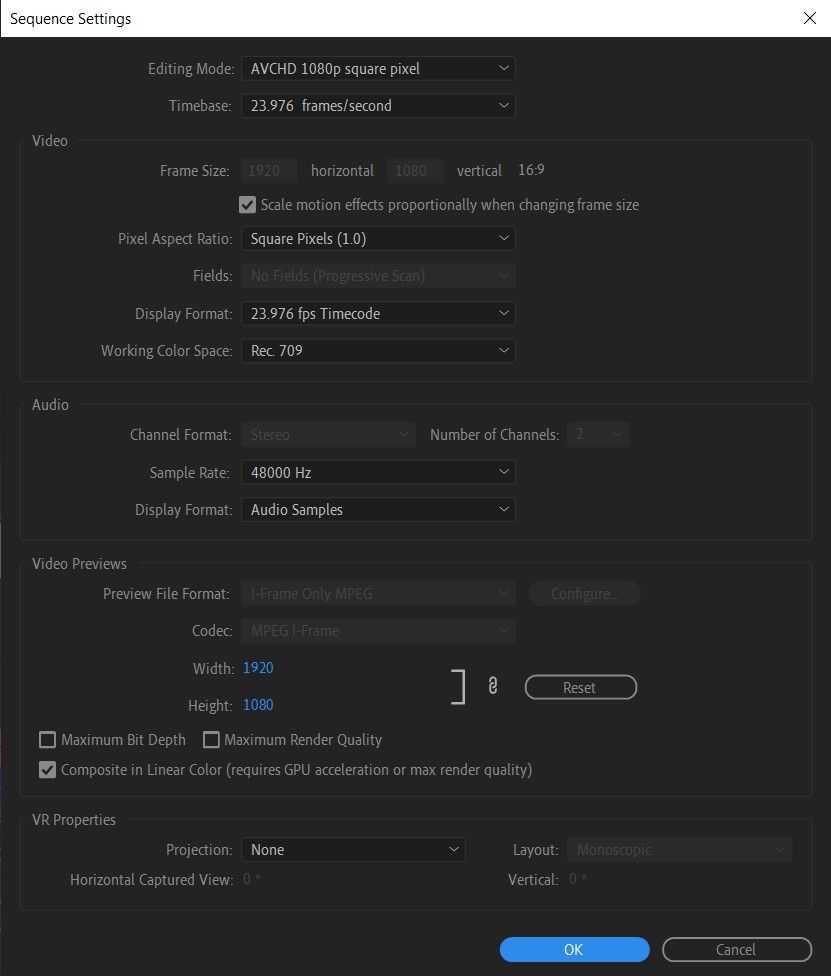
Post screenshot sequence settings.
Copy link to clipboard
Copied
Thanks for the reply. There were some dropped frames when I played back sections with motion graphics, so I let the timeline render while I was on a break.
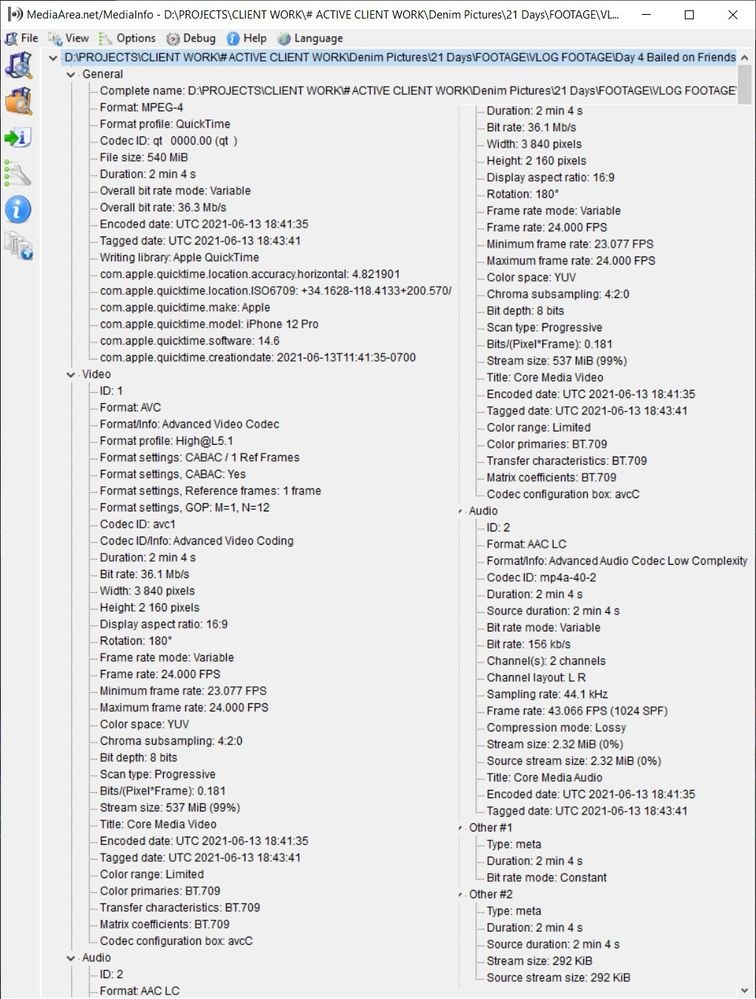
I didn't mention the footage type because there is a large variety of footage in these sequence (4K 23.976FPS .mov from a Canon C300; 4K 24FPS .mov from an iPhone 11; 4K stock footage; SD screen recording; etc.), and no matter which sequence I have open (even one with <1 minute of resolution clips), the lag always occurs when I'm within this project.
As the most common clip type (and the one featured in the video in my first post) is the 4K iPhone footage, I ran one of those through MediaInfo:
And here's my sequence settings:

Copy link to clipboard
Copied
If you create a brand new project, then IMPORT this old project in it's entirety, does the issue persist?
Copy link to clipboard
Copied
I hadn't tried that actually (had only tried copy pasting the old project into the brand new one). Alas, I just opened a new one and Imported, and the problem is unchanged.

Copy link to clipboard
Copied
Have you tried setting the input in the Audio hardware to None?
Hope this helps.
Copy link to clipboard
Copied
Thanks for the suggestion Rich, unfortunately I already tried that one.



Copy link to clipboard
Copied
Hi Annica,
Sorry about the performance issue. From what I've read, your performance issue seems odd from the outset. I suspect you may have either a corrupt sequence or a sequence that has too many operations going on. It may be both.
What I would try first is to create a new sequence. Copy/paste the items from the old sequence into a new one. Then, if your sequence plays back normally once more, then a corrupt sequence was your issue.
If it was a corrupt sequence, know that this is rather common, I found, if you have a sequence that you've manipulated more than usual. For a longer time than usual. With more effects than normal. It's a longer sequence than typical. The worst thing? I updated my project midway through the project, updating the sequence across major versions - a definite "no no." After doing these things to the poor sequence, no wonder it fell down!
If you are still having poor performance in a fresh new sequence, you can try the same in a fresh new project.
Still problems in a new sequence, you have to look at your media and the workflow you are using. It's largely 4K media and that's going to be rough on a computer, especially anything that is H.264/Long GOP footage. Essentially, you are placing 4K media in a HD sequence with highly compressed media. When you do that, you are taxing the GPU with a "Scaling" process to get your 4K footage to playback in a HD sequence. To avoid that GPU process and to get better overall performance, you can transcode all your 4K footage to HD clips using "Render and Replace." Rendering the timeline has the same effect. Usually that is done before you even edit (unless you need to repositon some clips - leave those at 4K) in a process that is referred to as "transcode on ingest." So with less scaling going on, you get better overall performance. Next time you can try this.
64MB RAM is great, but you said you had a "massive" timeline. Looking back it is only 15 min. That sounds fine.
I hope we can help you with your performance issue. Hopefully, it's something small.
Thanks,
Kevin

Copy link to clipboard
Copied
Thank you! The sequence was corrupted... Just create a new one and it's perfect now!
Copy link to clipboard
Copied
Cool, Max. Thanks for the report.
Regards,
Kevin

Copy link to clipboard
Copied
I experience this same issue on an even beefier but similarly balanced PC (5900x, RTX3090, nvme drives etc). All 1080p 30fps Prores 422HQ footage. Only 3 tracks. I edit long form so most sequences are 2hours +/- but quite simple with only occasional text or lumetri adjustments and a hard limiter on the overall audio mix. The original footage is mp4 which I used to edit directly but as recent versions of Adobe just can't handle mp4 I switched to converting them all to prores, which allows me to play back without dropped frames but Premiere still takes several seconds to start playing, or if you click away and then back into the timeline it lags for a while. I even moved each original footage file to its own independant nvme 980 Pro SSD to emilinate any chance of read/write bottlenecking.
I've always found Premiere to be sluggish so have just settled for putting up with it and building out my PC with overkill hardware to muscle through it. But the delay is so bad it drives me crazy sometimes.
I ruled out it being a system-pecific issue by recreating the same issue on a Zephryus G14 laptop and another PC thats more than capable. Same issue on all systems I've tried so far.
Do you know of any known issues that cause Premiere to be so slow to respond maybe, now that this thread has been around a while?
Thanks kindly

Copy link to clipboard
Copied
any fixes on this?


 AdChoices