


Customizing the screen layout

Copy link to clipboard
Copied
In an attempt to rebrand the online help and make it more user friendly, I have received approval to change our webhelp to multiscreen HTML5 output. One of the developers who knows CSS has been helping me customize the Desktop with home page layout.
To test the layout and also to create something to demonstrate to the managers in my company, I built a separate smaller project.
1. One of the things I noticed was that the width of the table of contents pane changed slightly when I opened some of the topics.
2. We added the company logo, in the topic title. When generating the output the logo always appeared larger than what it was supposed to be. When previewing the topic layout page the logo appeared fine. However, every single time I generated the output, the logo became noticeably bigger.
3. When applying the custom layout to the main project, the logo was completely missing when generating the output.
4. In order to confirm that the issue was with Robohelp, and not the custom layout, I created a third project. In the third project I imported 5 html files from the main project. The generated output looked perfect, other than the changing width of the TOC pane. I imported some more files, and saw that some of the files were not imported successfully, after those files were imported the logo went missing from the generated output. Deleting those files, caused the layout to look perfect again. I am therefore assuming that some of the files in the main project are affecting the layout. If this is the case, are there any shortcuts towards discovering which files are affecting the layout and fixing them.
Any and all advice would be appreciated.
Yehoshua Paul


 12
Replies
12
12
Replies
12


Copy link to clipboard
Copied
I am not sure what is happening here so try downloading the demo from my site and see if you get any of these issues with that.
There is an image in the Retirement topic.
See Authoring > Multiscreen.
See www.grainge.org for RoboHelp and Authoring tips


Copy link to clipboard
Copied
Regarding the changing width of the Table of Contents pane, I noticed that your project has the same issue (at least on my computer).
In the contents, under HR policies and procedures, click on Company Sick Pay, and then click on Dependants Leave. The width of the Table of Contents pane changes slightly.
Can I e-mail you privately the project that I built so you can see what we did. From my company's perspective it shouldn't be that much of an issue, especially if I redact it. I'd like you to see the changing logo size. When you preview the topic page it looks fine, when you generate the project, the logi becomes considerably bigger.
Copy link to clipboard
Copied
See the Contact page on my site and send the project as instructed there.
See www.grainge.org for RoboHelp and Authoring tips

Copy link to clipboard
Copied
Can this be a problem caused by interferences between the css of the screen layout and the topic's css files? There may be problems when, e.g, style names collide or when there are varying definitions for the body element.
Copy link to clipboard
Copied
So apparently the issue was that I was using the same CSS file for the screen layout and the topic. I was unaware of the fact that you needed a separate CSS file for the topic, and this caused all the issues. Applying a different CSS file solved the problem.
Thanks goes to Peter Grainge who helped me solve the issue.
Copy link to clipboard
Copied
Applying a different CSS doesn't quite solve all the problems. The changing width of the TOC was caused by some short topics that did not require a scroll bar. Those did not have a scroll bar whereas longer topics did causing the scroll bar to take some width.
The problem was solved by by adding a bottom margin so that scroll bars were always required. I suspect there is a setting somewhere in the skin to have permanent scroll bars but for now this has fixed the problem.
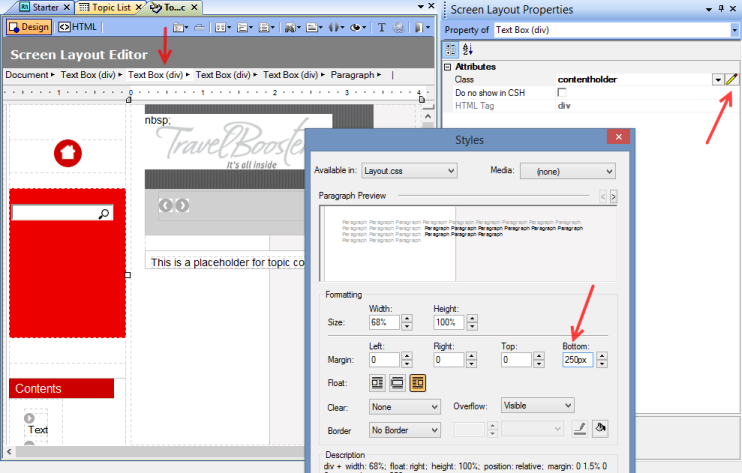
See www.grainge.org for RoboHelp and Authoring tips

Copy link to clipboard
Copied
Those scroll bars are a browser setting. You can force scroll bars by adding
overflow: scroll;
to the CSS. Though where you have to put it depends on the layout you want to use. Which layout are you using?
Greet,
Willam
Copy link to clipboard
Copied
@Willam
Do you not recognise Desktop_Knowledge_WithHomePage? 
Would that, or could that, only apply a vertical scroll bar?
See www.grainge.org for RoboHelp and Authoring tips
Copy link to clipboard
Copied
@Peter: Just too lazy to read the entire post I guess 
In the CSS add the following code to
body
in the div.floatholder selector:
remove the 'overflow:hidden;' and 'overflow:visible' selectors. Then add:
overflow-y: scroll;
That should fix it.
Greet,
Willam
Copy link to clipboard
Copied
Thanks guys,
In the end, after consulting a product manager, I decided not to have a permanent scroll bar.
The changing width of the TOC while annoying, does not justify having a permanent redundant scroll bar in the help.
Creating a new CSS for the topics in addition to the CSS for the skins has solved the problem. The bigger headache is now migrating my 400 topic project to the new design.
Yehoshua
Copy link to clipboard
Copied
@Willam
That does add a vertical scroll bar but when you open a page that needs the scroll bar, you get a second scroll bar.
See www.grainge.org for RoboHelp and Authoring tips
Copy link to clipboard
Copied
This works
In the CSS
in the div.floatholder selector:
remove the 'overflow:hidden;' and 'overflow:visible' selectors.
Then add to body
overflow-y: scroll;
See www.grainge.org for RoboHelp and Authoring tips


Get ready! An upgraded Adobe Community experience is coming in January.
Learn more
 AdChoices