



Take Control of Your Video Attribution with Content Credentials at Export in Adobe Media Encoder 26.2

Take Control of Your Video Attribution with Content Credentials at Export
Adobe Media Encoder 26.2 (April 2026) makes it easier to ensure your videos carry the right creator information when they leave your pipeline. With Content Credentials applied directly at export, you can define who you are, how your content can be used, and what information travels with your media—all from within Export Settings.
🔍 TL;DR
- Apply Content Credentials preferences at export
- Choose which creator details are included, including verified name and social media accounts
- Specify Generative AI training and usage preferences
- Review what’s embedded directly in the Output Summary
✨ Why this matters
Content moves fast—and once it’s out in the world, attribution and intent can get lost. Content Credentials help ensure your exported videos include:
- Trusted creator identification
- Linked social media presence
- Clear preferences around generative AI training and usage
With Media Encoder 26.2, this information is applied automatically at export, making it easier to stay consistent across deliverables.
🛠️ How to apply Content Credentials at export
Open Export Settings
You can access Export Settings in either of these ways:
- Select the format or preset name of the output
- Select an output in the Queue panel, then choose Edit > Export Settings
Configure Content Credentials
-
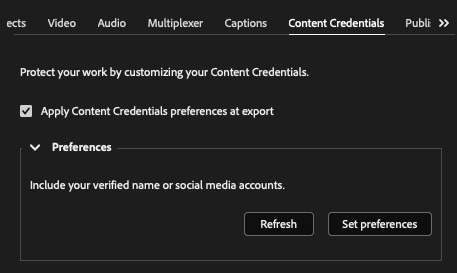
In the Export Settings dialog, open the Content Credentials tab.
-
Enable Apply Content Credentials preferences at export.
-
Under Preferences, choose one of the following:
- Set Preferences
Opens the Content Credentials preferences webpage, where you choose which creator information is included in exports. - Refresh
Fetches the latest Content Credentials preferences from the web and updates both the Content Credentials section and the Output Summary.
- Set Preferences
Link social media accounts
On the Preferences page:
Under Social Media Accounts, select Connect next to each account you want associated with your Content Credentials.
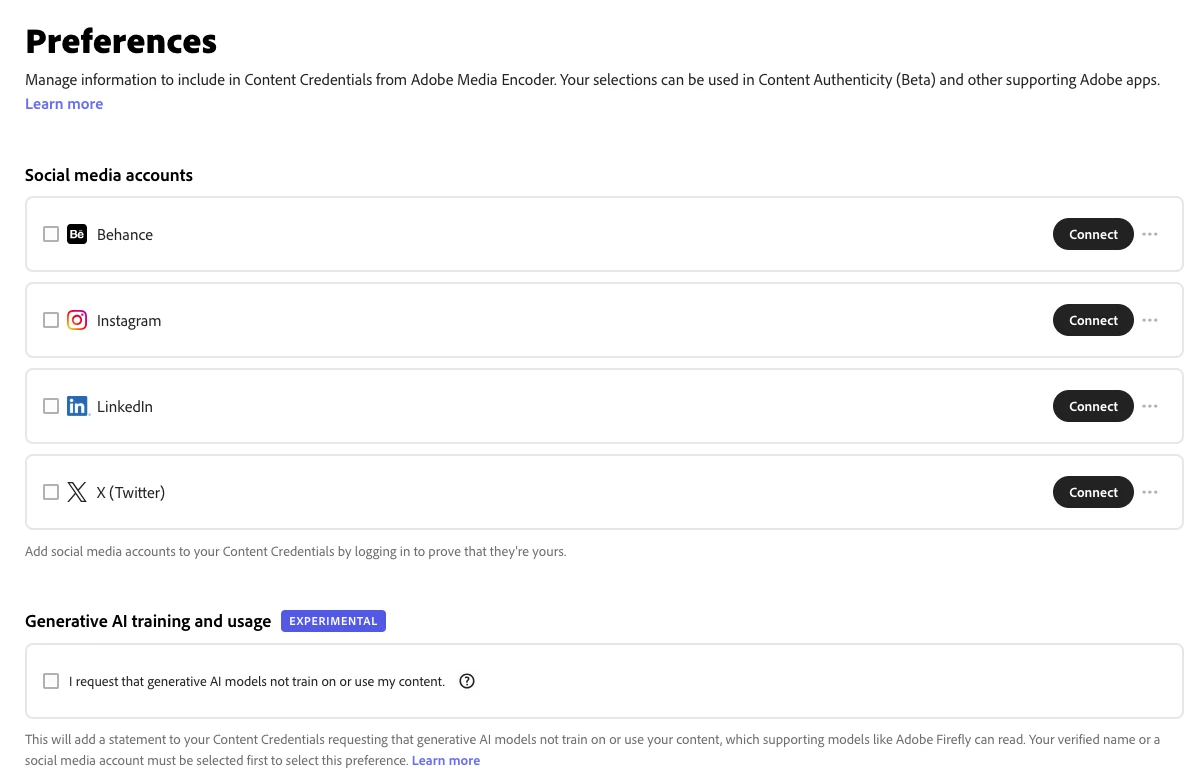
These linked accounts can then appear as part of the credentials embedded in your exported video.
Set Generative AI preferences
You can also specify whether:
- Generative AI models should not train on or use your content
This preference is included as part of your Content Credentials configuration.
Review and finalize
- Close the browser to return to Export Settings
- Select Refresh to ensure the latest online preferences are applied
Important: Media Encoder caches Content Credential preferences at launch. After making any changes online, you must use Refresh so the latest settings are used.
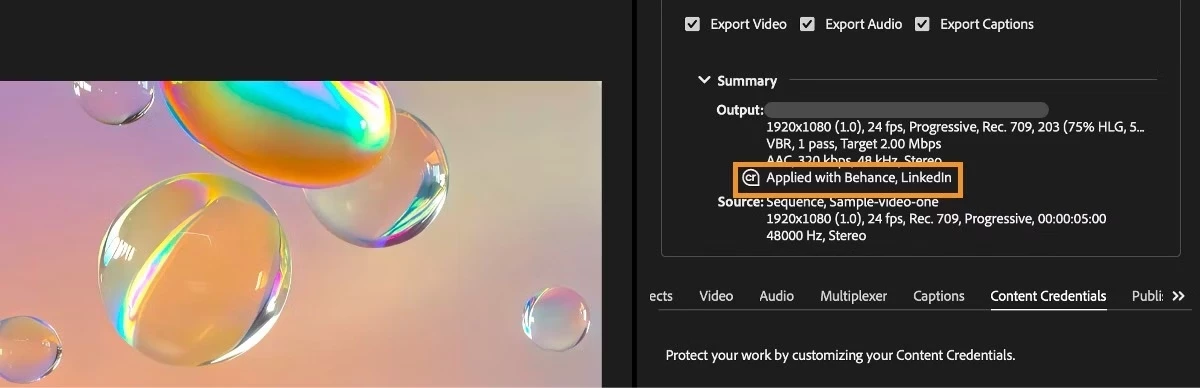
The Output Summary expands to show exactly which credentials will be embedded—such as your verified name and connected accounts (for example, Behance or LinkedIn).
✅ What gets added to your video
When export completes, your video includes:
- Your verified creator name
- Linked social media accounts
- Your Generative AI usage preferences
All applied automatically at export—no extra steps required.
💬 Have questions or feedback?
Let us know how you’re using Content Credentials in your workflow, or start a new thread if you’d like help configuring them. Your feedback helps shape future updates.
 AdChoices