




Introducing Clip Markers for Multitrack in Audition (Beta)!
I am pleased to introduce you to the new functionality of Clip Markers in Multitrack in Audition (Beta 23.3). The enhancement makes it possible to add, edit & move clip markers for each individual track inside the multitrack mode.
Our team has been working hard to deliver one of the most requested asks from you and we would love your feedback to get better!
Overview:
You can now create clip markers in Multitrack view along with the existing functionality of session markers
Creating a clip marker –
- Select any of the tracks on the multitrack view and use the shortcut key ‘M’. A clip marker will be created on the selected clip at the current play head position.
- Alternatively, insert a clip marker through the edit menu option or the marker shortcut in the markers panel
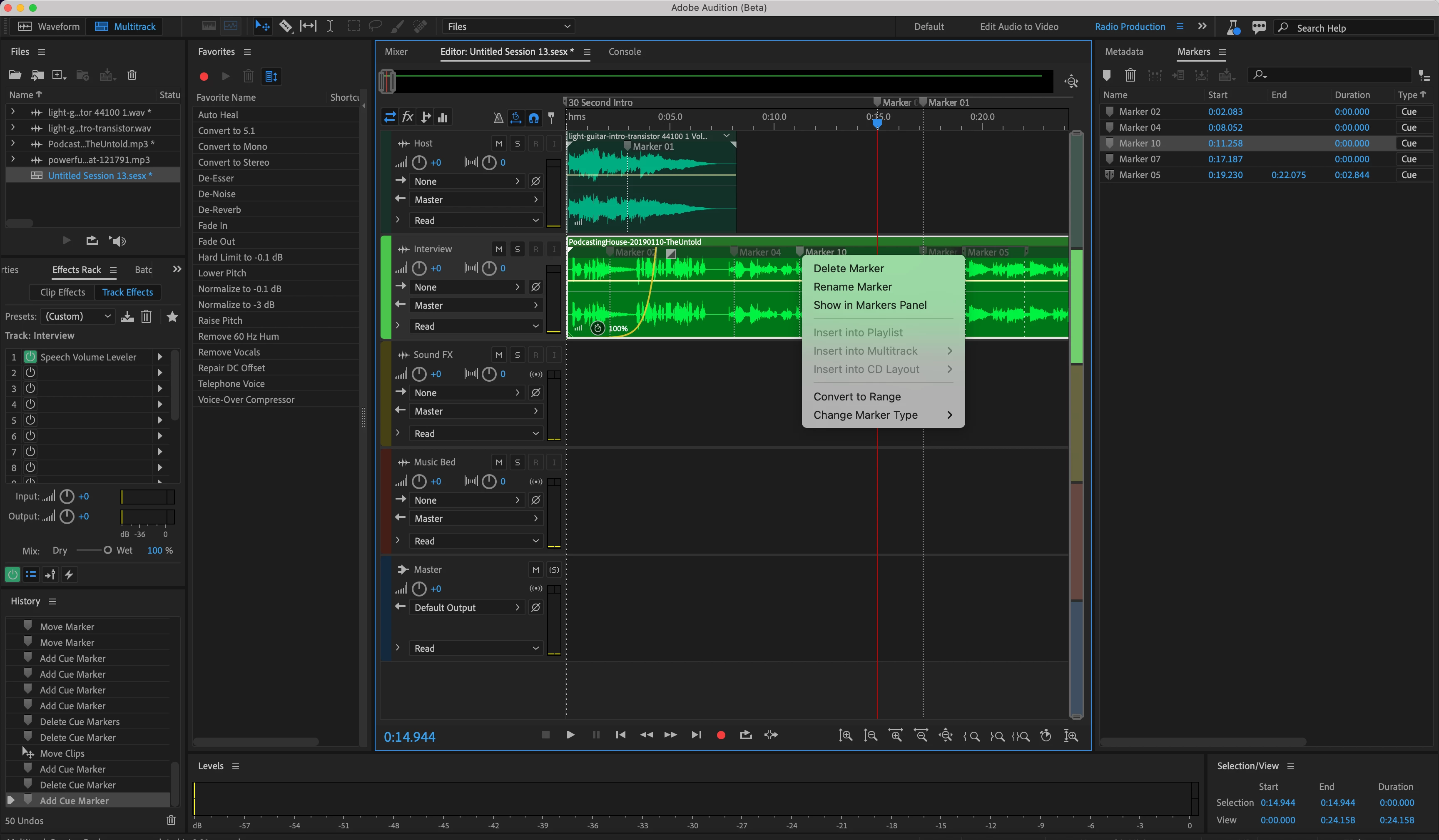
- Chose the marker type & convert markers into range markers
- Merge multiple range markers & perform the necessary operations
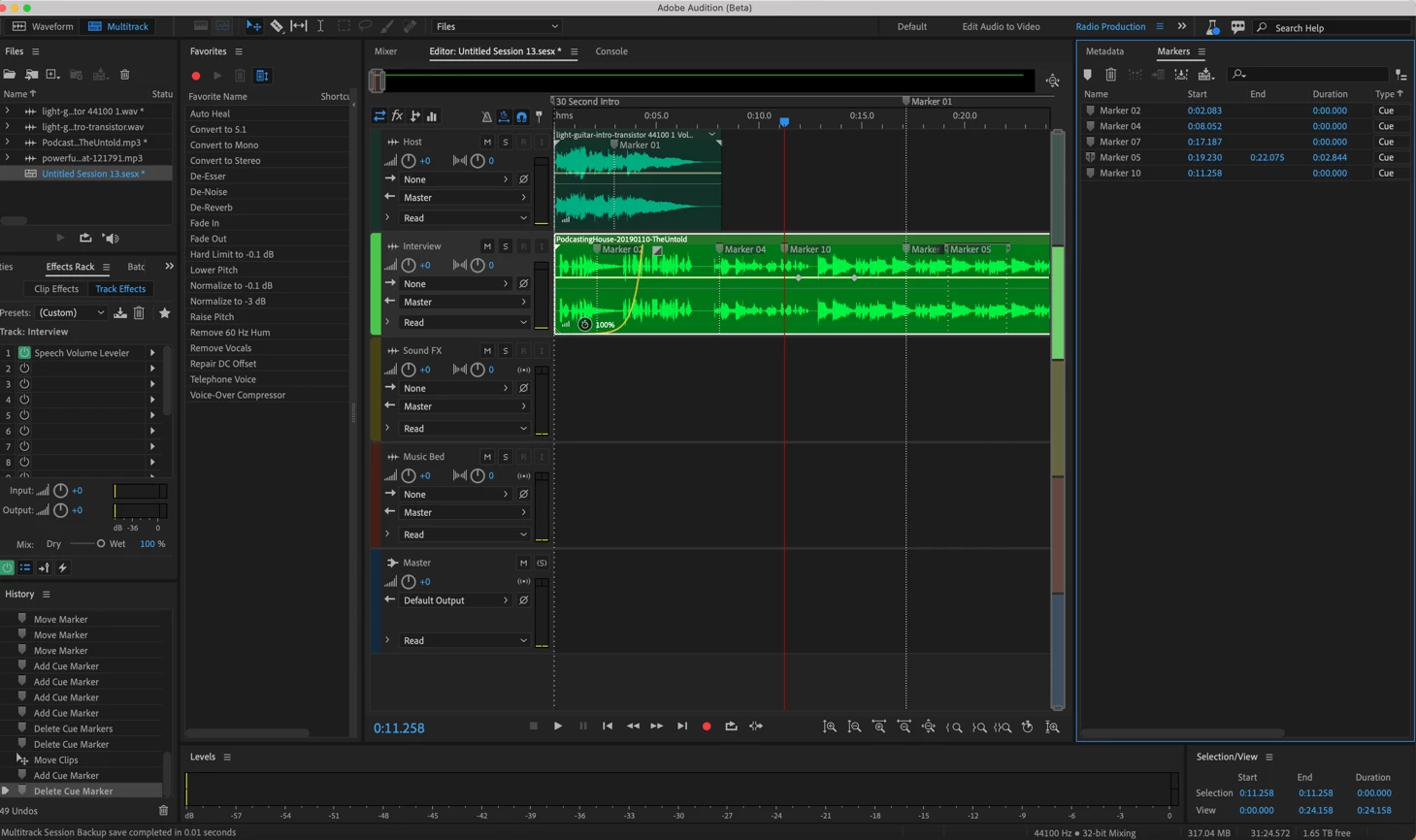
Creating a session marker – When none of the tracks are selected a marker addition step will create a session marker.
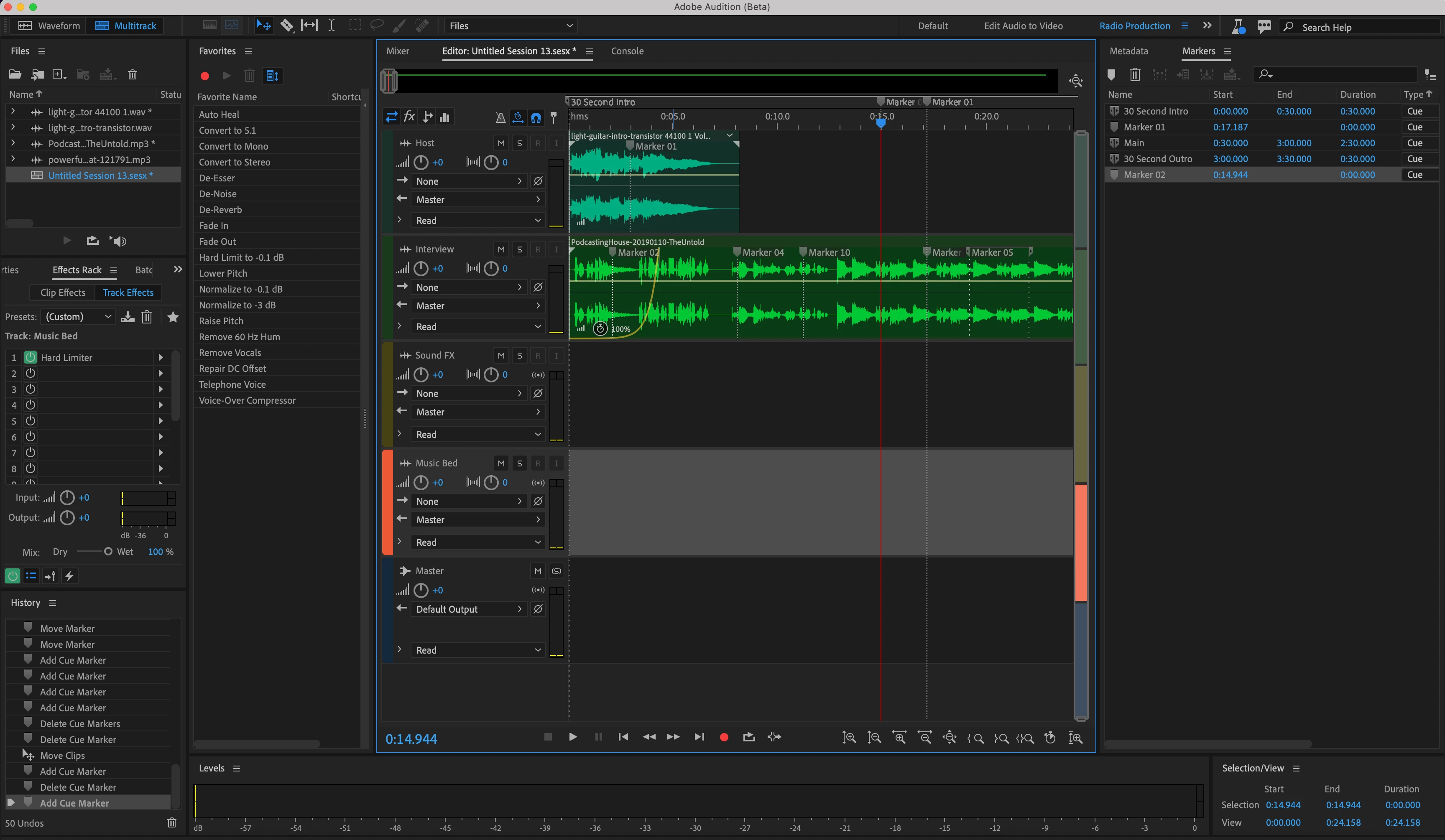
Editing a multitrack clip marker – Edit a clip marker from the multitrack view itself.
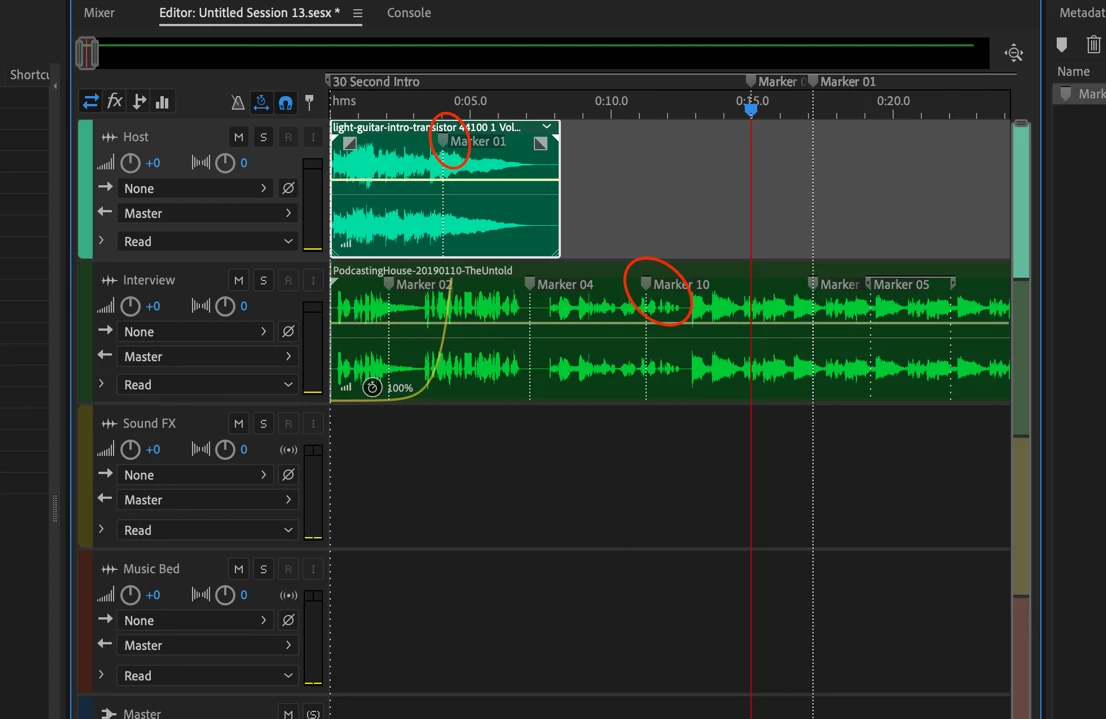
Moving a clip marker – Move a clip marker within the multitrack view by moving the marker head.
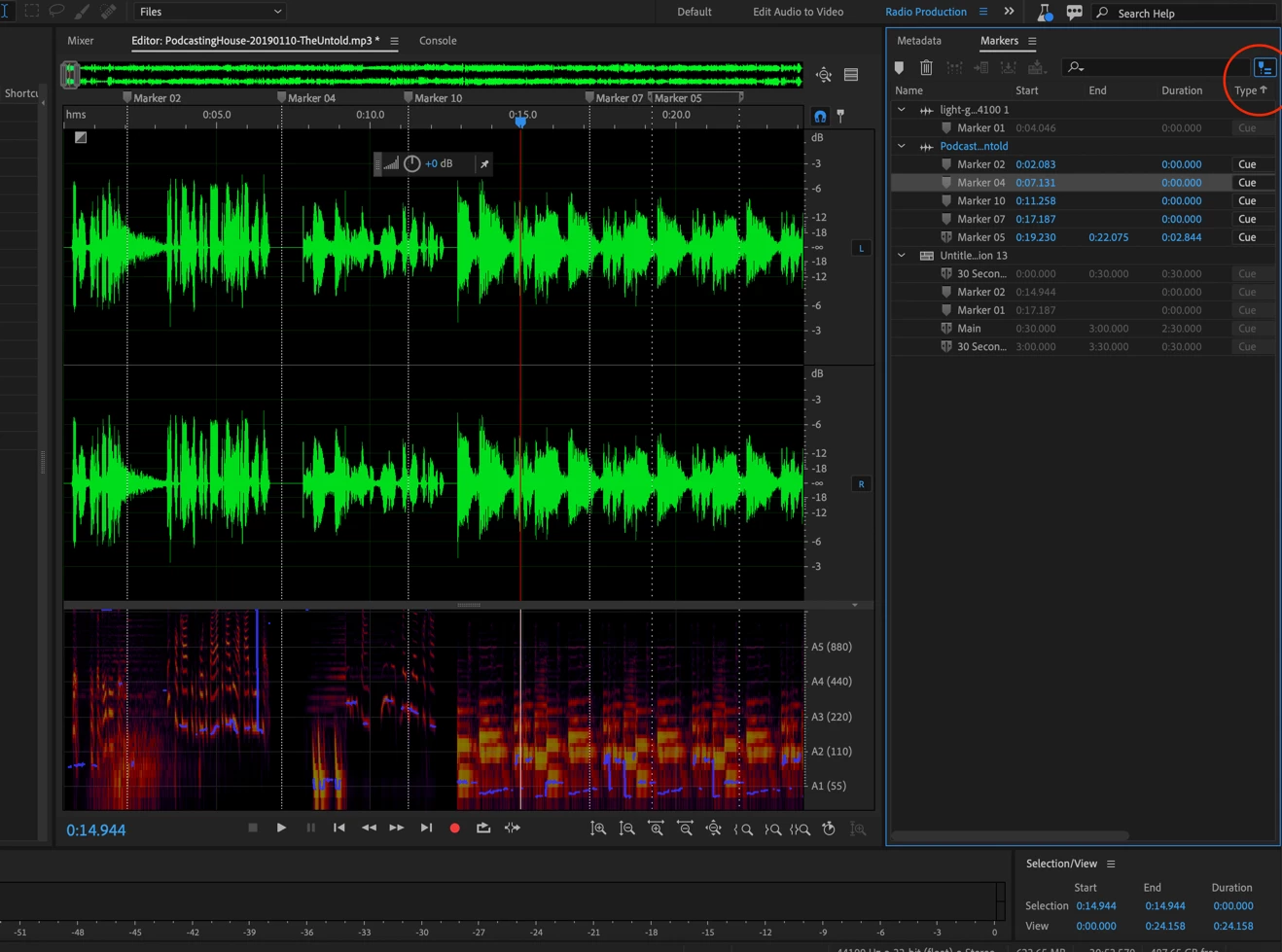
Markers panel – View all the clip markers & session markers across by selecting the top right icon in the markers panel.
Additional points:
- The markers will be consistent across the waveform & multitrack view. You can add markers in either of the modes and the changes will reflect across both the modes.
- Limitations – clip markers in multitrack won’t be applicable for remixed & stretched clips.
 AdChoices