



Create graphics, logos, and posters using colors, shapes, & text in Illustrator on the web (beta)
Illustrator on the web (beta) is a fantastic tool for beginners looking to explore the world of vector graphics.
Uncover the exhilarating potential of Illustrator on the web (beta), where you can easily craft dynamic shapes and enhance your artwork with vibrant colors, gradients, or strokes, all while elevating your designs through dynamic typography.
|
Explore new features and share your thoughts.
|
|
 Illustrator on the web (beta) is now available as part of your Illustrator subscription for testing and feedback.
 Note:
Note:Create basic structures by drawing & combining shapes
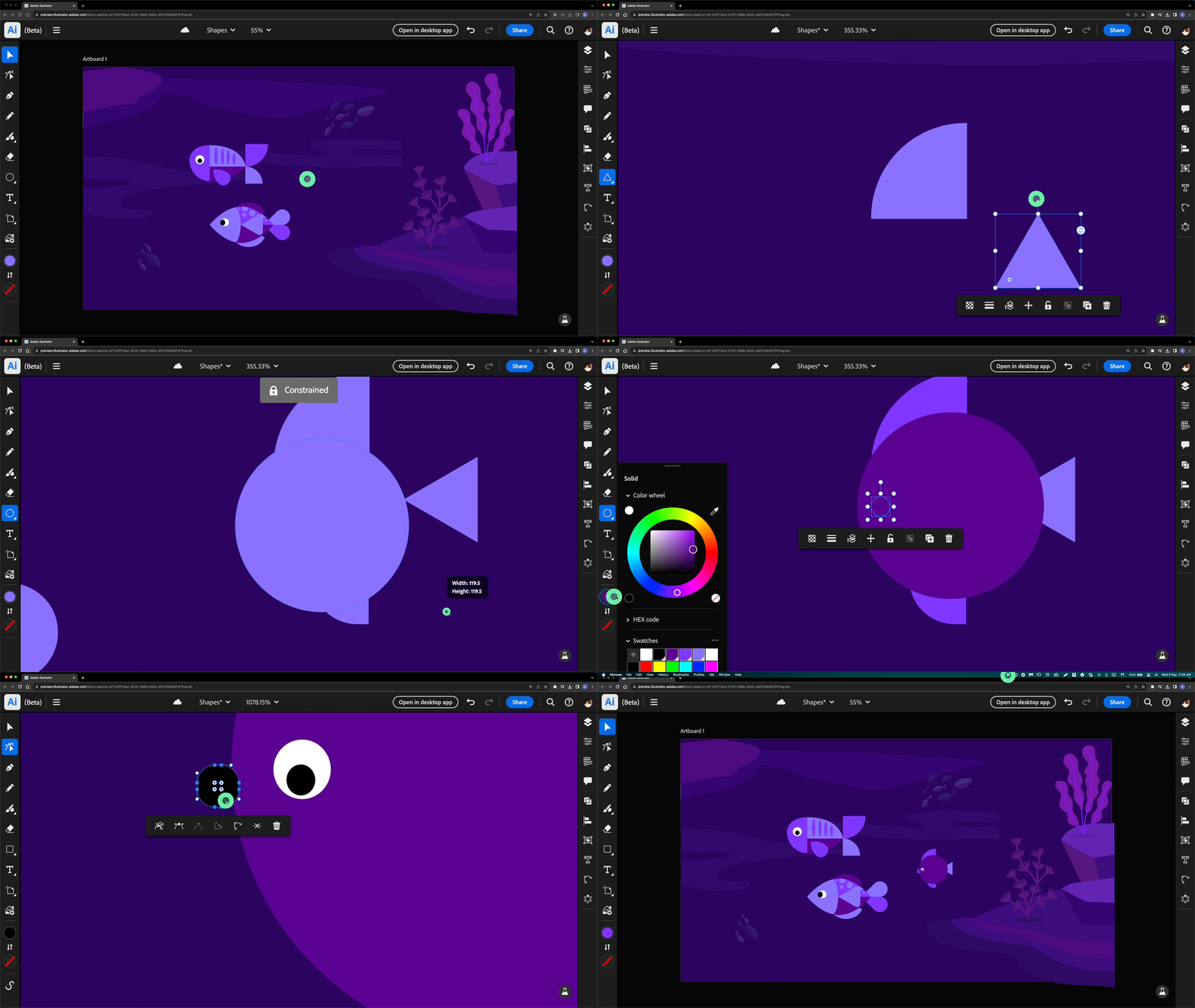
- Fins and Tail: Use the rectangle tool to make the fish's fins and tail. Change their shapes by clicking and dragging the corners.
- Tail: Create the fish's tail by using the polygon tool to make a triangle. Turn it by 90 degrees.
- Fish Body: Make the fish's body shape by drawing a large circle using the ellipse tool. Position it over the fins.
- Lips: Shape the fish's lips by drawing a small rectangle. Adjust its corners and duplicate it by holding Alt/Option while dragging it.
- Eyes: Create the fish's eyes by drawing small circles inside the large circle using the ellipse tool.
For more details, please check out this help article.
Add colors & gradients to bring your artwork to life
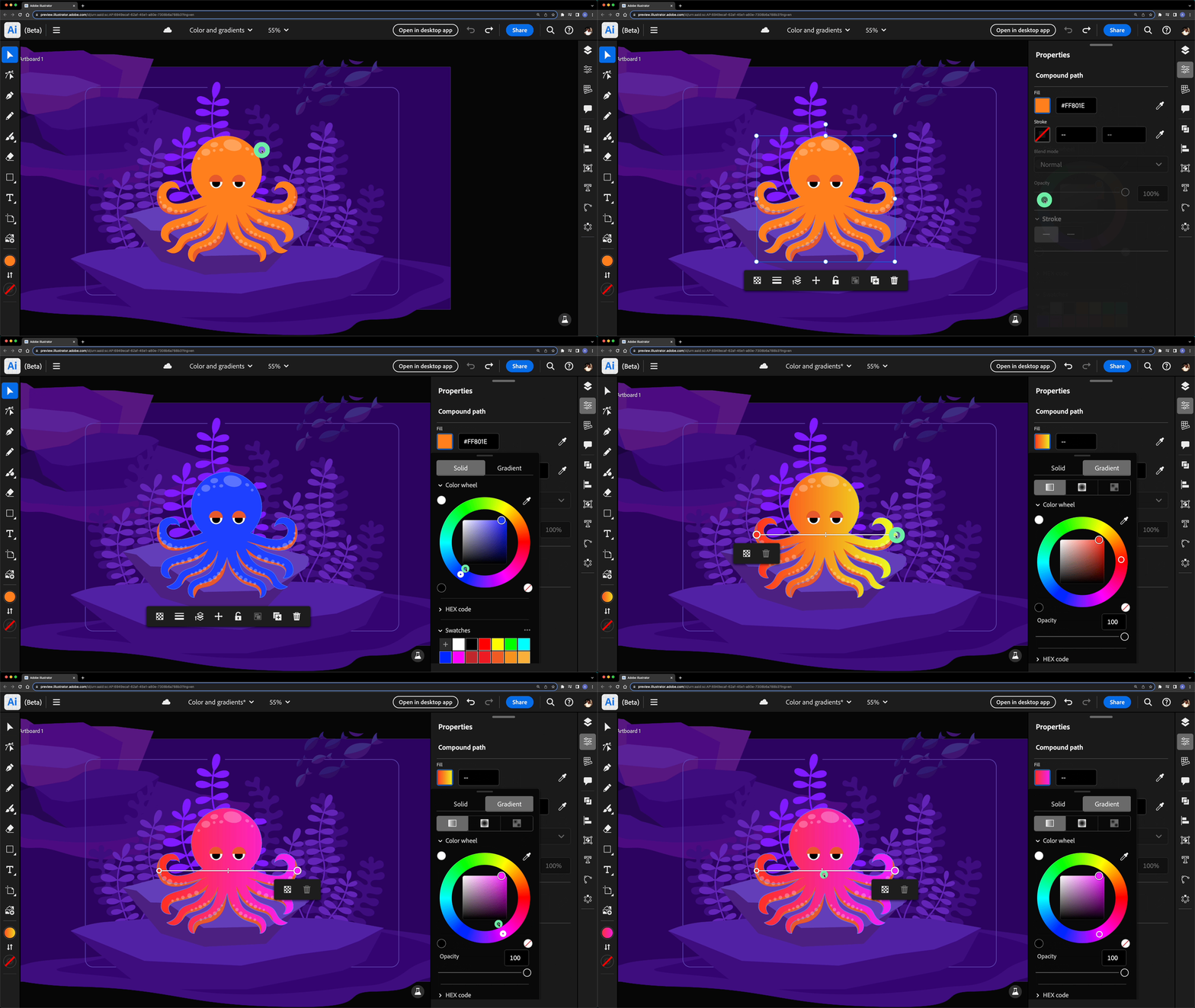
To use Solid color, select an object and use the Color wheel to pick and apply any color to your selection. You can also use the Color Picker to pick and apply any color from another artwork.
To apply Gradients, use the Gradient Annotator, to modify Linear and Radial gradients. It consists of a starting point, a midpoint, an endpoint, and two color stops. Representing the starting and endpoints.
For more details, please check out this help article.
Elevate your design with dynamic typography
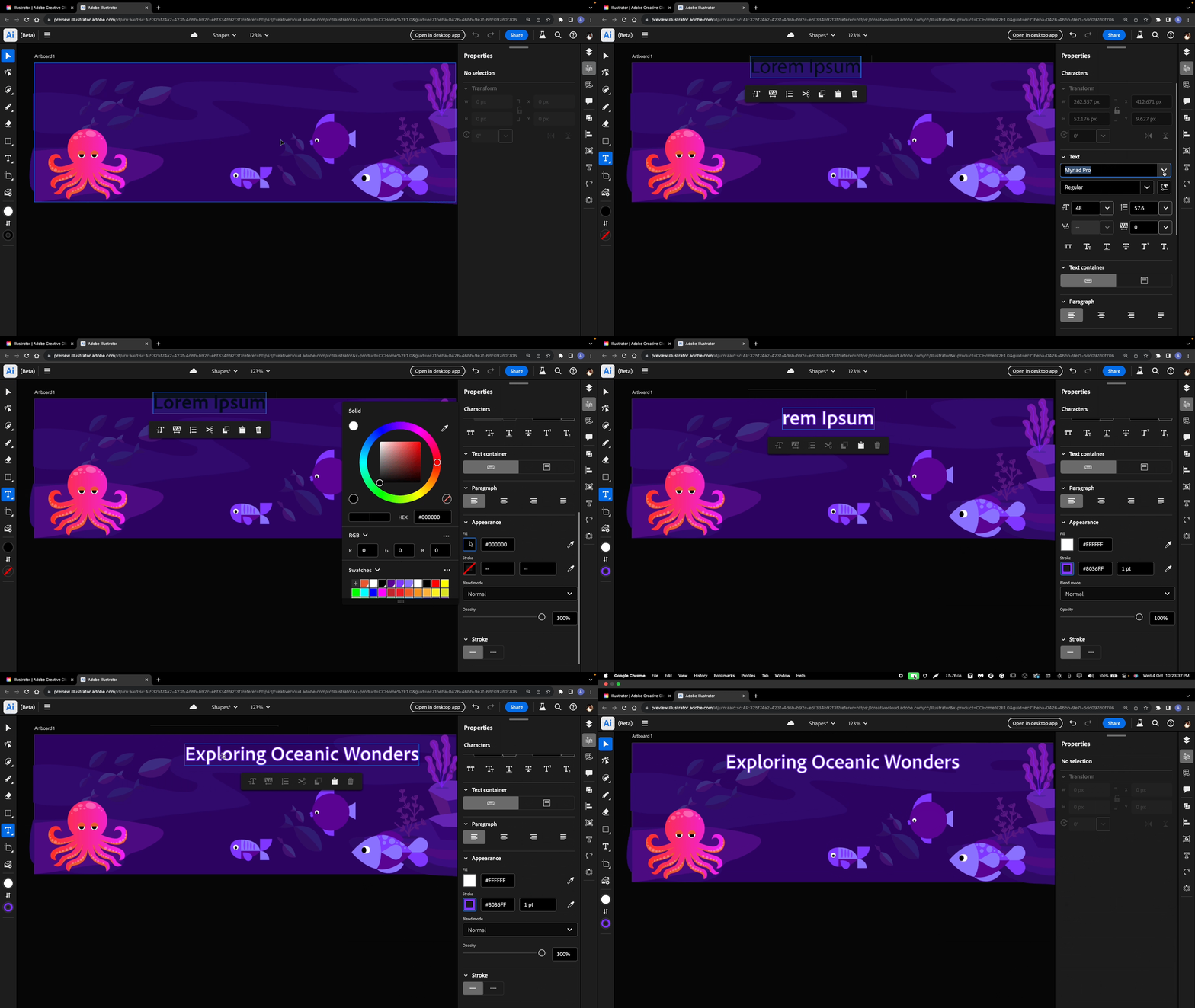
You have the option to insert text either horizontally or vertically, place text along a path, and customize text formatting and font characteristics like font name, style variations, and size. Additionally, you can modify the text path and create outlined text.
For more details, please check out this help article.
Tips & Tricks
- Hover over each tool to view a short clip and tip on how the tool works, and get started with your color tools.
- Add any selected color to the swatch and use it in your design for easy access.
- When you create an object, the stroke of the object is set to 1 pt by default.
- Select the shape and then use the Contextual bar to change the Stroke width.
Thanks,
Harshika

 AdChoices