

🔎 Quick Tip : How to save image as PNG for Mix Workflow in iOS device

Saving Images as PNG format in Mix Workflow
Learn how to save images in PNG format in Mix workflow (Combine photos) on your iPhone device.
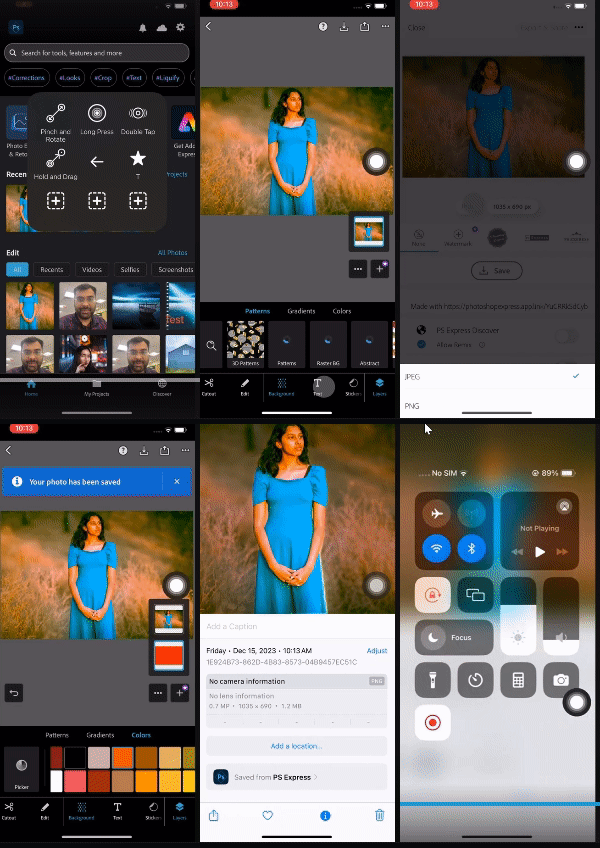
Quick steps to save an image to PNG
❶ Select the image from your photo library
❷ Make a quick selection of the editing options you want to apply to the image using one of the selection tools available and Refine the selection.
❸ Commit to the selection when you're happy and click on the export and share option (which tells you if your image is in JPEG or PNG format).
- If you open an Image in PNG, then by default, it will get saved as PNG (You will have the option to change to JPEG from share settings)
- If you open a JPEG image, it will be saved by default as JPEG (it cannot be changed to any other type).
Important Update on RAW photo support
- To edit RAW images taken from an iPhone 15 PRO, please update Photoshop Express to 23.47.0 or later from the iOS App Store.
Vote!
Threads in the Community forum now have an UpVote feature. The Photoshop Express team uses this vote count to know which bugs or issues are most important to you. If you're seeing a similar problem or bug that has already been reported, add your vote!

Useful Links
- Get started with Photoshop Express on iOS: Learn how to use Adobe Photoshop Express on iOS devices.
- Get started with Photoshop Express on Android: Learn how to use Adobe Photoshop Express on Android.
- System requirements: Find the minimum technical specifications to use Adobe Express.
- FAQ: Get answers to common questions about Photoshop Express
- Quick actions: Get answers to common questions about Quick actions.


 AdChoices