


Participating Frequently
January 14, 2016

P: Camera Raw: Artifacts on edges caused by clarity

  • January 14, 2016
  • 19 replies
  • 1052 views

I noticed some unpleasent artifacs on hard edges in many of my raws captured with Sony. They seem to appear as soon as the clarity value is raised.

Here is an example:
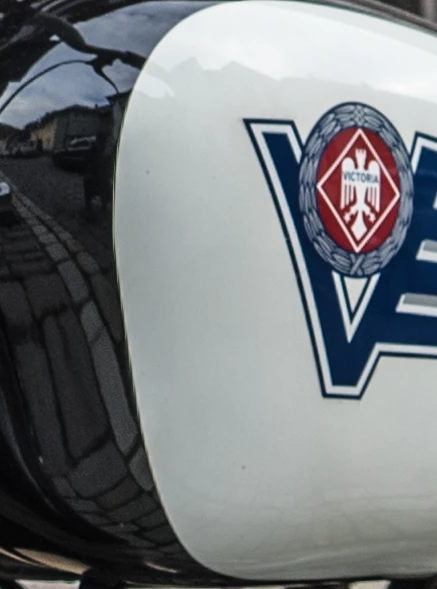


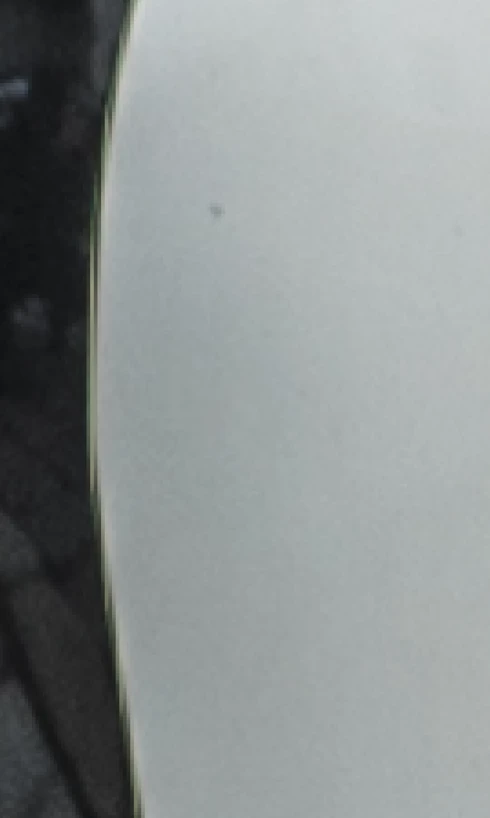
And enlarged:


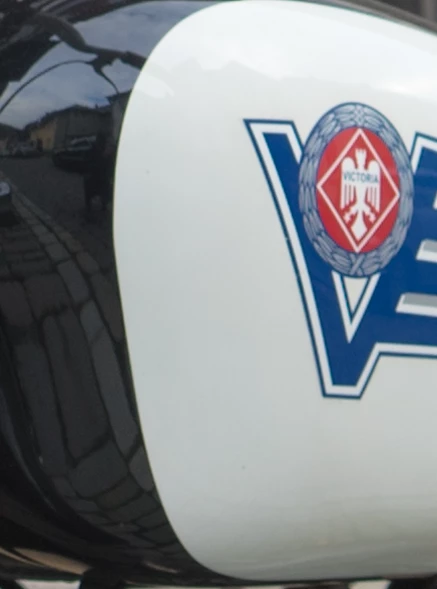
When leaving the clarity at 0 there are no artifacts visible:


The raws were captured with a Sony A7II camera (uncompressed). I do not know if these artifacts only occur with Sony raws or also with raws of other manufacturers.

Note: I already posted about this issue here https://forums.adobe.com/thread/20652...

This topic has been closed for replies.

19 replies

Participating Frequently
January 15, 2016
Well, it might indeed be connected to that, but I suppose only the devs can find out for sure.
Todd Shaner
Legend
January 15, 2016
The RawDigger TIFF does show slight CA in that area with Remove Chromatic Aberration unchecked, but not in the ARW. Looking further from the image center the CA is more pronounced. It's very obvious that the LR demosaic process is performing CA removal. It may in fact be causing the aliasing jaggies.
(Click on image to see full-size.)
Participating Frequently
January 15, 2016
@Todd Shaner: You are right. It also happens in connection with the Shadows and Highlights settings. So it is not just a Clarity problem. Maybe it has something to do with the demosaicing.

However, I still think that this is not working as it's supposed to and Adobe should do something about it. I tried Capture One and set Shadows, Highlights, Clarity and Structure to the maximum. The result looks much better. There are some halos and also a bit of aliasing is introduced, but I think it is not more than you would expect from such exaggerated settings:


(Capture One output)

Although the edge becomes a bit jaggy, there is no trace of the strange artifacts ACR produces.

@Robert Cullen: I think you are referring to something else. I don't think it has anything to do with Chromatic Aberration.
ssprengel
Inspiring
January 15, 2016
Turning off and on CA doesn't affect what I see for edge artifacts:

Rob_Cullen
Community Expert
Community Expert
January 15, 2016
I think you are seeing Chromatic aberration.
Even the image without clarity shows a yellow fringe. Clarity is just making it more obvious.
Before Clarity, open Lens Correctons Panel > Basic and check 'on' Remove chromatic aberration.

Before-


After-
Regards. My System: Windows-11, Lightroom-Classic 15.0, Photoshop 27.0, ACR 18.0, Lightroom 9.0, Lr-iOS 10.4.0, Bridge 16.0 .
Todd Shaner
Legend
January 14, 2016
I can duplicate the same edge-artifacts with Clarity set to 0. This appears to be edge-aliasing at the raw data sensor pixel level. Other than using settings that don't exacerbate the aliasing there isn't much else that can be done. RawDigger DCRAW demosaic shows the same aliasing.


ssprengel
Inspiring
January 14, 2016
I've notified Adobe of this issue and included your example file along with a link to this discussion. We'll have to see if they can do anything about it in a subsequent release.

You can mitigate the issue to some degree at least in this example photo by using a large, very-feathered adjustment brush that has a large amount of negative clarity applied, thus reversing the clarity along the edge. The large feather and large brush are needed so the edge of the reversed Clarity area isn't obvious.
Participating Frequently
January 14, 2016
I uploaded an example raw file here:

https://drive.google.com/file/d/0B5U6...
ssprengel
Inspiring
January 14, 2016
Please supply a sample raw file that can be used to test the issue. Upload to somewhere like www.dropbox.com and post a public share link to it, here.