



Harm_Millaard
Inspiring
June 18, 2010
Question

Generic Guideline for Disk Setup

  • June 18, 2010
  • 53 replies
  • 377239 views

There have been many questions about how to set up your disks.

Where do I put my media cache files, where the page file, and what about my preview files?

All these allocations can be set in PR, so I made this overview to help you find some settings that may be beneficial. It is not a law to do it like this, it is a generic approach that would suit many users, but depending on source material, workflow and backup possibilities, it is not unthinkable you need to deviate from this approach in your individual case.

The reasoning behind this overview is that you want to distibute disk access across as many disks as possible and get the best performance.

Look for yourself:
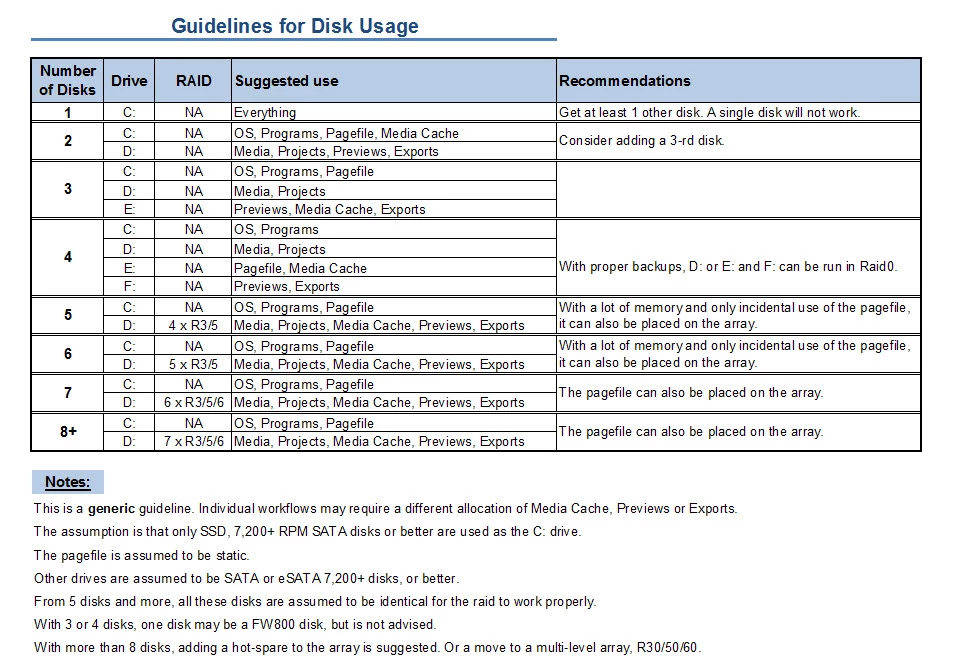
I hope this helps to remove doubts you may have had about your setup or to find a setup that improves performance.

    This topic has been closed for replies.

    53 replies

    Vern Reynolds-Braun
    Participant
    November 9, 2011

    I save my media files on a two disk Raid 0. You suggest always keeping your project file in the same location as the media files. I'm wondering what your reason for this is? I'm concerned that if my Raid 0 fails, I will also lose my project file, plus all my Auto Save files. If I dedicate a separate physical drive to just my PPro project files, would that be ok?

    Legend
    November 9, 2011

    Actually, I would not save anything at all on any (R)aid0 (although the use of a (R)aid0 array is OK for those files that are to be kept for only a short period of time, such as media cache and pagefile as well as those media files that are to be transferred to something else immediately following your editing and/or encoding session). They have a risk of having everything on all of the drives in the array permanently lost if even one drive fails. Back up everything on a separate disk or a parity RAID (3/5/6) array if you must use (R)aid0.

    Participant
    October 17, 2011

    That was considered but sadly there is not much chance that the school will ever have the funds necessary to fork out for 1400 eSATA disks, and the onsite support team would not be willing to support removable storage.

    Is it possible to use the "Consolidate Project" (or whatever it is called these days) menu option to save everything up to the network at the end of a class?

    If so this would resolve the issue as they could then be sure that they were downloading all of the required files on the second machine.?

    Participant
    October 17, 2011

    Hi Harm,

    Here's a curly one for you.

    We have Premier Pro installed at a school that specialises in media and arts.

    The students have their user areas stored on a centralised SAN.

    There are many classrooms with Macs in them and the students use different machines depending on which classroom thay are in (obviously)

    How should the scratch areas be configured in this scenario?

    Currently the students have been told to create a new project and save it locally in a folder on the Mac desktop.

    Then when they have finished their class, copy it up to their network home drive.

    When they go to their next class they can then download it to the desktop folder again and start working on it, then save it and copy it back to the network location again at the end of class.

    This is causing issues however since the scratch area and the project area are not the same.

    When the student logs onto the second machine they download their project but the scratch files still remain on the first machine.

    What is the best way to resolve this?

    Harm_Millaard
    Inspiring
    October 17, 2011

    Have you considered an external eSATA disk for scratch, that the students can carry along to the next class?

    Participant
    October 12, 2011

    Hahaha, no, I actually mean photos. Why would you download porn as long as there is an internetconnection?

    Okay, so a small drive is easy to do, but I don't really have the disk space anymore,... my 4 bays are full (and my optical drives as well, one has an actual optical drive, the other has the SSD).

    But a scratch disk is nessecary? Even with the RAM? Must the disk contain nothing else?

    Participating Frequently
    October 12, 2011

    I had a similar problem and have been through several variations.  Your setup is similar to mine in that I have an Z800 machine that also only has 4 Sata/SAS drive bays and three optical bays.  In HP's case, you can get an adapter and put two more SSD drives in the optical bay.  Even though you have a lot of memory it will still use the cache/scratch disk quite a bit.  I learned a few big lessons that are scattered about several other threads as well, so I will try and summarize them here.

    1. SSD's are great for your boot disk and where you store apps, they don't do anything as an effective scratch disk.  SSD's also seem to fail more than traditional disks in my experience (I have had two SSD failures, no HD failures). One "optical" bay down

    2. What IS effective however is a SAS drive, but you have to ensure it is in a RAID configuration.  I originally bought a 15K SAS drive in hopes it would be a great scratch disk, but what I learned is that when it is configured as an individual drive, it didn't do any better than a regular 7200RPM sata drive.  However, hooking it up as a RAID0 with another SAS drive, and now we are talking, it blows away a SATA RAID0 configurat.  For example 260MB(SAS) reads vs. 180(Sata)!  As a single drive it's write performance...well sucked, and reads were just about the same as a SATA.  In RAID0 thought it rocks, for both writes and reads and makes a great caching disk...two bays down.

    3. For your project files (video and photo's), I also went with the Black Caviar's and put them in a RAID 0 configuration (if you have multiple HD streams in a project it will make a difference).  Yes, I know this makes you live on the edge a little bit, but if you do frequent backups the risk is manageable, I have ran RAID 0 drives for 7+ years and have never had a failure...plus you are limited on bays.  Two more bays down.

    4. For exported files, since I was out of bays and didn't want to write to either of the drives above, I have found that USB 3.0 (or your drobo in this case), work really quite well.

    5. My last word of advice that doesn't pertain to you as much since you are on a Mac, is to benchmark your machine with a fresh installation (Windows 7 in this case) with a utility like passmark, and then monitor your performance once you get your applciations installed.  I actually was able to speed up my system by about 15% after reinstalling everything from scratch after having a machine with multiple CS installations over a 2 year time frame...much snappier.  Not sure if the same applies to a Mac.

    Good luck!

    Participant
    October 12, 2011

    Hi!

    Yeah, I know partitioning is not done,.. but I don't want to sacrifice a 1TB disk for a scratchdisk I will hardly use thanx to the 48GB of RAM.

    And the disk is encrypted for security reasons,... if someone nicks my Mac Pro, they don't need to see my entire photo collection,...

    Harm_Millaard
    Inspiring
    October 12, 2011

    Do you mean photo or porn?

    You could get a smallish but fast and affordable Samsung F4 320 G for around $ 40 for that purpose.

    Participant
    October 12, 2011

    Hi all!

    Wow, what a great resource! I just recently started using Adobe Premiere Pro again after a few years of being absent. My new machine seems slow since I started using HD files, which is weird as the machine is a year old, but when I read all this the answer is simple. I haven't set it up properly.

    I have a 8-core Mac Pro 2.4Ghz (2010) with 48GB (1066Mhz DDR3 Kingston) RAM.

    I have the standard ATI RADEON 5770 videocard.

    But when I use Premiere or After Effects for my Canon 5D Mark II footage, it takes a long time to preview, especially when using Dynamic Link to link my AE footage in Premiere.

    I haven't touched the settings, so that's where I failed.

    Current setup has 5 disks.

    1 - 240GB SSD - Mac OSX & Apps (including Adobe Production Premium CS5.5)

    2 - 1TB WD "standard factory" disk - Junk

    3 - 2TB WD Black Caviar (non RE model) - Projects (all my AE, PR and mediafiles) - Encrypted

    4 - 2TB WD Black Caviar (non RE model) - Other Files

    5 - 2TB WD Green Caviar - Media files (tv shows, movies, music)

    I also have a Drobo (Firewire800) with 4 1TB disk for a total of 2,8TB backup space (They call it "beyond RAID") for Time Machine backups.

    I now know I need to separate my files, so I want to keep my SSD as is, use one 1 Black Caviar for project files and assets, the other Black Caviar for render and export.

    Is this smart? And what about scratch disk? Do I need one with 48GB RAM? Can I make a 150GB partition on the standard factory disk which I can use for scratch disk?

    The Drobo is not nearly fast enough to work straight off it, but I can use it as a backup box. Or are there better options?

    Thanx in advance! These kind of forums are a Godsend! And I kinda noticed that Harm is the God in charge

    Harm_Millaard
    Inspiring
    October 12, 2011

    Occasionally we try to be somewhat helpful and in the course of a long time I have written a couple of articles that can all be found under the Overview tab, Hardware FAQ list, amongst other articles of interest.

    One in particular may be of interest: Adobe Forums: Storage rules for an editing rig. Some...

    I admit I'm not familiar with MAC's, but on PC's partitioning is not done. It is all explained in the article linked to here. The Drobo is great for backups. Why have you used encryption on the 3-rd drive? It adds overhead and CPU cycles, thus reducing performance.

    Known Participant
    September 27, 2011

    Hey Harm,

    I'm going to set up fast input (media) and output (exports/renders) drives, but is there any need for the C drive (OS and programs) to be particularly fast?  I'm planning on using a 1TB WD Caviar Black for the C drive.  (I know that's excessively large, but I have an extra one and I like free stuff).

    Harm_Millaard
    Inspiring
    September 27, 2011

    The WD Black will do fine.

    Participating Frequently
    September 2, 2011

    Harm,

    I am hoping you can help with a question(I welcome other expert responses as well of course).  I have run the PPDM and read all the recommendations so I have a good sense of what you recommend for configurations.  I have an HP Z800, dual W5590 3.33Ghz, 36GB RAM, Quadro3800 with disks as follows.

    c: OS, Programs
    D: Media, Projects (Raid 0 2x1TB drives 7200rpm)
    E: Pagefile, media Cache (120GB SSD)
    F: Previews, Exports

    My question is this, I am currently ranked #149 while two other Z800's are ranked #26 and #49 (somewhat similarly configured), and while I don't care so much about rankings I do want my machine to run as quickly as possible.  I have had it for 2 years now and am willing to upgrade it (spent too much to completely replace it at this point), but I am not sure where my money would be best spent.  Listed below are the two machines I am comparing against.  An obvious difference is they have more cores than I do, but they also have more memory and different video cards.  Disks seem to be similarly configured, but neither of them have a big raid system which I had previously thought was my biggest performance bottleneck(still possible I missed some aspect of their disk configuration).

    Listed below are what appeared to me to be the biggest differences between their systems and mine.

    So, my questions is, what do you think would be the smartest thing to upgrade, CPU, Video, memory, disk or a combination of these?

    Thanks in advance!

    26 Z800 MT Desktop HP Z800 Intel Xeon X5660
    More CPU cores (12 cores with X5660's vs 8 with my W5590's), More memory(96GB vs my 36GB), different video (GTX 570 vs. my Quadro 3800), similar disk configuration

    49 Civilization HT NM Desktop HP Z800 Intel Xeon X5680 3.33
    More CPU cores (12 cores with X5660's vs 8 with my W5590's), More memory(48GB vs my 36GB), different video (Quadro 4000 vs. my Quadro 3800), similar disk configuration

    149 BZ800 Desktop HP HPZ800 Intel Xeon W5590 3.33

    Note: My current disk configuration above is slightly different than when I ran the test that is posted, but it returned essentially the same #'s.

    Harm_Millaard
    Inspiring
    September 2, 2011

    There are two limiting factors in your setup, one is the W5590, which is an older generartion CPU and of course, as you already stated, with fewer cores. The second one is the FX 3800 versus the GTX 570. The latter may be of minor impact, but the older generation CPU is the most obvious one. It is somewhat comparable to an i7-920 versus an i7-2600K. The latter, being of a newer generation is plainly faster than the older 920. Same with your CPU's.

    Whatever way you turn it, you will get better performance from the 56xx series of CPU's than from the 55xx series, but that raises the question: Is it worth the investment? I rather doubt it.

    If you contact us via the PPBM5 contact link or create a new thread with details of your setup, either Bill or I will get back to you.

    Participant
    July 22, 2011

    General question for all the gurus on the forum.  Been reading and studying at great length to understand how to optimize my setup and am still not getting the performance that my system should produce.  My configuration is:

    Mac OSX 10.6.7

    3.2Ghz Intel i7

    24Gb 1600MHz DDR3 RAM

    Nvidia GeForce GTX 285 1GB RAM

    Disk Setup:


    64GB SSD: OS and Applications

    2 Disk TB G-RAID (RAID ) via eSATA: Video Files and Premiere Pro projects

    1TB 7200rpm SATA: Previews, Media Cache, Exports

    Scrubbing just one layer of 1920x1080 .mov video from my DSLR is choppy and sluggish and forget about multiple layers with effects.  I see my performance then watch all the adobe tutorials of multiple streams of RED footage running and scrubbing smoothly and I get frustrated.  Exports are also slow and crash often.

    I cannot do the PP Benchmark because I'm on a Mac but I've used MMBench disk monitoring software will playing video to check transfer speeds and I'm only getting an average of 50mb/s via eSATA when G-RAID's literature guarantees 200mb/s!  Does anybody know what I'm doing wrong or where the bottleneck is??

    I'm thinking of adding another 2TB 2 Disk RAID 0 to bring my system to a 4 disk system.  Would this make a big difference?

    Also, the G-RAID is currently my main disk with pictures, AI files, documents, etc on it along with the Source Media. (I do back up religiously with Time Machine).  I have 622GB used of the 2TB G-RAID.  Does this G-RAID need to be SOLELY dedicated to Source Media to transfer data fast?

    Thanks for all the info on the forum and hopefully someone can enlighten me!

    Participant
    July 30, 2011

    I hope this shines some light on the issue and helps even if a teeny bit.

    my System Configuration is:

    *Windows 7 professional 64 bit

    Asus P6X58D-E

    Intel i7 960

    24Gb 1600Mhz Corsair DDR3 RAM

    MSI GTX570 Twin Frozr III (Nvidia)*

    Disk Setup

    *OS and Applications - WD Velociraptor 600GB (10000 RPM)

    Media and Projects - WD Black 1 TB (7200 RPM)

    Exports and Previews - 2 X WD Black 1 TB (7200 RPM) - RAID 0 = 2TB*

    I use a Sony AVCHD camcorder generating 1080i *.m2ts files and i somehow can

    playback my timeline very smoothly with a few effects and also am able to

    scrub with out glitches - ok a disclaimer - my setup is very new and i

    haven't yet edited anything beyond 5 mins with effects and layers. Also i

    haven't exported any finished videos. I will do the premier pro bench mark

    soon and see what i get. will post the results and/or if really bad commit

    harakiri.

    Well that's that

    Participant
    July 17, 2011

    I am planning the following approach for my drive configuration. - based on your advice

    planning a four drive system

    600GB velociraptor for OS and programs

    two 2 TB WD blacks running as RAID 0 to have Media, Projects, Previews and Exports

    and  a fourth drive for Pagefiles and Media Cache - now here's my question  will like a small 60 - 80 GB SSD work for this and do i need a speedy  drive especially when i got 24 gigs of 1600Mhz RAM or a regular 7200RPM  500GB SATA drive do?

    and ofcourse a regular external backup for the RAID setup.

    thanks

    shoe