


thibautdewinter
Known Participant
January 7, 2017
Answered

GPU Render Error | Nvidia GTX 1080 | Premiere Pro CC (2017)

  • January 7, 2017
  • 15 replies
  • 26416 views

Hi everybody,

Recently we switched from a Mac Pro (Late 2013) to a Windows PC.

Here are our specs:

Asus X99-A II

Intel Core i7-6900K

Asus GTX 1080 STRIX GAMING NVIDIA 8GB D5X

64 GB Corsair D432GB 2400-16

Unfortunately everytime we want to render our sequence in Premiere we get the following GPU render error
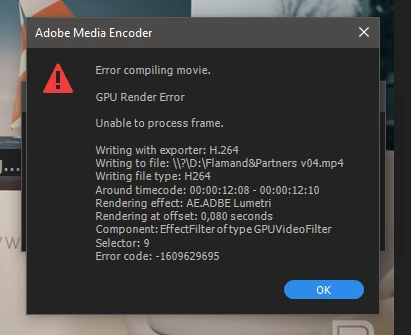
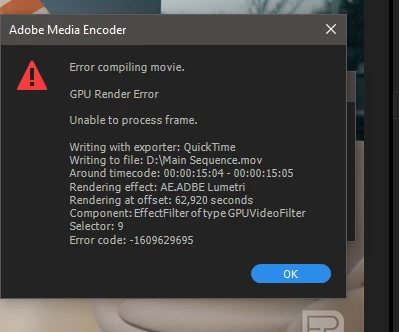
We tried rendering the sequence in 1080p or 4K.
Different formats like H264 and Quicktime. CBR, VBR 1, VBR 2, nothing really helps.
Old an new Nvidia drivers etc..

We literally tried everything.

The weird thing about this GPU error is that the point of failure is always somewhere else.

The footage we are editing is from our RED Epic-W mostly shot in 6K or 8K RAW.
Our composition is 3840 x 2160.


We used different dynaminc links between PR and AE, some with the RSMB plugin.
Setting RSMB to render by CPU instead of GPU doesn't help either.

We can render the sequence in three different parts and then combine them together.
But thats a big waste of time.

I can't imagine that one of the most popular graphic cards is not supported by Adobe.

We've run a few benchmarks to stress the GPU (FurMarck, Valley Benchmark, etc).
The GPU usage was 100% for a few hours, it stayed very cool at 57° and didn't fail at all.

Does somebody have the same problem? Any idea how can we solve this?

Thanks in advance.
Greetings,
Thibaut De Winter
This topic has been closed for replies.
Correct answer pkirst

Folks,

Just wanted to remind everyone the best action if you are experiencing this issue. Please visit NVIDIA.com/drivers to download and install the 378.49 driver. We posted this January 24, 2017.

If you are still seeing this problem, please send me a DM and we will capture your repo details.

15 replies

Michael Kuzmin
Participant
March 28, 2021

Hello everyone. I had the same issue as all of you with rendering AE linked project in PP. Error codes were different, timecodes were different all with every try.
So, I made a bunch of suggested solutions from this topic at a time:

1. Reinstalled latest driver for my GTX1060 (6gb) with GeForce Experience.
2. Istalled MSI Afterburn from official website. (Didn't attach any options inside of the program)
3. Opened linked AE project wich I had problems with – Turned off/on all the layers and effects – Saved and got back to PP.
Therefore it rendered with no issues at all. Thank you for your solutions, guys.

josha36694150
Participating Frequently
January 18, 2020

So I found a solution that's worked for me, which was toggling a plugin off and on. I isolated the problem to a clip referencing an After Effects composition. The AE comp had several plugins working, and I turned them all off. The culprit was Red Giant Trapcode Shine. Turned it off and the error went away. I toggled the effect back on and everything is still rendering fine. Guessing this has something to do with caching the good over the bad, no idea, but it works.

blitzkrieg666
Participant
September 26, 2017

Attempted PPBM8 benchmark PPBM9.2-DE.prproj, on latest driver (as of this post) version 385.69 gives me 'Unknown error' for the last H.264 test, even the logs is vague.

Did full removal of drivers and installed version 373.06 and exporting works just fine:


What gives?

Bill Gehrke
Inspiring
September 27, 2017

Your output.csv looks like this:  "72","68","15","398", Premiere Version:,xxxxx

  1. The 398 seconds is the CPU intensive score and for your i7-6800K and it is great as my posted score for that CPU is 434 seconds, maybe you have a better tuned system.
  2. Your 15 seconds for the strictly GPU intensive score is right on with the score that I got testing a GTX 1080.
  3. For the H.264 timeline export which is GPU and CPU intensive.  Your 68 seconds is reasonable, about what I would expect.
  4. Your disk intensive test of 72  seconds (515 MB/s) is reasonably fast score for probably a SSD or RAID export device.

As far as you problems with drivers I have found the same problem.  I have tried to test all versions since Premiere Pro CS6 with the same driver for each test and Premiere Pro 8 and 9 require older drivers, interesting CS6 and Premiere 7 do not!

blitzkrieg666
Participant
September 27, 2017

1. Yup, I've under volt my CPU and applied a mild overclock (4GHz) to it.

4. I'm using a Kingston HyperX PCIe KC1000 240GB SSD.

https://forums.adobe.com/people/Bill+Gehrke  wrote

As far as you problems with drivers I have found the same problem.  I have tried to test all versions since Premiere Pro CS6 with the same driver for each test and Premiere Pro 8 and 9 require older drivers, interesting CS6 and Premiere 7 do not!

Hmm, is there the same problem for Premiere Pro 10 or 11? Any chance you've tested it? Unless justifiable, upgrading from my current v9 won't fit the budget at the moment.

blitzkrieg666
Participant
September 26, 2017

I'm using a Zotac GTX 1080 Amp and can't render/preview simple .R3D, no effects whatsoever.

In reference to GPU Render Error | Nvidia GTX 1080 | Premiere Pro CC (2017)  Black screen (no output) for RED files on GPU Acceleration  GTX 1080 or Titan X for video rendering? Are they supported by Premiere Pro and the whole Adobe Collection?  Issues with CUDA Acceleration and RED R3D Footage Playback


So I set out to test all the drivers from the latest (as of this post) 385.69 down to 368.81. In between, remove the drivers using DDU in safe mode and restarted. Old drivers were downloaded from Videocards - NVIDIA GeForce Windows 7 | 8 | 10 .

After almost 2days I can conclude only 3 version is able to render/preview .R3D;

368.81, 372.54 and 373.06

My specs as follows (if it matters?):

i7-6800K, 64GB ram, Windows 10 Pro v1607 build 14393.1715, Premiere 2015.2

Also, the GFX is not overclocked; stock defaults.

The annoying thing is Windows will update the drivers to the latest automatically, which obviously breaks .R3D rendering. Thus the need to tweak gpedit.msc: Computer Configuration > Administrative Templates > Windows Components > Windows Update > Configure Auto Updates, set to Enabled and '2-Notify..'

Participant
December 29, 2020

Did you ever get the zotac 1080ti  working with the cuda rendering? I am having issues with it.  My RX580 rendered the effects fine. Slow but worked. I upgraded to the Zotac 1080ti amp edition and now I am having the red bar saying  gpu render error. Something like that. (Not at my computer at the moment to say exactly what it says.)


Was hoping someone figured it out. Thanks

gavner25
Participating Frequently
September 10, 2017

Hi guys

I have had this issue for over a year now and i actually work for Adobe on a freelance basis.


I do however have a genuine solution for those of you that are using a pc. I have a mac but i use bootcamp with Windows 10. I found this solution in this forum and after a year of headache and having to resort to 'software' renders.

You need to download MSI Afterburner which is a free overclocking software for your graphics card. Just load it up and leave it on default settings (do not overclock or change the settings). Then if you have 2 or more graphics cards like me, make sure you assign premier pro or media encoder to the graphics card you want to use. I used the NVIDIA control panel to assign my 2nd card (GTX 980Ti) to Premier Pro. I restarted Premier and VIOLA!! all is rendering perfectly if i export from Premier directly.

Bare in mind that prior to this i could not render anything at all using cuda and i mean nothing!!. Every single export option gave me the error you guys see. Even the ingest option failed in Media Encoder.

Give it a try and share your result!

Gavin

neomagic.sn
Participant
September 10, 2017

Neither the recommended driver nor Afterburner fix the problem :-(

Participant
August 4, 2017

updating drivers so far has not helped me.

Though my error seems to be linked to the Lumetri Coloring system.  I took the effect off my clips, and it cleared the media encoder just fine.

before whenever i would switch apps (away from media encoder) it would crash instantly.

if i did not switch apps, it would crash at the end.

So now it seems I have to work around Lumetri.

However, it might be worth a try to apply the effect as an effect rather than using the coloring module in Pr.  I had been doing the previous for months with no issues, and only recently started using the coloring module.  I don't think i've been able to render since then.

It might be worth mentioning that i am compiling time lapses (jpgs).

thibautdewinter
Known Participant
February 17, 2017

Unfortunately it's that time again..

pkirst
Participating Frequently
February 17, 2017

I am here to help! Is this a new system or new project? As usual, I am after the details below.

NVIDIA Driver version:

NVIDIA GPU:

Windows OS version:

Adobe PPro version:

Repro Steps:

1.

2.

3.

4.

5.

6.

thibautdewinter
Known Participant
February 25, 2017

Hi, thank you for helping me.

It's rather very hard to reproduce the steps.

We normally work about 4-5 days on a corporate movie and then try to export a v01 version.

You can image that in 5 days we do alot of steps.

A few months ago we edited on our MacPro 2013, we never had this error.

I tried everything, nothing seems to work.

pkirst
pkirstCorrect answer
Participating Frequently
January 30, 2017

Folks,

Just wanted to remind everyone the best action if you are experiencing this issue. Please visit NVIDIA.com/drivers to download and install the 378.49 driver. We posted this January 24, 2017.

If you are still seeing this problem, please send me a DM and we will capture your repo details.

thibautdewinter
Known Participant
February 1, 2017

Since I've done the update a few days ago I haven't seen the error when exporting.

We are currently working on a new project with the exact same effects and methods as the previous one.

I think the Nvidia update fixed the problem.

Thank you very much Peter for the great support and solution!

January 30, 2017

Depending on the complexity of your timeline and/or if you have large pixel photos or high dpi photos on the timeline, you may run out of video memory if your video card has only the minimum amount of RAM.  Once the Mercury Playback Engine runs out of memory, it will automatically switch to running in the slower Software mode and stay that way for the rest of the Rending process.  This is why I say, the more video ram, the better.

January 30, 2017

you're genius! my gtx 780 ti didn't work because txt file only has gtx 780. thanks a lot!