Participant
October 6, 2014
Answered

How do I get a SVG file from Adobe Shape CC into Adobe Illustrator

  • October 6, 2014
  • 4 replies
  • 13336 views

This seems simple but am stuck (haven't used CC for file syncing) ... I just tried Adobe Shape CC on my iPhone.  Great!  File is saved to "My Library" and I can see it on my phone and on the web at: https://assets.adobe.com/assets/libraries.  But it doesn't sync to my desktop.  How do I move it from my libraries into my "Files" so I can open it on my computer and use it in Illustrator?

This topic has been closed for replies.
Correct answer Ken G. Rice

First update to the newest Illustrator version if needed. The SVG files you create with Adobe Shape CC are added to your Libraries and are accessible from many desktop applications. From Illustrator create a new document. Open the Libraries panel and right-click on the Shape file and choose Use in document. Then click on the Illustrator file to place the Shape. Save the file to your Creative Cloud Files folder and it will sync up to the Files section at https://assets.adobe.com.

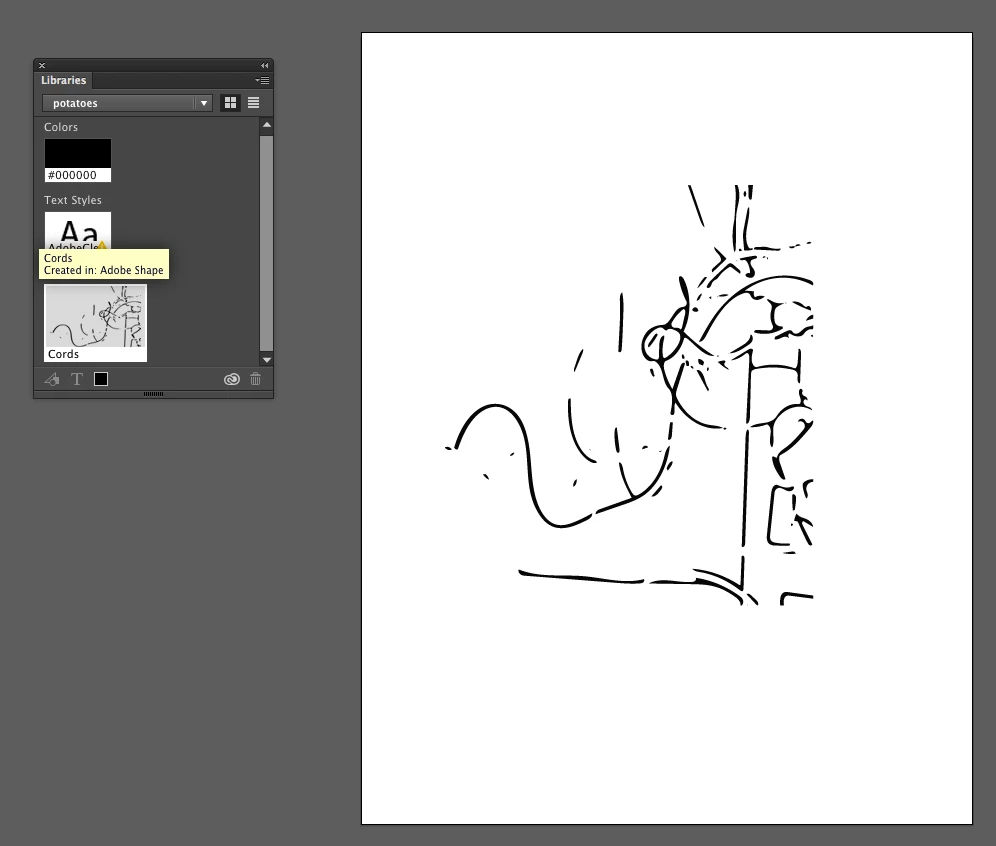
Shape added to Illustrator file:

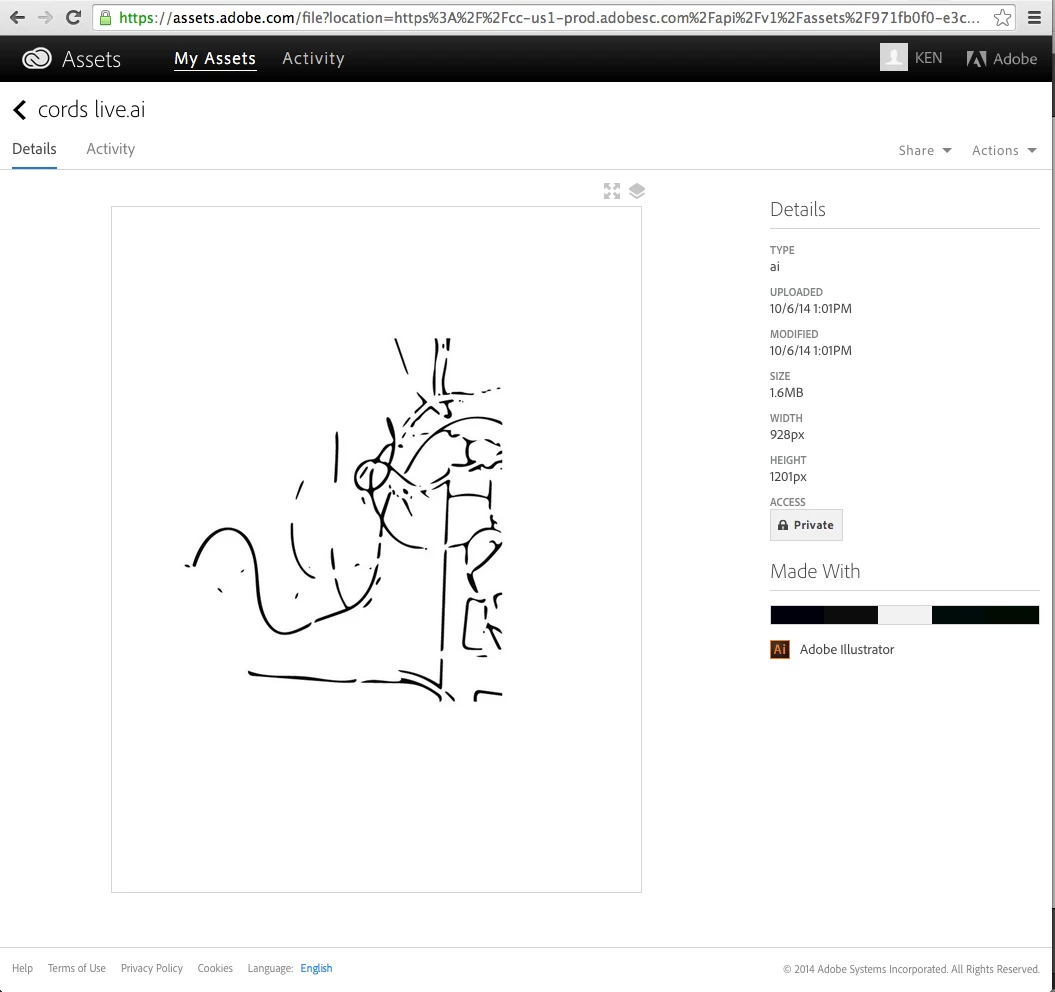
Viewing the file from the Files section:

4 replies

mRfung1
Participating Frequently
May 23, 2016

My Libraries rarely can get passed the "detected internet connectivity issue" error in the libraries panel making accessing my assets not possible.

What do we do when it isn't working for whatever temperamental stupid issue thats isn't there one moment then there the next??

Sue Garibaldi
Community Manager
Community Manager
May 24, 2016

MrFung,

Sorry you're having trouble. A couple of things I'd like you to check:

Have you tried connecting to the Internet from multiple locations? That is, are you trying just at work? Or trying just at home? Or are you having the trouble everywhere you try?

Can you log in with your Adobe ID to http://assets.adobe.com (My Assets - Libraries) and see if all the assets that are on your device are showing there.

Have you tried syncing your assets using the CC icon in the Libraries panel (see image)? Does that sync your library assets?

Let me know what has/hasn't worked.

Sue.

dorcaMusseb
Participant
November 4, 2015

This is really frustrating. Here. Create. Except...

Why must it be so hard to access the files? It makes no sense whatsoever.

Participant
October 17, 2014

Really? You offer file syncing, but no way to actually retrieve these files outside of CC apps?

How did this make sense to anyone at Adobe? Ridiculous. This entire file system you provide, and yet you put certain files 'locked away' in a "Libraries" location that doesn't sync. Well that makes sync quite useless doesn't it?

Participant
October 20, 2014

i've found a way around it.

it's a long way around, but it works

pm to ask me i don't want to post it or it might get fixed

Ken G. Rice
Community Manager
Ken G. RiceCommunity ManagerCorrect answer
Community Manager
October 6, 2014

First update to the newest Illustrator version if needed. The SVG files you create with Adobe Shape CC are added to your Libraries and are accessible from many desktop applications. From Illustrator create a new document. Open the Libraries panel and right-click on the Shape file and choose Use in document. Then click on the Illustrator file to place the Shape. Save the file to your Creative Cloud Files folder and it will sync up to the Files section at https://assets.adobe.com.

Shape added to Illustrator file:

Viewing the file from the Files section:

thornomadAuthor
Participant
October 6, 2014

Hi Ken -

Thanks!  It was "updating it" that actually did the trick for me.  After I realized it wasn't going to show up as a file I still couldn't find my Libraries ... but now I can!  Thanks!