Participant
November 17, 2016
Answered

issue with using Capture shapes and patterns in Illustrator

  • November 17, 2016
  • 1 reply
  • 2419 views

Hi everyone

that be great if some body can solve this issue I am experiencing

I have created shapes, patterns and brushes with Adobe capture on my iPhone 6s, Then I have saved them to my Adobe library hoping that I could use them in desktop apps such as Illustrator and Photoshop.

However the first time I opened up library panel in these desktop apps, was alerted that I need to download Creative Cloud App which I did afterwards.

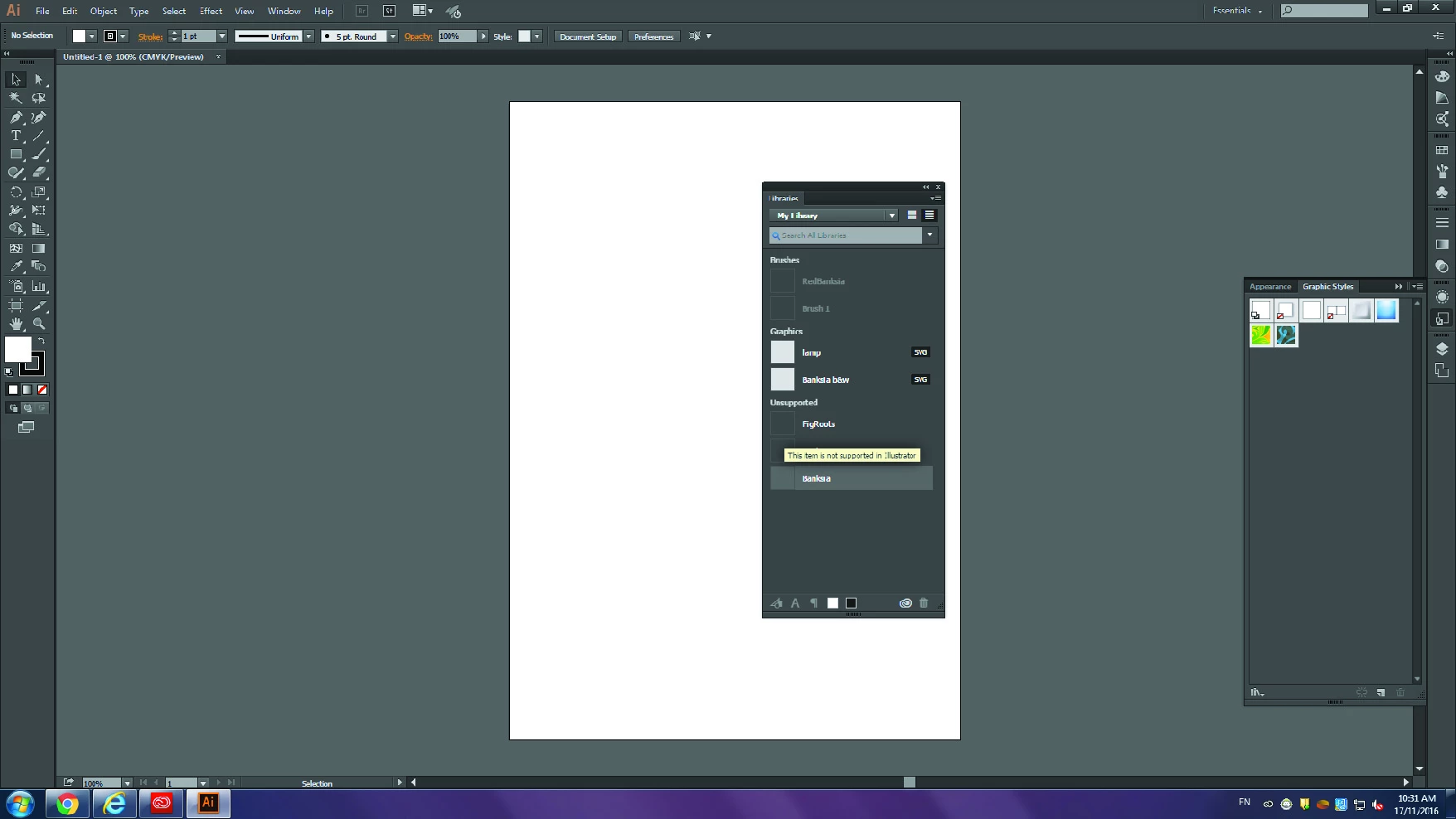
Now I can see the name of the brushes, shapes and patterns I created with Adobe capture, but I can only see the names, there are no images and neither I can click on, edit or drag them! (plz check the screen shot I attached). Seems that all of them are disabled. When hovering my mouth on the pattern files, it says these are not supported by Illustrator? Brushes and shapes just simply are turned off.

What is the reason of this and how can it be solved?

Btw, I have already watched the tutorials how to make shapes with Capture and use em in Illustrator. I think I did the steps right but this is not the point...

thanks a lot

sara
This topic has been closed for replies.
Correct answer Sue Garibaldi

Hi Sara,

Yea, none of Adobe's tools use the same rendering model, each has its own brush format and brush features and a lot of the time people want to use the Ps-style brushes... but in Illustrator. But it's just not possible. Illustrator's works in a very different way. Sorry.

It's good you can see the Shapes on Adobe.com, that means they're syncing to Creative Cloud. A couple of things I want you to check/try:

* Make sure you're using the 2017 version of Illustrator CC (to check, open Illustrator  and tap on the Illustrator CC menu, then on About Illustrator; that will open a splash screen with the version). If you're not update the desktop app.

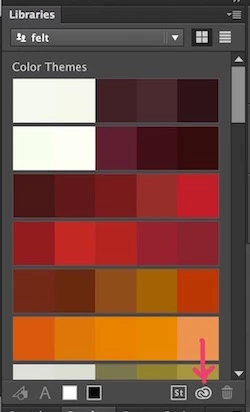
* There's a small cloud icon in the Libraries panel. Tap that and see if your Capture Shapes sync.

* If they don't sync, try signing in and out of the Creative Cloud Desktop App. Close any open applications, then go up to the CC logo in the Apple Menu bar and tap on the Gear icon, then Preferences, then Sign Out and sign back in.

Let me know what happens.

Sue.

1 reply

Sue Garibaldi
Community Manager
Community Manager
November 17, 2016

Hi Sarai.

Sorry for taking so long to respond. This will be a long response so I'll try to organize it in such a way that it's helpful.

* Currently Patterns are only accessible in Ps CC, so they will be greyed-out in other desktop apps.

* With regard to Brushes:  None of Adobe's tools use the same rendering model, each has its own brush format and brush features, so not every brush works in every application.  If you ultimately want o use the brushes in Ai, then you'll need to limit yourself to the Illustrator-targeted brushes when you get to the Style section in Capture. When you save a brush, it will launch a screen where it can be edited/named. It's also where you can see which brush work with each application. Scroll until you see the brushes for Ai.                                                                                                                                                                                                                    

Try this with one of your brushes:

Go into Capture CC and choose a brush

Tap the edit icon (square with a pen); that will open a visual list of brushes

To use the brush in Illustrator, make sure you've chosen an "Illustrator" brush (tap the circle to check it) and Save. It will save to your library as a Illustrator brush and as soon as it syncs you should be able to open it there.

* Now for the more complicated part: I'm not sure why your shapes aren't showing up in Illustrator CC. It could be that they're not syncing. Can you log in with your Adobe ID to Adobe Creative Cloud  and see if you can see your Shapes there? Let me know what you see and we'll go from there.

Hope this helps get you started... Keep me posted.

Sue.

Participant
November 18, 2016

Thanks a lot Sue,

Really helpful

Patterns r working in Photoshop as you said, so no problem with them.

About the Brushes as far as I understood and practiced with Capture,  I should change its style to be able to use in Ai. There under the Style tab I see options for Photoshop and three options for Ai. however the Ai options are only B&W and more like Bristle brushes, so does that mean I can't make any Pattern or Scattered Brush with the image I want?

The result is very similar with most source images too.

About the shapes. Yes I can see them in my Creative Cloud account but they are still not clickable in Illustrator.

thanks a lot

cheers

sara

Sue Garibaldi
Community Manager
Sue GaribaldiCommunity ManagerCorrect answer
Community Manager
November 18, 2016

Hi Sara,

Yea, none of Adobe's tools use the same rendering model, each has its own brush format and brush features and a lot of the time people want to use the Ps-style brushes... but in Illustrator. But it's just not possible. Illustrator's works in a very different way. Sorry.

It's good you can see the Shapes on Adobe.com, that means they're syncing to Creative Cloud. A couple of things I want you to check/try:

* Make sure you're using the 2017 version of Illustrator CC (to check, open Illustrator  and tap on the Illustrator CC menu, then on About Illustrator; that will open a splash screen with the version). If you're not update the desktop app.

* There's a small cloud icon in the Libraries panel. Tap that and see if your Capture Shapes sync.

* If they don't sync, try signing in and out of the Creative Cloud Desktop App. Close any open applications, then go up to the CC logo in the Apple Menu bar and tap on the Gear icon, then Preferences, then Sign Out and sign back in.

Let me know what happens.

Sue.