peterbox
Participant
April 15, 2017
Answered

No undo

  • April 15, 2017
  • 1 reply
  • 790 views

I can not go back on my ipad, I have to start over.

    This topic has been closed for replies.
    Correct answer Michael J. Hoffman

    Hi Peter,

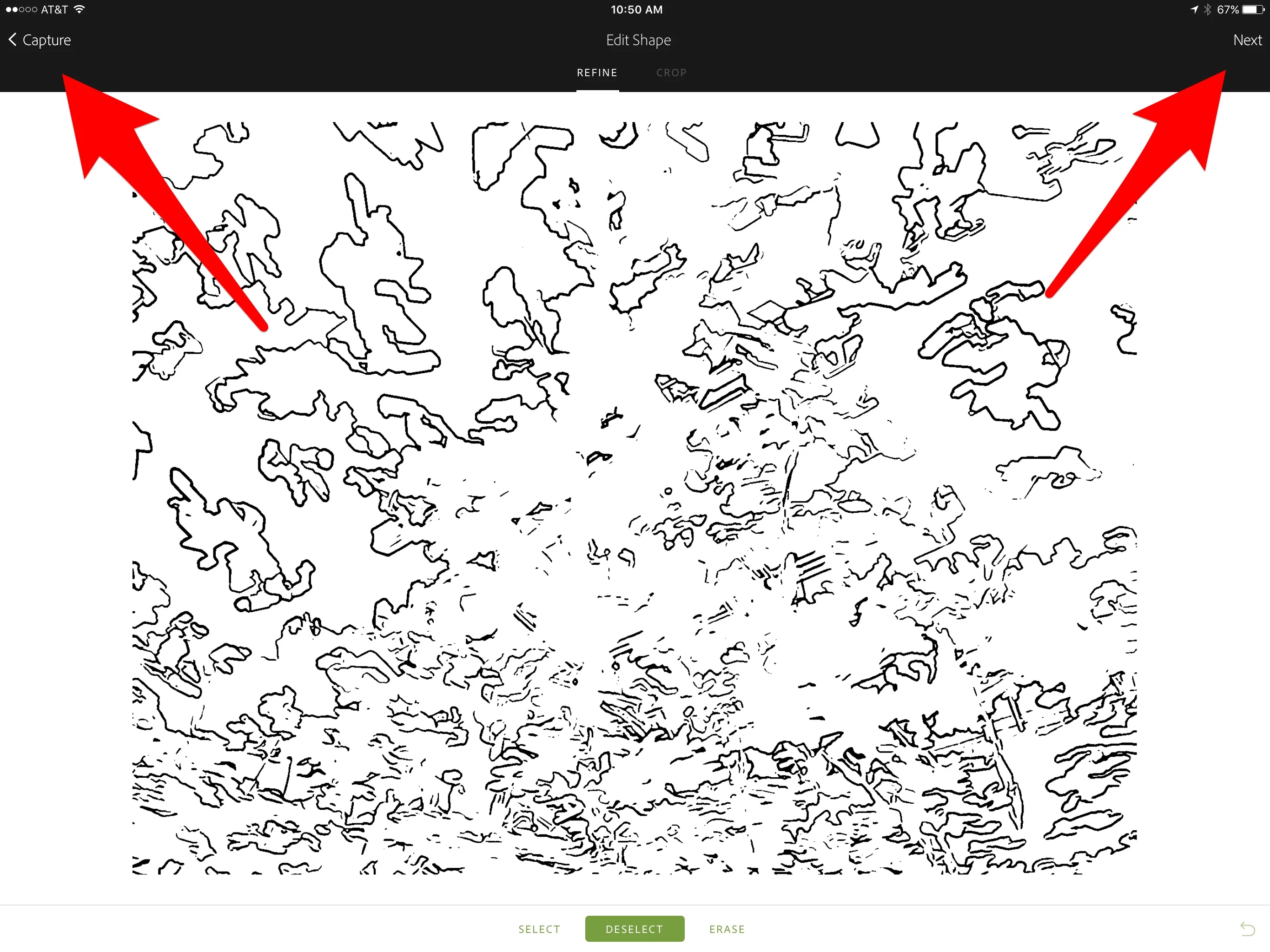
    When working with shapes, you have "Next" and "Back" choices at the top of the screen taking you through the four steps:

    Capture - Edit - Preview - Save

    Any time, until you choose "Save," you can move backwards and forwards through the steps.
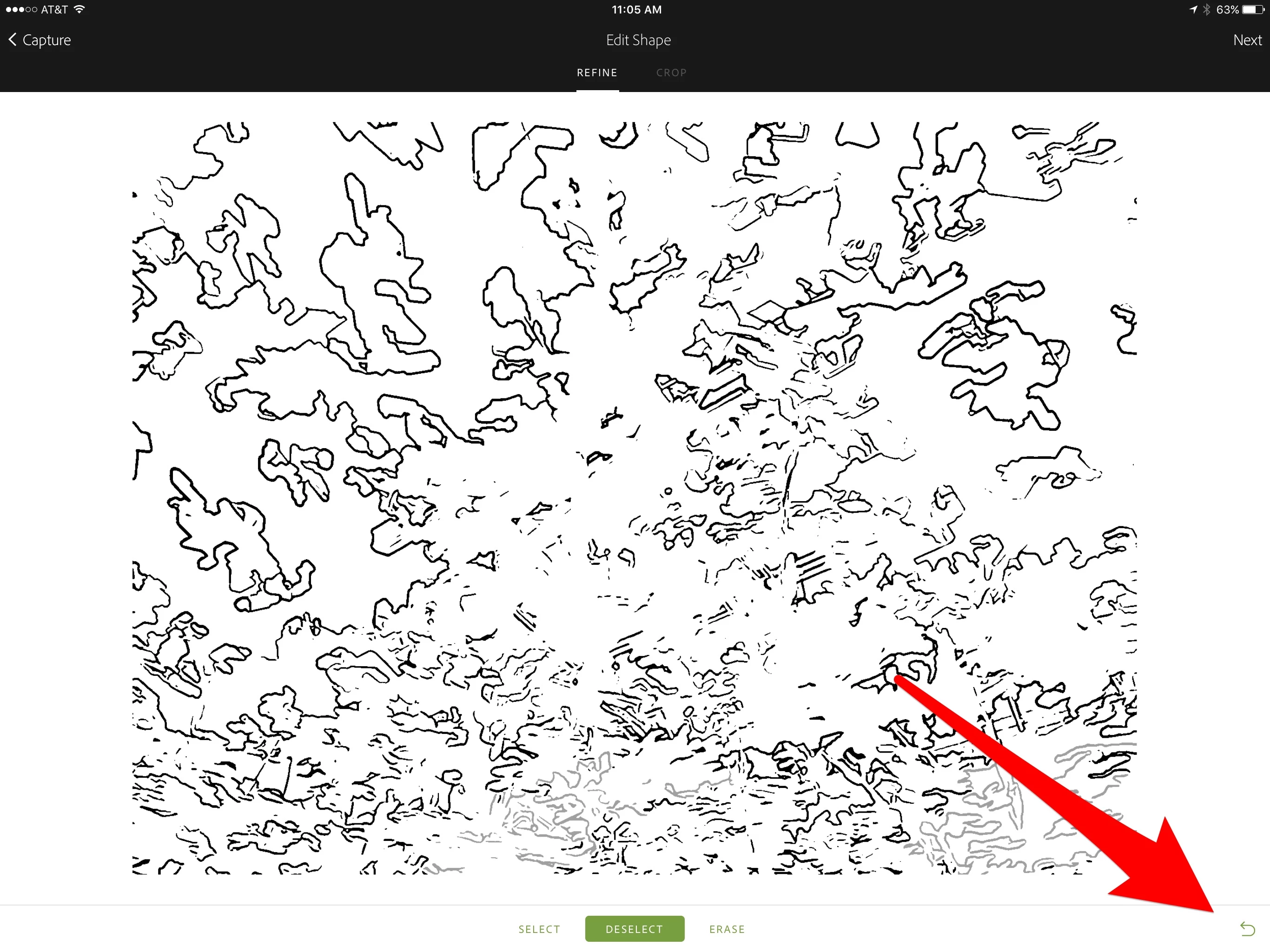
    During the Edit process, you can "Select" and "Deselect" parts of the shape, and you can "Erase." All these operations can be undone with the reverse arrow as you are working:
    If you are looking for the Capture App for iOS to install again, you can search the App Store or go here and click the link to take you directly to the App Store:

    Adobe Capture CC | Edit photos, shapes to vectors and graphics

    Mike

    1 reply

    Michael J. Hoffman
    Community Expert
    Community Expert
    April 15, 2017

    Hi Peter,

    When you say you cannot go back, in what section of Capture are you working? Shapes, Patterns, Colors, Brushes or Looks? Typically you you can go backwards and forwards during the creation process, but once you hit "Save," further editing isn't possible.

    Please clarify your process - what steps you're taking when you "can't go back." It will also be helpful if you provide your version of Capture.

    Mike

    peterbox
    peterboxAuthor
    Participant
    April 15, 2017

    Hola Mike, cuando estoy trabajando una forma (shapes) no me deja volver si me equivoco, la flecha ↩️ de retroceso no funciona, no sé que pasa… la app la he borrado, he vuelto a instalar y nada

    Michael J. Hoffman
    Community Expert
    Michael J. HoffmanCommunity ExpertCorrect answer
    Community Expert
    April 15, 2017

    Hi Peter,

    When working with shapes, you have "Next" and "Back" choices at the top of the screen taking you through the four steps:

    Capture - Edit - Preview - Save

    Any time, until you choose "Save," you can move backwards and forwards through the steps.

    During the Edit process, you can "Select" and "Deselect" parts of the shape, and you can "Erase." All these operations can be undone with the reverse arrow as you are working:

    If you are looking for the Capture App for iOS to install again, you can search the App Store or go here and click the link to take you directly to the App Store:

    Adobe Capture CC | Edit photos, shapes to vectors and graphics

    Mike