Hey mlz123456!
Sorry for taking this long to reply back but I had to read a lot.
I've consulted the "Acrobat JavaScript Scripting Reference", the Acrobat JavaScript API Reference Guide", and also with the Acrobat Enterprise Toolkit - Preferences Reference", and the "Digital Signatures User Guide for the Acrobat Family of Products: A guide for IT and enterprise users".
Your main question have a yes and no answer, depending on which context we're referring to.
- Is it possible to Hide/Disable Default Signature Box?
No. It is not possible to hide and it is not possible to disable it.
What is possible though, is that you can switch the appearance of that dialogue box via registry keys (or Plist if on macOS), or you can do it manually by going to EDIT--->> PREFEERNCES--->>SIGNATURES--->>> "Creation & Appearacnce" -->> click on "More". In the next dialogue box un-tick the box "Use modern interface for signing and Digital ID configuration".
See slide:
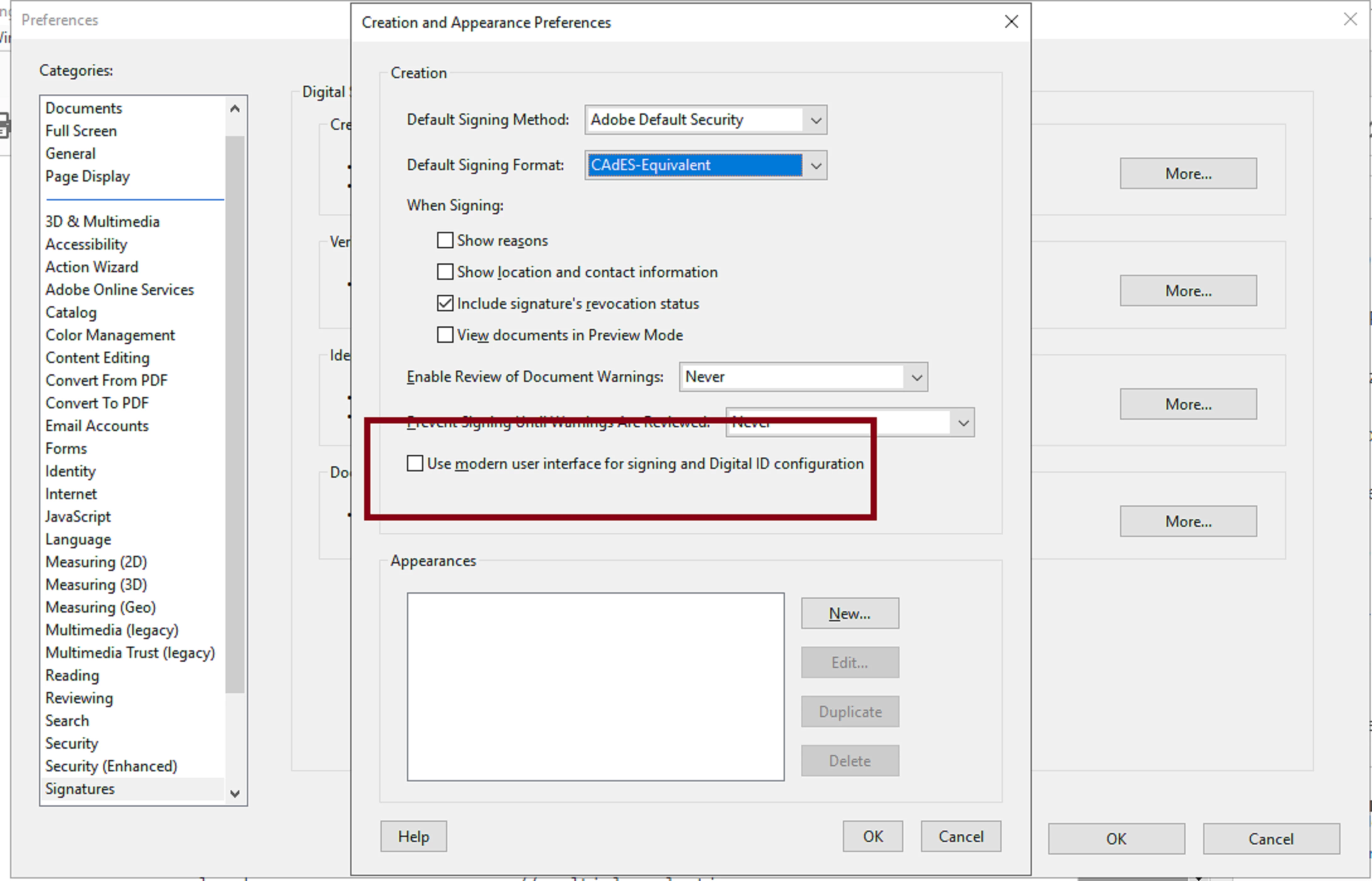
The problem with that is, that this setting is not locakble, meaning that, users can toggle this preference locally in their desktop. And it won't be retained with that document unless you figure out how to embedd the setting with the PDF, save the file with reader enabled rigths and restrict (encrypt) with password to prevent editing.
In your case, if this is at work, one available avenue is to disable that preference setting via Group Policy and the Acrobat t Cutomization Wizard (during installation time). This will prevent all users from messing around with it.
The registry keys that need to be disabled are discussed here: Enterprise Toolkit | Windows Registry Reference - Signing: Appearances
See quote below:
- The newer UI streamlines the user interface. All values also disable the UI option to change the preference. Note that for products released after June 2016, disabling a user's ability to create a self-signed digital ID requires setting both "bSelfSignCertGen" and "bEnableCEFBasedUI" to 0.
- Possible values include:
0: Disable the modern UI and shows the legacy UI.
1: Enable the Modern UI.
From further reading, it is possible to avoid the annoying Sign Document dialogue if you add to your current script another small script to create the signature field for the user rather than having the user right-click and sign on a pre-existing signature field.
See this brief tutorial by Thom Parker:
I think this is the way to go to resolve your issue.
There's a lot more that you can also try by using the seedValue of a signature field to apply filters, and/or manipulate Signature Handlers so that the user will not be able to sign if the Signature Appearance doesnt match a specific filter, for example.
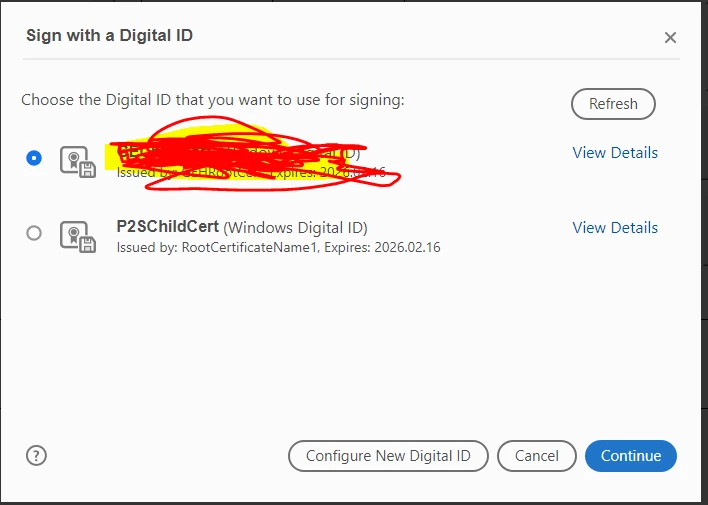
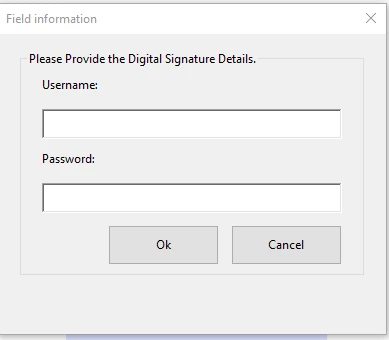
In this case the dialogue box won't allow to continue any further, which you can terminate via script and the user will be forced to re-enter user name and password again, then select the correct certificate (if more than one is shared per user) .
See this quote taken from this deprecated guide : https://www.adobe.com/devnet-docs/etk_deprecated/tools/DigSig/Acrobat_DigSig_WorkflowGuide.pdf
- 6.4 Forcing Signers to Use a Specific Signature Appearance
- Enterprises and other structured work environments sometimes provide uses with predefined signature appearances. These appearances are then used for specific signing purposes. For example, the appearance may identify the signer’s organizational affiliation or a particular task or workflow that pertains to the signed document. Authors in such environments can specify which signature appearance is required for any given signature field. As with other seed values, a flag bit is used to indicate whether or not the field is a recommendation or mandatory. A signature field is correlated with a specified name which is then used to match a given appearance. The string name must exactly match the name of a signature appearance for it to be selected.
- Example 6.3: Seed value: signature
Example 6.3: Seed value: signatureAppearance
f = this.getField("Field Name");
f.signatureSetSeedValue({AppearanceFilter:"Example Appearance Name"});
//Set the setting as required
f.signatureSetSeedValue({AppearanceFilter:"Example Appearance Name", flags:
0x100});
I tested this script in my form and it works phenomenally to achieve this purpose. It will not allow the user to go any further.
This would be the way to go if you decide to continue to use the Sign Document dialogue. But in my humble opinion this route doesn't address your inquiry. I would would stick to Thom Parker's method and create a signature field for the user that you can restrict at signing time.




 AdChoices