


juliasx99
Participant
August 17, 2015
Answered

How do I get colors from a library theme into swatches?

  • August 17, 2015
  • 9 replies
  • 36996 views

I am learning to use color.adobe.com. I know the 'download' button is gone, so I can't download an ASE file.

I can get a color theme from Kuler into my library, that is not the issue.

What I don't understand is how to get those colors into the swatch panel. I could use a 3rd-party color picker app, but then, why even bother with Kuler and Libraries if I have to pick out colors one by one and name them in the swatches panel one by one? It seems like should be an easy way to transfer Library theme colors straight into the swatches panel, but it is not obvious to me.
This topic has been closed for replies.
Correct answer

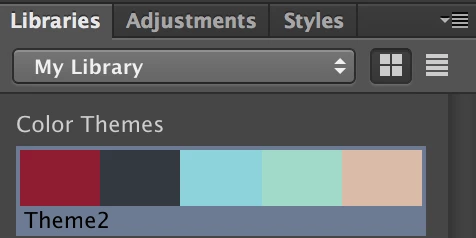
When you are in your desktop Adobe software - as long as you've sync'd with the Creative Cloud - your color swatches should be in the Libraries menu option under the subcategory of "Color Themes"

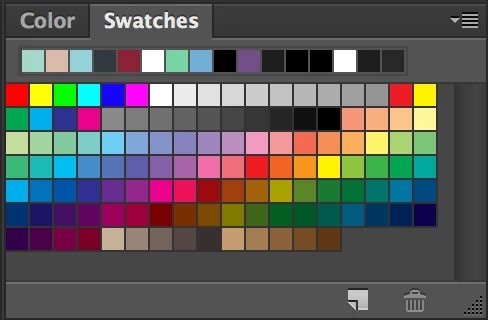
Once you're viewing those, you can select the individual color just by clicking on each one. And if you want to add it to your swatches, you simply select each color you want to add from your Color Themes, and then click the "New" button in the Swatches menu to add it.

Hope that helps!

9 replies

michaele19958789
Participating Frequently
December 14, 2021

I find colour libraries integration w/ swatches, colours, and colour pickers really confusing.
When a colour picker window offers for me to 'import', why can't I import the colour library .cclibs file that I have created and exported from Libraries? The import doesn't even recognise its own native adobe export file format.

Or

when I am in a colour picker and I click the 'Color Libraries' button the colour library I have created in Libraries is not there, it lists all pre-sets. 

Even if I add my .ccibs file to the Photoshop / Presets / Color Swatches folder, Photoshop does not recognise this file format within Color Picker - Libraries menu 

So I create a colour library, then I have to create a separate swatch folder for these library of colours. This is illogical.


Am I missing something here?

Adobe Employee
December 15, 2021

Thank you for the feedback. we are going to discuss on this internally to see how can we reduce the confusions here in future.

Known Participant
June 28, 2023

Any update on this? I created a color pallete of my clients 12 required colors all niceley named with correct hex values in my Library and then I wanted to make it into a color swatch set to share with a new co-worker and there doesnt seem to be any easy way. It would be amazing if I could just right click or something and convert to a swatch group and then export that.

Libraries are great but there are time I still have to eyedrop a library swatch instead of just getting the color like in After Effects, when trying to change text or a shape color. Seems like it could be a lot less clicking and more like Photoshop. Thanks!

Known Participant
June 23, 2017

Hi Sue,

Thanks for the reply!

I found that up earlier in the thread, and it did work. I think you didn't notice because I called it Adobe Color Theme 'panel.' I guess I should have said 'extension.'

My reply was just saying it looks like the Libraries panel could be made to work the same as the Adobe Color Theme extension. Adding the three dots to the color themes in the Libraries panel SHOULD be easy... although I know it may not be. That would remove the need to use both the Libraries panel and the Adobe Color Themes extension.

Thanks again.

Sue Garibaldi
Community Manager
Community Manager
June 23, 2017

Tony.

I agree; it does seem that the dropdown should also be in the Color Themes in Libraries panel to begin with.

Sue.

Known Participant
June 23, 2017

I found this thread while trying to find out how to move a color theme to swatches. I'm on Photoshop CC 2017.1.1. It looks like you still can't directly copy them from the Libraries panel. I tried using the Adobe Color Themes panel and that worked. I'm wondering why there has to be two panels. Color Themes are already shown in the Libraries panel and it looks like you should be able to do anything from the Color Theme section of the Libraries panel that you can from the Adobe Color Themes panel. I didn't even know there was a different panel to get to the color themes until I was reading this thread. It's not a big deal I guess, it's just a round-about way to get things done.

Sue Garibaldi
Community Manager
Community Manager
June 23, 2017

Hi Tony.

Sounds like you figured out something that will work for you, but I wanted to explain what I posted above, again.

In Photoshop CC go to Window > Extensions > Adobe Color Themes

Once that menu opens you'll see three dots at the bottom right of each theme. Click on that and choose Add to Swatches and the colors will show up in your Swatches panel.

Hoping this is more clear than what I posted above.

Sue.

Here's a screenshot:

Participant
June 15, 2016

So, I am running Adobe CC 2015.0.0 release, and am experiencing the exact same issue.

One would logically think that if you developed a new palette (Color Theme) with the online Adobe Color tool, and then sync this new palette to the Adobe Libraries, one would be able to use these colors right away in whatever Adobe product you are current in.

Wrong.

I simply cannot add this Color Theme to my swatches, or use the colors directly.  By reviewing this thread, it sounds like I need to do a bunch of rebooting for this to work?  Does this have something to do with Administrative permissions on my network?


This could be so much more straightforward, why does it need to be difficult?

Please help if anyone has a concrete answer, thank you.

Chris

Participant
June 15, 2016

Also, my Color Themes tab keeps on spinning ("Checking for a valid Adobe ID...") on not connecting, even after I signed in.  Perhaps this is a network permissions issue?

If that's the case, how come I'm able to sync on my Libraries tab but not on the Color Themes tab?

Participant
June 15, 2016

Ok, so rebooting seems to have worked, and allowed the Color Themes tab to show all my swatches.

Please disregard for now.

Henkarus
Participant
February 27, 2016

I'm trying to use the color libraries in Muse but I've had the same problem as the OP; I can see the library 'color theme', and can see the hex details if I hover over individual colours, but I can't select these colours in muse as  suggested by kplover.

I found a workaround; if I open up photoshop, the options for working with colour are exact as for kplover's post.

Selecting each colour from the color theme opens it as an individual colour, these can then be easily added to the swatch.

Its not ideal, but it does the job.


Sue Garibaldi
Community Manager
Community Manager
March 2, 2016

Hi Henkarus,

My apologies for taking so long to respond. I dropped a note about this to the product manager of Adobe Muse and she said that CC Libraries color swatch integration is not fully implemented in the current version of Muse... but the team is working on it and it should be a more fully-formed feature in a future update of the desktop app.

She has the link to your post and will hopefully come on and give you a better explanation than I could/can but in the meantime, I hope that helps a bit.

Sorry again for being so slow with this information.

Sue.

Known Participant
July 12, 2021

This is an old post, but having the same problems and complaints as the others. Yes I can create a theme, sure it goes into libraries, but the first swatch worked fine, however when I went to add the next colour in the row it just kept showing me the first swatch colour? Kuler was definately "cooler". I could use my phone to just aim at something, maybe a bit of fabric in a shop and the theme was created as I chose, and to include just moving my phone a bit to find a different group of colours. I can't seem to find that feature now. Until Adobe comes up with a way to save the contents of the history panel on your images when you close Photoshop, it's not faesible to just reboot all the time. Right now though, I just want to be able to get those themes into swatches without having to go through so many steps or write down values. Change is not always a good thing apparently. 


Inspiring
February 7, 2016

Libraries suck anyway. I mean, recreate colors one by one? Really? I could copy palettes from Kuler/Color Themes in one click! Why can't I drag, copy, import, whatever A WHOLE color theme from Libraries to Swatches? It is Color Theme or Palette, not a bunch of random colors - it must be together!

Very annoying. Adobe could leave Color Themes import working, while Libraries not fully ready.

xojeb
Participating Frequently
February 7, 2016

‌Yes, it is absurd how primitive these are now.

Participant
January 7, 2016

AWESOME! I knew the answer was somewhere! This way better then downloading.

Loving it

Scott

Participant
November 30, 2015

I'm experiencing the exact same problem. Everything is up to date and I restarted the program already!

Sue Garibaldi
Community Manager
Community Manager
November 30, 2015

Hi PSWayf,

I'm not sure I understand... Can you give me a bit more detail about what's going on?

Sue.

Correct answer
August 19, 2015

When you are in your desktop Adobe software - as long as you've sync'd with the Creative Cloud - your color swatches should be in the Libraries menu option under the subcategory of "Color Themes"

Once you're viewing those, you can select the individual color just by clicking on each one. And if you want to add it to your swatches, you simply select each color you want to add from your Color Themes, and then click the "New" button in the Swatches menu to add it.

Hope that helps!

xojeb
Participating Frequently
September 27, 2015

This does not work for me. I can see the rgb values and hex value, but can't select, eyedropper tool or drag to swatches. Library are there and visible, but I can't seem to use them at all.

Lion, latest Adobe CC.

Sue Garibaldi
Community Manager
Community Manager
September 28, 2015

Hi Jeb,

Sorry you're having trouble. I have a feeling it may be your Mac OS. Are you using Color CC 2.2.3 and Creative Cloud 2015? (I only ask because the latest version of Creative Cloud requires Mac OS X 10.9 or higher.)

Sue.