




jain22rohit
Adobe Employee
Adobe Employee
November 14, 2017
Question

Migrate your private color themes to CC Library

  • November 14, 2017
  • 19 replies
  • 8938 views

With the June 2015 release, Adobe Color started saving private themes to Creative Cloud Libraries so you can easily share them across apps and devices. Follow these steps to migrate the private color themes:

1.  Sign in to color.adobe.com.

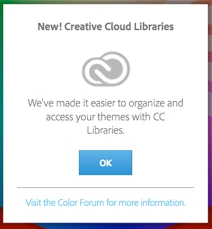
2.  If you have a private color theme to migrate, the following dialog box displays. Click OK.
3.   In the Save to Library dialog box, select a CC Library from the drop-down list. You can create a new CC Library if required.
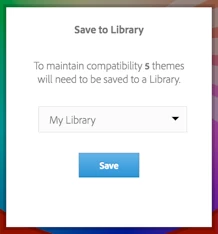
4.  Click Save.

Your private themes will be moved to the CC library you specified.

Thanks

Color Team

This topic has been closed for replies.

19 replies

Kikita Bibi
Participant
January 22, 2018

Mine color themes don't show up and dialogue box still doesn't show up and I'm down to the wire as they will disappear tomorrow.

carlacastro2018
Participant
January 21, 2018

Same here... where are my themes?! Today is the 22/01/2018 and I migrated and followed the process above. My Kuler account still holds my 13 themes (on MyLibrary)... where can I see these on my CC account!?

Participant
January 19, 2018

Not helpful at all, all the links do in the email go to a generic page with no simple to follow directions on the subject of transferring themes.

Nexahs1138
Inspiring
January 14, 2018

This had me really confused until I realised it meant from the site itself whereas all my themes are from the Capture app.

Participant
December 30, 2017

Working for me now, too; after not having worked when Adobe's email first arrived.

Participant
December 29, 2017

I had a similar experience: followed instructions, no themes showed up in My Library.  At first.  A few minutes later, there they were!

georgeedwardg
Participant
December 23, 2017

Update:  I logged back in this morning and was met with the same transfer dialog as in the photos above.  A few hours passed and now the 3 themes have properly transferred over.

be57124311
Participant
December 22, 2017

Guess Adobe wants to hook us all to paying for more subscription services. I've installed the desktop app and moved my library to my computer.

1 Free download: http://www.adobe.com/creativecloud/desktop-app.html

2 Installed + Log in (+it guides you through the process)

3 Once in, Under "Assets" menu >>Files >>View on the Web >> it opens your "Assets" online "https://assets2.adobe.com/files...."

4 A menu on the left show "Libraries" >>"My libraries" and you should see all your palettes (it worked for me and downloaded all).

Tutorial: https://helpx.adobe.com/creative-cloud/help/manage-apps-services-desktop.html

Hope it helps. Goog luck!

Known Participant
December 22, 2017

Ditto - very confusing piece of advice from Adobe here %(

johng98368285
Participant
December 22, 2017

Me too. I had 112 themes and after clicking the button none transferred to my library.