


Participant
November 4, 2022
Question

Add Fonts to Creative Cloud

  • November 4, 2022
  • 2 replies
  • 916 views

Dear All,

Perhaps someone can help me: I need to edit a simple page made in illustrator with a font that is not supported by default (Subfamily of Gill Sans). With the old desktop version of Adobe illustrator I could just copy the  *.ttf files in my Windows Font folder, but with the cloud version you need to use: https://helpx.adobe.com/mena_ar/creative-cloud/help/add-your-fonts-to-creative-cloud.html.

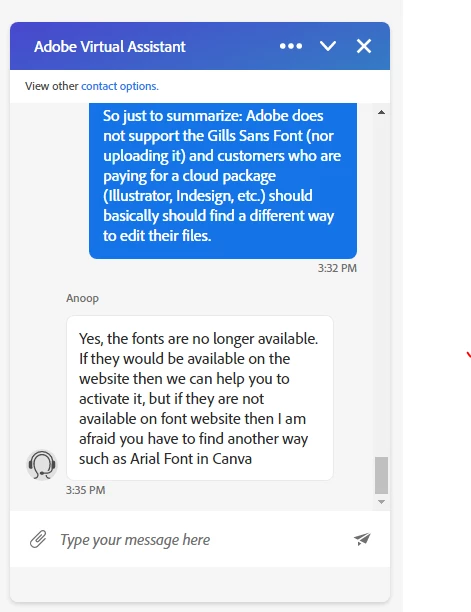
 I can upload them, but Unfortunately it seems they are not actived and Adobe support is unable to help me. Is there perhaps a work around? Regards J.
 

This topic has been closed for replies.

2 replies

Legend
November 6, 2022

I am puzzled by your question. The product is called Creative Cloud but it isn't on the cloud; it's still a desktop app, like it always was, so you install fonts just as you always did, on your desktop. All your local fonts (except type 1 fonts) should be available to Adobe apps. 

John T Smith
Community Expert
Community Expert
November 4, 2022

Help for Windows Add a font (microsoft.com)

Participant
November 4, 2022

Thanks for the reply, but that unfortunately won't help me in Adobe Illustrator (Using Creative Cloud)

Nancy OShea
Community Expert
Community Expert
November 5, 2022

[Moderator moved from Creative Cloud to Adobe Fonts.]


1. Go to Adobe Fonts online.  Log-in and search for suitable fonts. 

https://fonts.adobe.com/


2. Go to My Fonts panel to manage and activate your fonts. 

https://fonts.adobe.com/my_fonts

Activated fonts should automatically sync to your Creative Cloud desktop app.

https://helpx.adobe.com/creative-cloud/help/add-fonts.html


If after a few minutes you don't see fonts:

1. Open CC Desktop App.
2. Click your Avatar (top right image) > Preferences > General tab > Settings. Select "Always keep Creative Cloud up to date."  Also ensure that Adobe Fonts service is enabled.
3. Click on your Avatar again.
4. Sign-out of Creative Cloud.
5. Close all apps.
6. Restart your computer.
7. Open CC Desktop app.
8. Click your Avatar.
9. Sign-in with your paid CC ID and password.


Hope that helps.  Post back if you have more questions.


Nancy O'Shea— Product User & Community Expert