Participant
November 20, 2018
Answered

Missing fonts will not activate

  • November 20, 2018
  • 15 replies
  • 72616 views

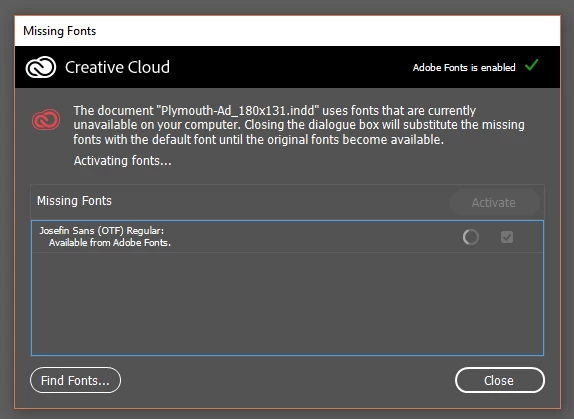
No font's will activate in any adobe program, the spinning wheel just spins for about 3-4 minutes then stops.

I've tried unticking and reticking the 'enable Adobe Fonts' option, restarted my computer and it's still happening.

Account information is all correct as I can sign in to the website with the same information.

This is all I see:

Correct answer HARSHIKA_VERMA

Hi All,
We are sorry to hear you are experiencing missing fonts issue. We would request you to please try the steps suggested in this article: https://helpx.adobe.com/fonts/kb/resolve-missing-fonts.html


If you're experiencing this error on Illustrator and InDesign applications, please try the step suggested in this article: https://helpx.adobe.com/fonts/kb/troubleshoot-fonts-illustrator-indesign.html


If nothing works, please share the coresync logs-


> Attach the recent CoreSync logs from your computer so we can take a closer look–
On OS X:
1. Open the Finder
2. under the Go menu, select "Go To Folder"
3. in the window that opens, type: ~/Library/Logs/CreativeCloud/CoreSync/


On Windows:
1. Open Windows Explorer
2. The log folder is hidden by default, so make sure that hidden folders and files are visible. Under the Organize menu, select Preferences and then the View tab. Choose the "Show hidden files, folders, & drives." option, then click Apply to confirm the changes.
3. Go to C:\Users\(username)\AppData\Local\Temp\CreativeCloud\CoreSync\
where "(username)" is the name of your user folder on your computer.


Attach the 3 or 4 most recent CoreSync-yyyy-MM-dd.log files and please specify whether you are activating fonts in Creative Cloud Desktop or on the Adobe Fonts site and upload them to a shared location such as Dropbox and share the URL with me over a private message.


I will be happy to help.


Thanks,
Harshika


<Marking as correct only to highlight>

15 replies

katyh50951330
Participant
June 18, 2019

I have downloaded multiple fonts and they are active in My Adobe Fonts when logging onto my account. I have 127 active fonts. However, the Creative Cloud is not displaying any of my active fonts. It is not showing up in my apps like Illustrator and InDesign. If I active a font, it automatically activates it. I have tried troubleshooting, but have not had any success.

Creative Cloud App Version: Creative Cloud 4.8.2.476 Also, all apps are up to date. Any suggestions?

HARSHIKA_VERMA
Community Manager
Community Manager
June 18, 2019

Hi there,

Thank you for reaching out and performing the initial troubleshooting from your end. As you're unable to see the activated fonts in your Creative Cloud application, please check this article Troubleshoot font activation problems in Creative Cloud

If that doesn't help, would you mind trying the missing fonts article steps from here Resolve missing fonts using Typekit | and let us know if that helps?

Thanks,

Harshika

maryr34816705
Known Participant
January 31, 2019

I am having an issue with some Type Kit font styles not showing up in InDesign, Illustrator, or After Effects. They styles are listed on my Creative Cloud app, so I know they were synced from Type Kit. Specifically, I am having issues with the Roboto font style Black. Black Italic shows, up in the programs, but not black. Here is a screen shot of my Creative Cloud app.

I am running Windows 10 Pro and my Adobe CC programs are all up to date. I have tried re-syncing by deactivating all version of the Roboto font and then reactivating them. But that didn't work.

Then I did some digging to see if those fonts were already in my Windows system, and I did discover a version of the Roboto font and the Roboto Slab font in my Windows Fonts folder. So I uninstalled both of them, then deactivated all of the Roboto Type Kit versions, then rebooted my computer. Once the system was up and running, I re-activated the Roboto font family from Type Kit. But I still cannot see the Black style in InDesign, Illustrator, or After Effects.

[ moved from Adobe Creative Cloud to Adobe Fonts (formerly Typekit) by moderator ]

liz, Adobe Type
Community Manager
Community Manager
February 1, 2019

I'm sorry that you ran into trouble with this, Mary.  There doesn't look to be anything wrong with the Roboto black font file itself–it works on another Windows 10 computer in our testing.  There might be a problem with the font cache which is keeping your Creative Cloud programs from finding and using it it, though.

Would you please check whether Roboto black is listed in any non-Creative Cloud software you have on this computer? Notepad or another text editor is helpful to check for font activation issues.  This will help us figure out if the issue is with the Windows font cache itself or if it is specific to the Adobe programs.

Thank you for your help!

-- liz

Participating Frequently
November 30, 2018

I had the same issue. The fix that worked for me was to unsync the affected fonts via the web interface, then open a document which requested the fonts, and activate the fonts individually from within the InDesign Find Font.

HARSHIKA_VERMA
Community Manager
Community Manager
December 5, 2019

Thank you for sharing the solution that worked for you. This will definitely help our customer to fix the issue.


Thanks,

Harshika

liz, Adobe Type
Community Manager
Community Manager
November 26, 2018

Hi there,

I'm sorry that you ran into trouble with this. Would you please also try signing out of InDesign from the Help menu, and then sign back in? This will start a new Adobe ID session in InDesign and should fix any issues with the connection to your account:

1. click on the InDesign Help menu and choose Sign Out.

2. restart InDesign

3. click on the InDesign Help menu and Sign In

If that doesn't get the fonts working, please get in touch at https://helpx.adobe.com/contact.html for further help.

Thank you,

-- liz

Participant
November 26, 2018

Hi Liz,

Thanks for the help, I've already tried that, I did try it again, and now not only are new fonts not able to be synced, but now all the previous adobe fonts I had synced have gone and will not sync back. Which means I have to now try to download all those fonts manually from somewhere so I can continue my work, hopefully this can be resolved.

I will email fontsupport.

Impalaboy
Inspiring
November 20, 2018

I have several Premiere projects that come up with a Missing Font warning every time I open them. They were Typekit fonts that are no longer available (which is a whole separate issue I have with Adobe!).

How do I keep that warning from popping up? Some of the missing fonts are in Premiere, some are in After Effects comps which are dynamically linked in Premiere.

Is there an easy to way to find and replace all of the missing fonts at once from many, many sequences and comps?

Shivangi_Gupta
Community Manager
Community Manager
November 21, 2018

Hi Impalaboy,

Sorry for the issue. I understand you are getting a dialogue box regarding the Typekit fonts which are no longer available.

  • Please share a screenshot so that we can understand the issue better.

Meanwhile, please check this article: Resolve missing fonts using Typekit |

I hope it helps.

Thanks,

Shivangi

Impalaboy
Inspiring
November 21, 2018