
Participant
June 16, 2025
Answered

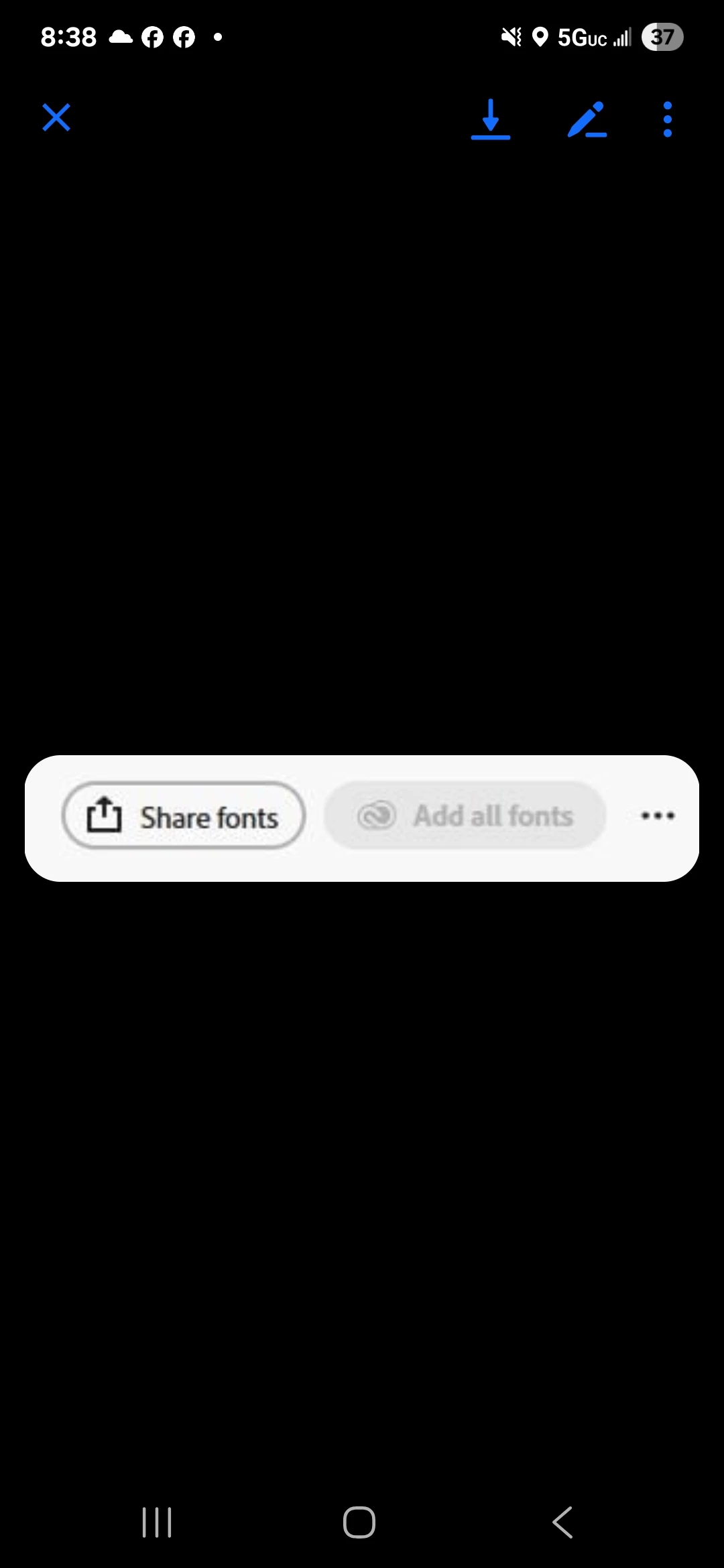
Toggle button greyed

  • June 16, 2025
  • 1 reply
  • 196 views

Hello. Im trying to download a font that I need to use un photoahop. I added the fonts in my library but the toggle button for "add fonts" is greyed out. I checked my account and I have the photography plan. I dont know if that makes a difference? I tried logging in and out of my creative cloud and restarted my pc. I noticed in my account, that my sync is not working to use for storage so maybe that's also an issue.


Please and thank you
    Correct answer Oh.N8

    Hey @robertTora1 

    Try these steps:

    1. 1. Check Adobe Fonts Activation:
      • Open the Creative Cloud desktop app.
      • Go to the "Fonts" tab.
      • Ensure the desired font is activated (toggle the switch to the "on" position). 
         
      • If the font is still grayed out, try toggling the Adobe Fonts setting off and then back on, and restart Photoshop. 
         
    2. 2. Verify Font Files:
      • If the font is not from Adobe Fonts, make sure the font files are installed correctly on your system. 
         
      • For downloaded fonts, unzip the files if necessary and install them by right-clicking and selecting "Install". 
         
      • Ensure the font file format is supported by Photoshop (e.g., .OTF, .TTF). 
         
    3. 3. Restart Photoshop and Computer:
      • Sometimes, a simple restart of Photoshop or your computer can resolve temporary glitches. 
         
      • If you're still having issues, check for operating system updates, as they can sometimes impact font handling. 
         
        Cheers
        Nate

    1 reply

    Oh.N8Community ExpertCorrect answer
    June 17, 2025

    Hey @robertTora1 

    Try these steps:

    1. 1. Check Adobe Fonts Activation:
      • Open the Creative Cloud desktop app.
      • Go to the "Fonts" tab.
      • Ensure the desired font is activated (toggle the switch to the "on" position). 
         
      • If the font is still grayed out, try toggling the Adobe Fonts setting off and then back on, and restart Photoshop. 
         
    2. 2. Verify Font Files:
      • If the font is not from Adobe Fonts, make sure the font files are installed correctly on your system. 
         
      • For downloaded fonts, unzip the files if necessary and install them by right-clicking and selecting "Install". 
         
      • Ensure the font file format is supported by Photoshop (e.g., .OTF, .TTF). 
         
    3. 3. Restart Photoshop and Computer:
      • Sometimes, a simple restart of Photoshop or your computer can resolve temporary glitches. 
         
      • If you're still having issues, check for operating system updates, as they can sometimes impact font handling. 
         
        Cheers
        Nate