
Lifelink Global
Participant
June 28, 2018
Answered

Constant Crashing with Media Encoder on PC

  • June 28, 2018
  • 2 replies
  • 3746 views

We recently got a new editing PC in the office which is running the latest version of the Adobe CC Suite (12.1.1 build 10). Almost any video export of any length seems to fail with this error or similar: (encoding straight from premiere will bring up the same error)

------------------------------------------------------------

- Encoding Time: 00:00:16

06/28/2018 09:26:58 AM : Encoding Failed

------------------------------------------------------------

Export Error

Error compiling movie.

Render Error

Render returned error.

Writing with exporter: H.264

Writing to file: \\?\Y:\NLC\path\to\file\video.mp4

Writing file type: H264

Around timecode: 00:00:01:07

Rendering at offset: 0.000 seconds

Component: H.264 of type Exporter

Selector: 9

Error code: -1609629695

The error seems to occur at a different timecode each time, so I don't think it's a specific piece of media. Usually it crashes inside the first minute but sometimes it has made it through most of the video before crashing and sometimes it will manage to encode the full video after several attempts.

One of our cameras (Canon XF305s) has recently been away for repairs, (this coincided with getting the new PC), so I have been substituting in a Panasonic GH4 and shooting in 4K (and adding movement etc. in post) so I was wondering if this might be causing an issue as an older project with both 305s seemed to encode fine. However I have used the GH4 and 305s in the same project before in previous versions and never had an issue.

The footage is mostly mxf files from a canon xf305s (1920x1080) and mp4 files from a Panasonic GH4 (4K.) Edited in a multicam sequence (which is 1920x1080)

Codecs I have tried include, using our old custom YouTube preset, the Premiere 1080p YT preset, match source HQ in h.264 and Go Pro cineform in Quicktime and all seem to have the same error. (Although MP3 still seems to be fine.) The footage has colour grades applied with lumetri and there are no plugins apart from a couple of 3rd party luts, which are not being used in the project.

The projects range in length from 30-50 minutes however I have had the same issue with some 5-10 minute videos as well.

The computer specs are:

CPU: AMD Ryzen 1700 (temps don't usually exceed 60-65 during encode)

GPU: nVidia GTX-1050 (I have experimented using cuda acceleration and not using it - no difference)

Mobo: ASUS Prime X370-Pro

RAM: 32gb DDR4

Storage: 500gb SSD (local) and editing off a 20tb server over a fibre cable.

OS: Windows 10 Pro 64 bit build 16299
    This topic has been closed for replies.
    Correct answer Menji

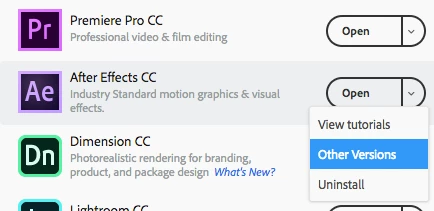
    In the Creative Cloud app, navigate to the app tab and click the arrow next to the "Open" button, in the dropdown menu select "Other Versions"

    Install any previous version that's available.

    2 replies

    Alex Jester
    Inspiring
    July 4, 2018

    Found the problem on my end, it was the processor cooling fan.

    It was still cooling but not good enough because it got worn-out.

    I can confirm that the export is working fine, I about 1 hour of constant exporting and everything went well with the new cooling system on my PC.

    Lifelink Global
    Participant
    July 10, 2018

    Glad that worked for you!

    I don't think my issue is the fan as the PC is pretty much brand new and I have been monitoring the temps (via core temp) and it hasn't pushed 60-65 which should be well within acceptable levels for the R7 1700 (I believe the max temp is 95c for that particular chip.)

    Participant
    March 24, 2020

    Hi I have a problem with media encoder 2019 that I've been using it for the past 3 or 4 months. It was working perfectly until 2 days ago when I finished an edit and expot it from ae to media encoder and when I was about to change the settings for better quality it crashed my whole system for no reason ( to be honest when I was editing the project ae crashed 2 times and it was lagging a little bit but I didnt pay much attention to that even if it didn't seem normal because it wasnt heavy at all) I turned off and back on my computer at least 3 times. I found a video on YouTube that some guy had the same problem like me and he recommended to try and see if I could render an other project to see if the project was causing the problem (because the project was causing that problem to him)...  So I tried to render an old project that media encoder had rendered before perfectly but same thing happened. I also tried to render it from ae it self so I can export it to media encoder or at least to Sony Vegas Pro but the again it didn't work. When I tried the same thing yesterday ae wasn't lagging as much as it was lagging the day before ( I also deleted some effects ). So I tried again this time it let me change the settings and it started rendering it but after 7 seconds it did it again..so then I thought it could have been the settings so then I tried to render it without changing anything but again same thing..and again I tried doing it 3 or 4 times but it didn't work. This has never happened to me before( just for you to know I am an Instagram editor which edits TV shows and movies so keep in mind that I am not using heavy files also sorry for my bad English hope you understand what I mean) please help guys I really have no idea what to do and I really need to get back at posting edits..

    Inspiring
    June 28, 2018

    Encoder has had this crashing bug since it's last update in April. I found that any previous version is more stable than the latest release. I downgraded to Encoder 12.0.1 and have not had issues, just heads up don't set your video encoding settings in premiere, que it up and then set your settings in Encoder.

    Adobe is aware of the issue, yet I don't see why they keep the unstable version up for others to experience, or better yet, have an actual update to fix the problem.

    Alex Jester
    Inspiring
    June 28, 2018

    How do I downgrade?

    MenjiCorrect answer
    Inspiring
    June 28, 2018

    In the Creative Cloud app, navigate to the app tab and click the arrow next to the "Open" button, in the dropdown menu select "Other Versions"

    Install any previous version that's available.