


Participant
February 13, 2017
Answered

Is it posible to change the length of still frames on input?

  • February 13, 2017
  • 2 replies
  • 3503 views

I've been banging my head against this for a while. I have a folder of 250 pngs that I'd like to convert into a movie, they're all the same dimensions, but in the Media browser they're all listed as being 5 seconds long, so when imported as a stitched clip the output video comes up as 20 minutes or so.

Is there a way to remove the time information from the input so they're just 'normal' still images?
    This topic has been closed for replies.
    Correct answer SAFEHARBOR11

    So you want a "video" in which every still image is one frame of video, right? Meaning resulting video clip might be about 8 seconds long?

    Assuming your stills are numbered sequentially, like pic_0001.png, pic_0002.png, and so on, this is easy.

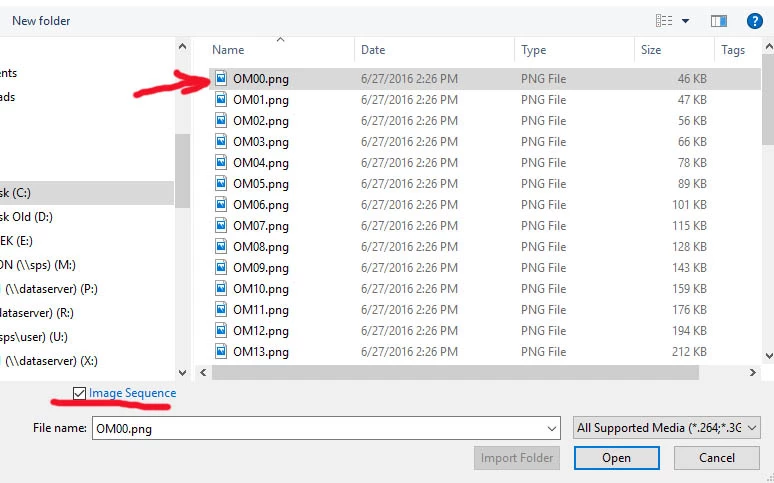
    Go to File > Import and find the folder containing the stills. Select just the FIRST one, then check the box for Image Sequence. This will bring in the stills as if they are a video clip.

    Thanks

    Jeff Pulera

    Safe Harbor Computers

    2 replies

    Participant
    May 26, 2023

    I'm also looking for this feature.   I need to be able to import stills from within ME and stitch together a simple h264 video but have each still stay on for more than the default 5 secs each.


    Adobe Employee
    May 30, 2023

    That is also pretty straighforward:
    1. In Media Browser, go to the folder with the images.

    2. Select all images you want to import.

    3. Use the context menu to stitch the images together.

    4. In the export settings, choose the target video format.

    Ordering is determined by the naming of the images.

    SAFEHARBOR11Correct answer
    Participating Frequently
    February 14, 2017

    So you want a "video" in which every still image is one frame of video, right? Meaning resulting video clip might be about 8 seconds long?

    Assuming your stills are numbered sequentially, like pic_0001.png, pic_0002.png, and so on, this is easy.

    Go to File > Import and find the folder containing the stills. Select just the FIRST one, then check the box for Image Sequence. This will bring in the stills as if they are a video clip.

    Thanks

    Jeff Pulera

    Safe Harbor Computers

    CunabulaAuthor
    Participant
    February 15, 2017

    Thanks so much Jeff, worked a treat. Though why it doesn't work from the media browser or why single images get a duration in the first place is beyond me.

    I guessed it would be a simple thing to do, and I was sure I'd feel like a pillock when it was explained to me so I'm at least right some of the time

    Participating Frequently
    February 15, 2017

    Most of the time when a user imports any still into Premiere, it is meant to be displayed for some period of time. Think of a title, graphic, photo, or image for a slide show - those are all something that we would want the viewer to see for at least a few seconds. Look under Edit > Preferences and you can set the Still Image Default Duration.

    The only time we really want a still image to be a single frame is when it's part of an animation, coming from an Image Sequence.

    If ALL still images were imported as single frames, when dropped to the timeline they would not even be visible without zooming waaaayyyy in, then user would have to drag each clip out to whatever desired length. More hassle. It is preferable to have a standard default like 3 seconds or 5 seconds or whatever as a starting point.

    If you want to set the default still duration to 1 frame, that's up to you, but why do that when you can just check Image Sequence instead, which has the benefit of making the stills appear as a single clip to work with rather than hundreds or possibly thousands of stills?

    Glad it's working for you

    Thanks

    Jeff