


Participant
September 10, 2021
Question

M1 iMac renders take forever

  • September 10, 2021
  • 3 replies
  • 3522 views

Hello,


I switched to mac about a week ago and I am a video editor for YouTubers. When I was on PC (1660 Super GPU) I would render 1920x1080 15 min videos and it would take 30 mins, but when I render videos of the exact same amount of graphics it taked around 1 hour for videos even less than 15 minutes! I edit my videos inside of premiere and render them in Adobe Media Encoder with these render settings:
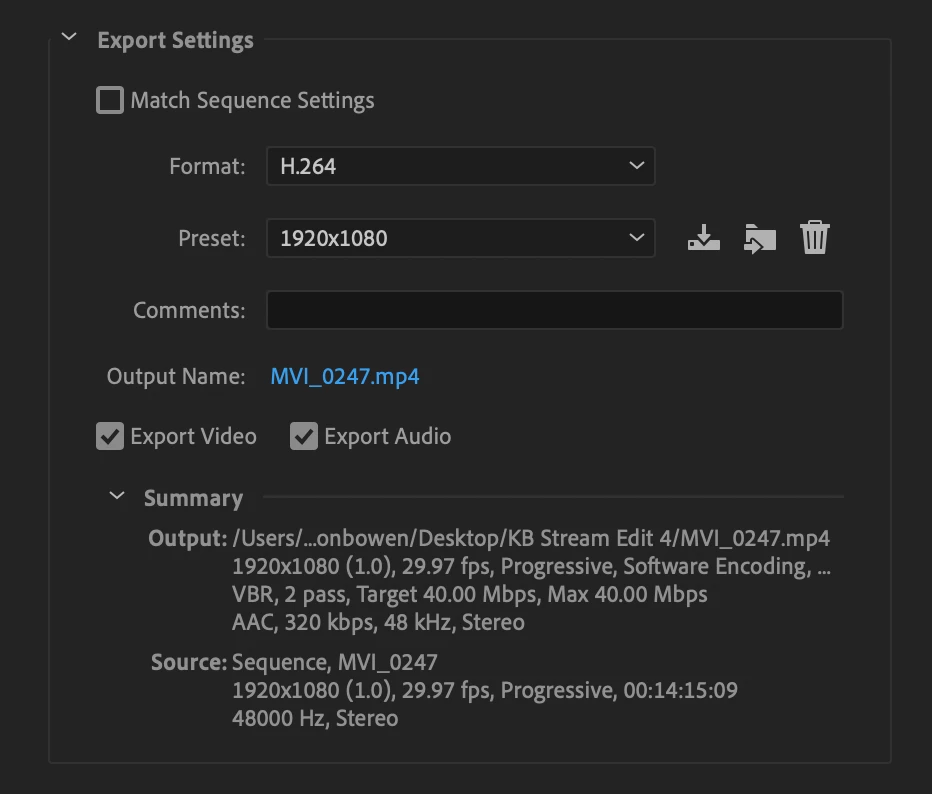
 

Not just that I have some videos that I upscale to 4k and those are just 5 minute videos taking hours upon hours when on my old PC it would take max 2 hours. Please help because these render times are affecting my work time and it's getting really frustrating!

This topic has been closed for replies.

3 replies

Warren Heaton
Community Expert
Community Expert
September 14, 2021

If you would like to see render and export times increase significantly, enable Ingest in the Project Settings with the pop-up menu set to Transcode to Apple ProRes422 LT.  Make sure that your corresponding Sequence Setting Video Previews are also set to ProRes422 LT.  You'll then be taking advantage of Smart Rendering in Premiere Pro and the faster render times of Apple ProRes on the M1.  If you're tight on drive space (1080p ProRes422 LT is about 700Mb per minute), create a custom Ingest preset for ProRes422 Proxy and use ProRes422 Proxy for your video previews.


YouTube supports ProRes now, so the only slow down is going to be your upload time.  A 15 minute ProRes422 LT 1080 movie should come in just under 11GB (ProRes422 Proxy about 3.3GB for 15 minutes).

Participant
September 14, 2021

I made this change, I don't have aynthing to render yet so when I get a render done I'll let you know the results and time!

Inspiring
September 13, 2021

This is likely because you had "Hardware Encoding" enabled on your PC and the screenshot above indicates you're using "Software Encoding" for H.264 export. In the video tab, there should be a dropdown called "Perfomance" that's currently set to "Software Encoding;" switch that option and AME will use dedicated hardware on your M1 chip for accelerating H.264 and H.264 (HEVC) exports. Note, this acceleration only works with these two codecs.

Participant
September 14, 2021

I tried it and this is the message I received:

These are my iMac Specs:


Inspiring
September 14, 2021

Can you post a screenshot of your entire Video tab showing all the settings selected? Are you using CBR or VBR 2-Pass? If so, switch to VBR 1-Pass. 

Participant
September 11, 2021

I think the PC is faster in terms of horsepower