
Participant
July 7, 2016
Question

Media Encoder CC 2015.3 Rendering Colors incorrectly

  • July 7, 2016
  • 3 replies
  • 14174 views

Im running a 2015 iMac 5k retina with 32gb Ram. All software up to date.

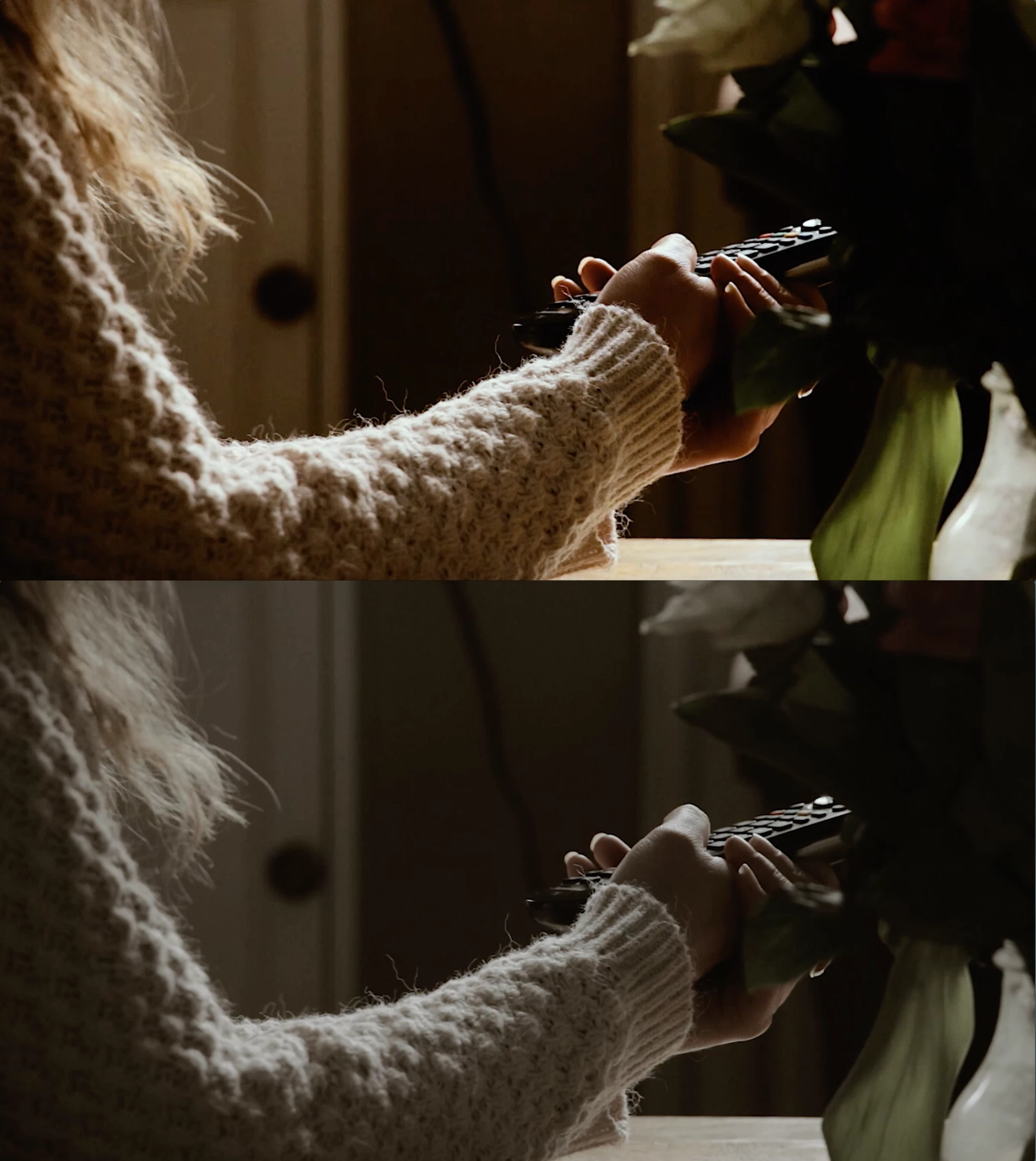
When exporting from Adobe Premiere Pro via Media encoder the Colours are over saturated with too much contrast. See top image.

When exporting directly from APP using the Export button (as opposed to Queue) the render is correct and as is in the timeline. See bottom image.

Any thoughts would be greatly appreciated.
This topic has been closed for replies.

3 replies

Participant
June 19, 2018

It is the same for me: I've a psd-file with a SRGB-Profile. This file I've imported into after effects. The project is in SRGB, too.
So, if I export the scene directly from AE as a quicktime file (Animation codec) all the colors are the same (Photoshop, After effects, Quicktime). But, if I exported it to the Media Encoder the colors change (export to Quicktime/Animation codec). Also in the preview window (source and output). I can improve it with a filter, but not exactly. And, it is awkward.Is there a main setting that fixes the problem?

Participant
April 9, 2021

Have you tried changing the color profile in Bridge to SRGB and try restart AE & AME. And see if it export it out with the default color profile set from bridge. 🙂

takuyajimbo
Participant
July 26, 2016

I had same problem, applying CLog2 LUT on PP 2015.3 but really bad export via AME 2015.3.

Have you tried putting same LUTs from PP 2015.3 subfolder to AME LUTs folder?

Copy the LUTs from PP app "package" Contents/Lumetri/LUT/Technical Folder, and paste everything to AME Contents/Lumetri/LUT/Technical Folder.

After that, my AME exported as what I see on PP and good finish.

Hope this helps a bit.

Jonah_UMG
Participant
July 28, 2016

If people are using LUTs applied via Lumetri in Premiere and then having issues upon export in Media Encoder, I think Takuya's suggestion is the first thing they should check out.

That was the issue when I had a discrepency between Premiere and Media encoder.

In my case I was using non-Adobe Canon camera LUT that I downloaded myself. This LUT was in Premiere's Lumetri>LUT>Technical folder but not in the corresponding folder for Media Encoder. The resulting export looked like the software just randomly selected another LUT that came standard with the install when it couldn't find the one from Premiere and the footage became oversaturated as a result.

Also, the same rule applies for After Effects! It has it's own Lumetri LUT folder in the same location inside the AE application folder. You need to copy your LUTs to that folder as well otherwise dynamically linked files from Premiere that have Lumetri with a LUT applied will have the same issue.

Participant
August 9, 2018

Placing the LUT files in the Encoder folder fixed the issue for me just now. Thanks!

Participant
July 8, 2016

I am experiencing the same problem, which seemed to start with the new Creative Cloud updates 2015.3

Exporting directly from Premiere Pro works but exporting using Media Encoder creates a file that has bad color. Not on all shots but a majority. I am using footage shot with a SLOG setting and using LUTs to Color correct.  There seems to be a failure with Media Encoder processing the LUT information, or Color Correct information. This didn't happen with previous versions of software.

thnord
Adobe Employee
Adobe Employee
July 12, 2016

Hey guys, I'm trying to reproduce the issue so we can get a bug logged, but so far I have not had the same results. Would it be possible for one of you to post a small sample source files and exact steps to repro the issue (including effect and export settings)?

Thanks!

Participant
July 14, 2016

Hello everyone,

I was experiencing a similar issue which was just resolved with Adobe Support.  When exporting, make sure you select "Use Previews" in the Export Settings window--way down at the bottom.  I normally did NOT do this and began getting bad color upon exporting through Media Encoder (not a direct export from PP).

SELECT "Use Previews"!  upon export

I also always selected "Use Maximum Render Quality", just to the left of the Use Preview toggle.  This is not necessary unless exporting a 59f  or 24f rate sequence to a 29f output (for broadcast. let's say) to blend frames.

This fixed my problem.  Select "Use Previews" upon export, no need to select "Use Maximum Render Quality"