Participant
May 23, 2022
Answered

can't access invitation to edit

  • May 23, 2022
  • 1 reply
  • 2326 views

Hi, 
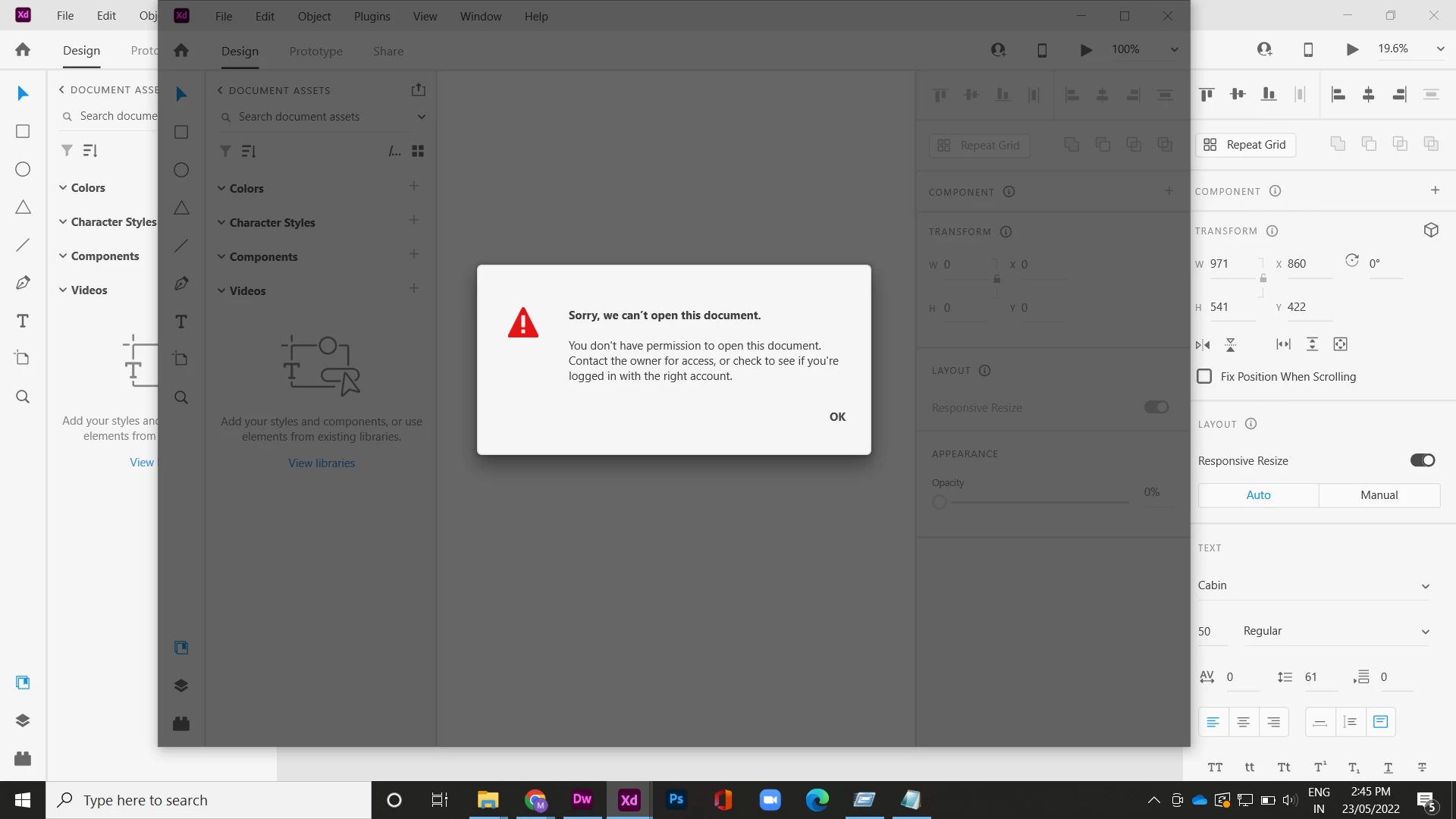
so I have recently come across this problem where I invite my co-worker to a project a file to edit and colloborate but she gets a error message which says" You dont have permission to open this document. Contact the owner for access or check to see if you're logged in with the right account".
I have invited her to edit and she is logged in wih the right account. This doesn't happen when she sends me an invite from her side. 
Please review the screenshot for reference.
    This topic has been closed for replies.
    Correct answer Rishabh_Tiwari

    Hi @Anmol.Singh ,


    Sorry to hear about the trouble. Please try the steps shared below:


    1. Signout of XD & Creative Cloud desktop app.
    2. Close CoreSync and all Adobe-related processes from the Task Manager/Activity Monitor.
    3. Reboot the computer.
    4. Sign back in the CC desktop app & launch XD from there and check if you are able to open the file.


    If it still doesn't work, please try the suggestions shared here https://community.adobe.com/t5/adobe-xd-discussions/error-quot-sorry-we-can-t-open-this-document-in-adobe-xd-quot-or-error-47-while-opening-the-cloud/td-p/10415491/page/11


    Let us know if you need any further assistance.


    Regards

    Rishabh

    1 reply

    Rishabh_Tiwari
    Community Manager
    Rishabh_TiwariCommunity ManagerCorrect answer
    Community Manager
    May 25, 2022

    Hi @Anmol.Singh ,


    Sorry to hear about the trouble. Please try the steps shared below:


    1. Signout of XD & Creative Cloud desktop app.
    2. Close CoreSync and all Adobe-related processes from the Task Manager/Activity Monitor.
    3. Reboot the computer.
    4. Sign back in the CC desktop app & launch XD from there and check if you are able to open the file.


    If it still doesn't work, please try the suggestions shared here https://community.adobe.com/t5/adobe-xd-discussions/error-quot-sorry-we-can-t-open-this-document-in-adobe-xd-quot-or-error-47-while-opening-the-cloud/td-p/10415491/page/11


    Let us know if you need any further assistance.


    Regards

    Rishabh

    Participant
    June 2, 2023

    Hi there, we are having simlar issues. I created a cloud based XD document 2 days ago. I published it as a library, however none of my team or the people I share it with can access it, although it is set to allow them to edit the file. And now, neither can I access it. I can open the original file, but not the published file. I can open and edit older library files. But I have tried creating new library files and my colleages can not open and edit these either. It is very frustrating and is soaking up most of my time trying to resolve this.

    I have tried the suggestion above using Activity monitor. I could quit all Adobe activities apart from Adobe Content Synchronize. And after restart I still have the same problem.

    I ahve tried loging into another user account on my Mac and have the same problem.

    I have shared with several people and they all have the same problem.

    We are on Mac OS 13.01 and using XD Version 56.1.12.1 arm64, Creative Cloud Sync 6.5.0.24

    Can you please help, we are on a deadline here and need this to work as it should. As it did not that long ago!


    Many tnhaks

    Phil

    Participant
    June 6, 2023

    We have just had some support from Adobe on this so I thought I would update. 


    It turns out, that to be able to share a library and have team members able to edit that library you need to share both the original document with your team using the share icon at top right. And then publish and share the library with your team, then it seems they can edit the library. 

    So once you have saved your file to the cloud share it using this button - 

    Then also publish your library using the publish icon. 


    And then share it with your team members, be sure to set their permissions to edit. 

    It seems to make no difference if they are already part of the workspace and have editing permissions.