I also tried everything, as you. Nothing worked.
I ended up downloading the cloud document from the creative cloud website and creating a new document with the content. It did lead to even more issues, but at least I didn't loose the work from many years.
I'm wondering how you managed to get Creative Cloud Sync version 4.7.0.1.
I tried everything, updating/deinstalling/reinstalling/manually deleting every part of adobe on my computer.
It's very sad and concerning that Adobe products are so unreliable.
@alexanderd94316173, I did not do anything special to get Sync version 4.7.0.1. I assume the app updated to this version automatically (I have enabled the setting to 'Aways keep Creative Cloud up to date').
I found a workaround for the endless sync problem that worked for me. It might work for others as well.
- Open the Creative Cloud desktop app.
- Go to the Your Work / Cloud Documents tab and select the file with the syncing issue
- Duplicate the file by selecting the button on the right hand side
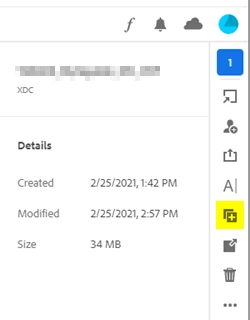
4. Rename original file (e.g. add a suffix so you know it is the problem file)
5.Rename duplicate file to original name
6. Test that the duplicate file opens without the syncing issue by pressing the open button in the same right hand menu.
7. Share file with any collaborators who need access. N.B. I had removed any collaborators from the original file before I duplicated it. I'm not sure if this is important.
8. This is the part that surprised me - when i checked the link settings in the Share section of the desktop XD app, I found that the original link had also been duplicated. This meant i could just update the link and I did not need to republish the file and share a new link with all the stakeholders.
Honestly, this and other cloud issues have been happening for years now. I don't think it's acceptable for Adobe to release buggy immature features for such core functionality. I'm fed up with being an involuntary beta tester when this is a paid licence.




 AdChoices