Participant
December 14, 2020
Answered

problem with 2 main components

  • December 14, 2020
  • 1 reply
  • 426 views

hey guys,

i just started working with adobe xd and i have problems with 2 main components which a shown in different states of the second main component:
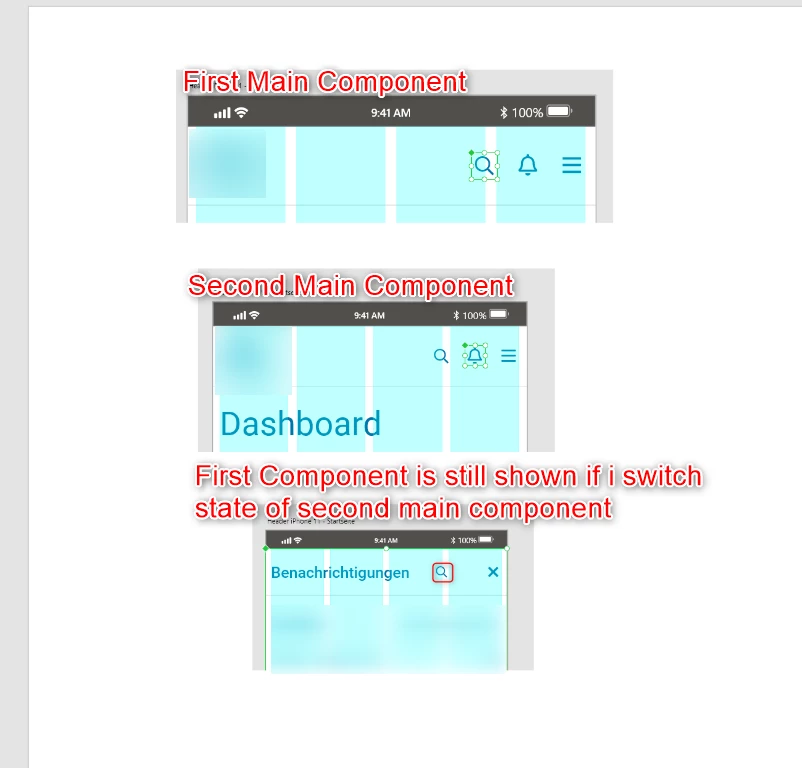
I know its because of the different layers. No matter how I do it, one of the 2 main components is always displayed incorrectly.

Thanks for your help and sorry for the bad English 🙂

 

    This topic has been closed for replies.
    Correct answer Spas K.

    Active states are separate between a Main Component and its instances. The contents of each state are the same between them (unless you make overrides), but what state each one is in is separate.


    Also, if you put one main component into another, it turns into an instance. You can't have a main component within another component. Only instances can be nested.


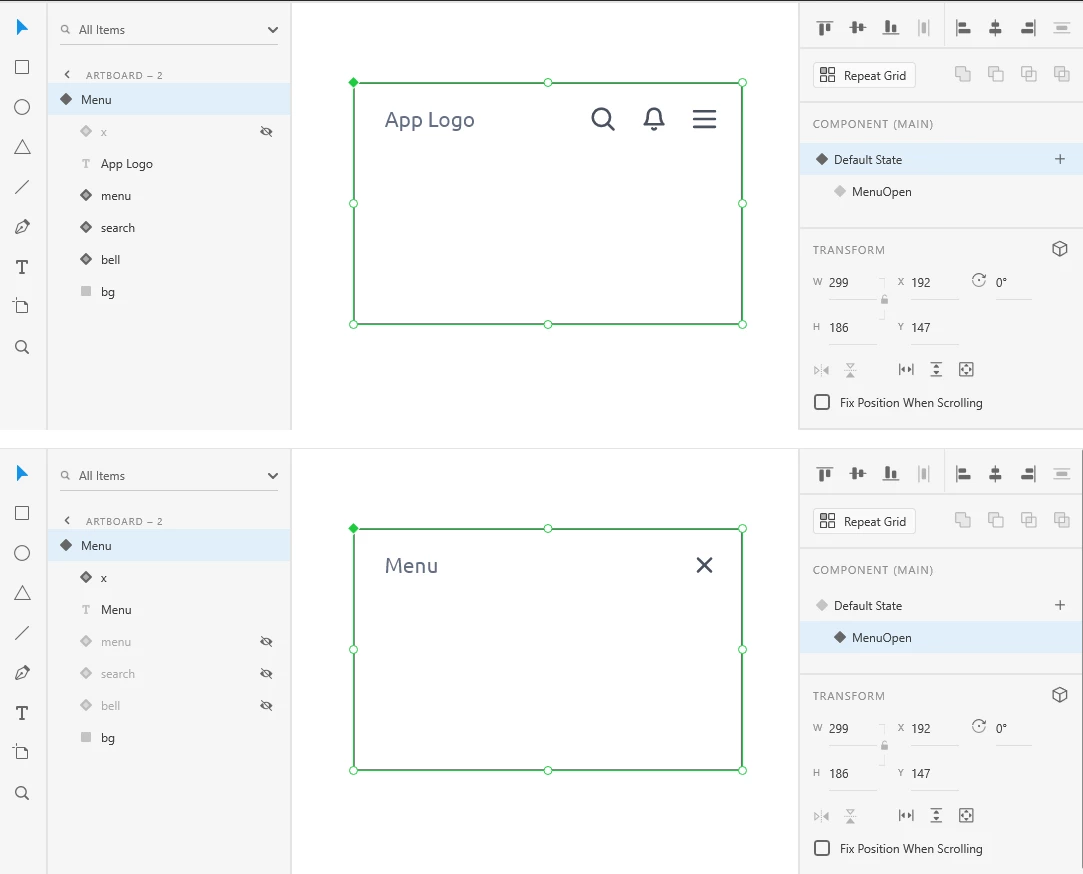
    I'm not sure I completely understand the issue. In the last image there, I can see the whole screen is a component as well. So in one of its states you hide the icon instances, and in another state you show them. You can do that using the show/hide icon next to each layer, you don't need to change anything within the icon components.


    It should be something like that:

    1 reply

    Spas K.
    Community Expert
    Spas K.Community ExpertCorrect answer
    Community Expert
    December 14, 2020

    Active states are separate between a Main Component and its instances. The contents of each state are the same between them (unless you make overrides), but what state each one is in is separate.


    Also, if you put one main component into another, it turns into an instance. You can't have a main component within another component. Only instances can be nested.


    I'm not sure I completely understand the issue. In the last image there, I can see the whole screen is a component as well. So in one of its states you hide the icon instances, and in another state you show them. You can do that using the show/hide icon next to each layer, you don't need to change anything within the icon components.


    It should be something like that: