
Participant
June 18, 2020
Answered

Unable to view all shared artboards - Version 30.0

  • June 18, 2020
  • 1 reply
  • 466 views

I am trying to create a link where stakeholders can view all my artboards. My artboards are intentionally not linked yet. According to the instructions on this page, this should be possible: https://helpx.adobe.com/ca/xd/help/share-designs-prototypes.html It clearly says:

"If you want to:

  • Share a single artboard: select the artboard in the Prototype mode and set it as the Home artboard. Ensure to remove any interactions to other artboards.
  • Share all artboards irrespective of wired connections: click the Home icon () in Prototype mode to disable an existing Home artboard. "


The second bullet point is what I want to do, and how I have my prototype view set up (no homepage selected). When I go to the Share tab all my artboards are there. However, when I open shared link in a web browser (Firefox & Chrome), I only see the first art board of my project.


How do I share all artboards? How do you navigate around the different artboards if they are not linked?
This topic has been closed for replies.
Correct answer Spas K.

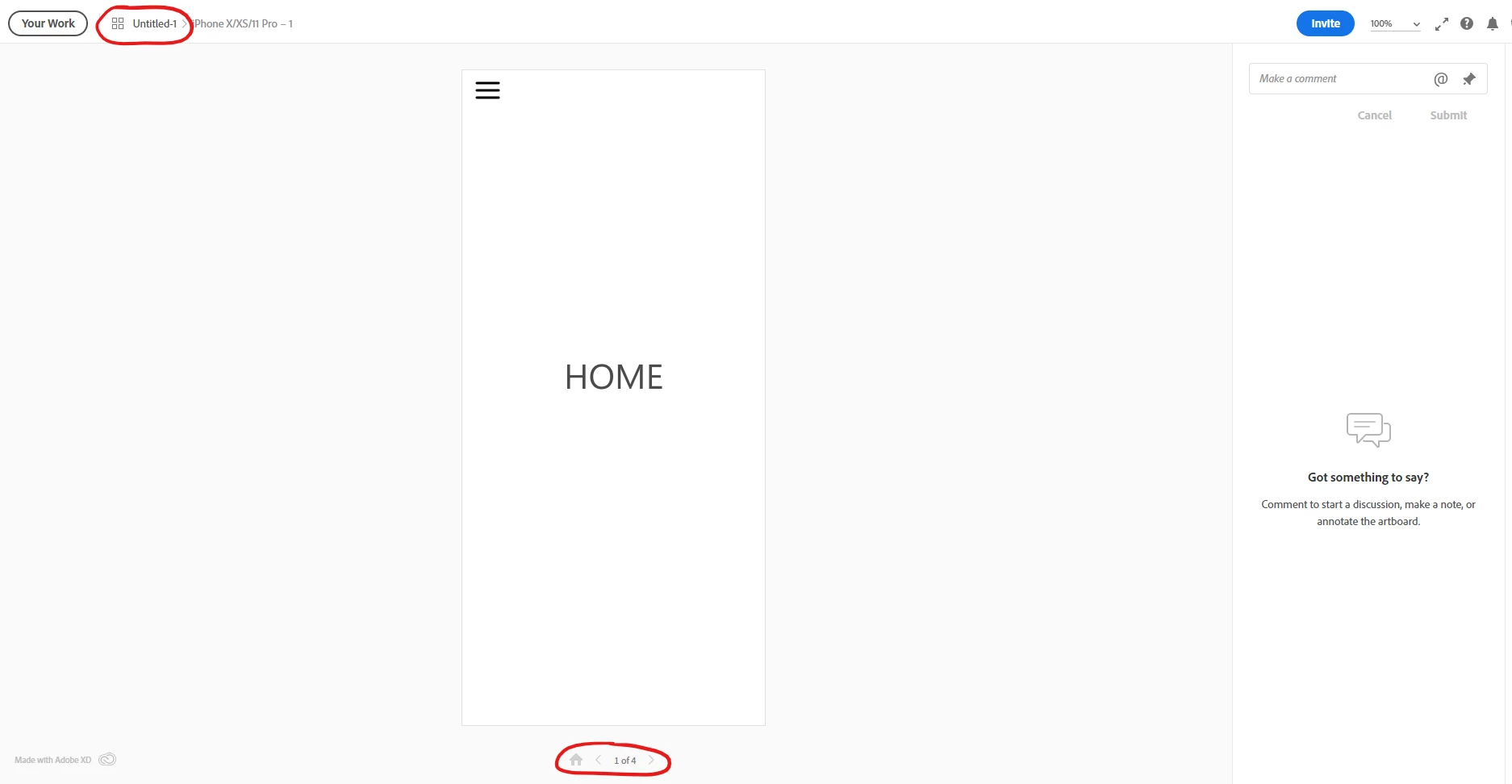
When you open the prototype link, in the upper left corner you can see the name of the document, followed by the name of the opened artboard, for example MyWebsite > Artboard 1. If you click on the document name, you will see all artboards in a grid view. Alternatively, you can navigate through artboards with the left / right arrow keys on your keyboard, or via the arrows under the current screen.


You can also add "/grid" to your link, which will open the grid view by default.


1 reply

Spas K.
Community Expert
Spas K.Community ExpertCorrect answer
Community Expert
June 18, 2020

When you open the prototype link, in the upper left corner you can see the name of the document, followed by the name of the opened artboard, for example MyWebsite > Artboard 1. If you click on the document name, you will see all artboards in a grid view. Alternatively, you can navigate through artboards with the left / right arrow keys on your keyboard, or via the arrows under the current screen.


You can also add "/grid" to your link, which will open the grid view by default.


anna10014Author
Participant
June 18, 2020

Thank you so much for this, and for the quick reply.


For some reason my link defaulted to the full screen view with none of the navigation features visible in your screenshot visible. I fixed it by adding /grid to the URL.