


Participant
November 1, 2011
Answered

AIR applications - AIR license agreement showing instead of application

  • November 1, 2011
  • 11 replies
  • 5007 views

Hi there

I have a user who is experiencing the following issue - when he tries to run an AIR application, the license agreement shows (accept/decline), and then nothing (the app doesn't launch when you click accept).

This happens for all his AIR applications (not just the one we developed), he's tried uninstalling and reinstalling both AIR and the app. He's using windows 7

this is what shows when he launches an AIR App:
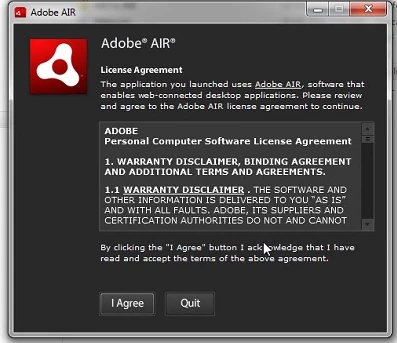
This topic has been closed for replies.
Correct answer MathewT2

I'm the user.Tried running both FIrefox and Chrome (suggestred workarounds from other posts), but neither works.  WIndows 7 Enterprise.

*** Finally got it to work by going into my c:\users\my-user\Appdata\Roaming\Adobe\AIR directory and renaming my old eulaAccepted file to eulaAccepted-old

11 replies

Participant
January 4, 2012

Having the same issue, but with XP. I can't find any folder labeled "appdata" on my computer. Any thoughts?

chris.campbell
Legend
January 5, 2012

I think the easiest way to navigate to the application data folder is to open an Explorer window, then type "%appdata%" in the Address Bar.  On XP, that will resolve to:

C:\Documents and Settings\UserName\Application Data

However, you'll need to turn on hidden files and folders to see this if you try and navigate manually.  Here's instructions on how to do that:

To display hidden files and folders

Chris

December 19, 2011

After much frustration I was finally able to resolve this issue by going to C:\Users\User\AppData\Roaming\Adobe\Air. From within that directory, I did the following:

*deleted file eulaAccepted

*deleted directory Updater

I was then able to launch my program (Amazon Uploader) successfully.

I hope that helps someone.

Participant
December 15, 2011

Hi Chris, thanks for looking into this problem, here is the responce from AccessEnum when I ran it on the Air folder in roaming.

"Path""Read""Write""Deny"
"C:\Users\laptop\AppData\Roaming\Adobe\AIR""Administrators""Administrators"""

Im not sure if thats usefull data or not, but I would add that I have tried on several occssions to run both the Air installer and the application in Administrator mode without any success.

Regards

Les

Participant
December 13, 2011

I have this problem too, It only appeared after a recent, required, Adobe update. Its really, really tedious as I no cant use some of my applications such as Tweetdeck, Signage Player and the most important one RNLI complete guide.

Come on Adobe, Ive spent far too much time trying to fix this - please sort it out  ! ! !

chris.campbell
Legend
December 14, 2011

Could you guys try running Microsoft's AccessEnum utility against your "C:\Users\UserName\AppData\Roaming\" folder and post the resulting log?  I suspect we're running into permission issues but this should give us a better idea.

You might have to enable "show hidden files and folders" to be able to see the AppData folder.

Thanks,

Chris

December 14, 2011

I'm not a computer tech. I have to use AutoCAD for work. I listen to Pandora while i work. Pandora finally helped me. We removed the latest Adobe air update and installed an older one and that allowed Pandora app to show again. The only problem i have now is that i keep getting a notice from Adobe for an update. I don't trust Adobe anymore what a sorry company and now you are asking me to help solve its problems. I am so dissapointed. Also, you are just now getting around to contacting me. You guys need to do better it'll be awhile unfortunatley before i update or do anything with Adobe. The killer was that Adobe wanted me to pay 35 dollars for help. You suck!

Date: Tue, 13 Dec 2011 17:36:20 -0700

From: forums@adobe.com

To: tracyritchey@hotmail.com

Subject: AIR applications - AIR license agreement showing instead of application

Re: AIR applications - AIR license agreement showing instead of application created by chris.campbell in Installation Issues - View the full discussion

Could you guys try running Microsoft's AccessEnum utility against your "C:\Users\UserName\AppData\Roaming\" folder and post the resulting log? I suspect we're running into permission issues but this should give us a better idea.

You might have to enable "show hidden files and folders" to be able to see the AppData folder.

Thanks,

Chris

Replies to this message go to everyone subscribed to this thread, not directly to the person who posted the message. To post a reply, either reply to this email or visit the message page:

To unsubscribe from this thread, please visit the message page at . In the Actions box on the right, click the Stop Email Notifications link.

Start a new discussion in Installation Issues by email or at Adobe Forums

For more information about maintaining your forum email notifications please go to http://forums.adobe.com/message/2936746#2936746.

November 2, 2011

Thanks! MathewT2. Neal, could you try MathewT2's way?

November 3, 2011

I am having the same problem. I search for the folder and or file that is referenced above but find nothing, I use to use the desk top app to pandora one but that doesn't work anymore. Every morning i stary my computer and get the same dialoge box about the adobe air license agreement. I have uninstalled and reinstalled again and again. This just started happening a couple of weeks ago. Using windows XP professional version 5.1 w/ service pack 3. Can anyone help? Thanks

MathewT2Correct answer
Participant
November 2, 2011

I'm the user.Tried running both FIrefox and Chrome (suggestred workarounds from other posts), but neither works.  WIndows 7 Enterprise.

*** Finally got it to work by going into my c:\users\my-user\Appdata\Roaming\Adobe\AIR directory and renaming my old eulaAccepted file to eulaAccepted-old

Participant
December 15, 2011

For what its worth, I tried this method but found that the application simply makes another copy of the file and ignores the 'old' version.

The contents of the file is a single character - the number 3, I tried messing about with this but it rewrites itself to show the number 3 again.

UPDATE

During my messing around, I have done something which has corrected the issue, but I cant be sure what that was. Apart from editing the file contents I didnt do much other than deleting the contents of the folder C:\Users\laptop\AppData\Roaming\Adobe\AIR\CRLCache.

Good Luck

Les