

Multi-resolution issues with iPad Pro and iPhone 6 plus
I have successfully set up my project to recognize a device and load the appropriate sized assets. I have four resolutions (4 sizes): (4x) 1920 x 1280, (3x) 1440 x 960, (2x) 960 x 640, (1x) 480 x 320. The project launches the correct assets for each device but I have two issues when I test on an actual device. One is on the iPadPro and the other is on iPhone 6plus.
My development environment: Windows10, FlashDevelop, Starling 2.0.1, Air 21.0, iOS 9.3.4
- Issue #1 - iPad Pro - There are two white bars that stretches the width of the device about 50 pixels high on the top and bottom. See image:
- Issue #2 - iPhone 6Plus - There are black bars on each side of the project. See image below:
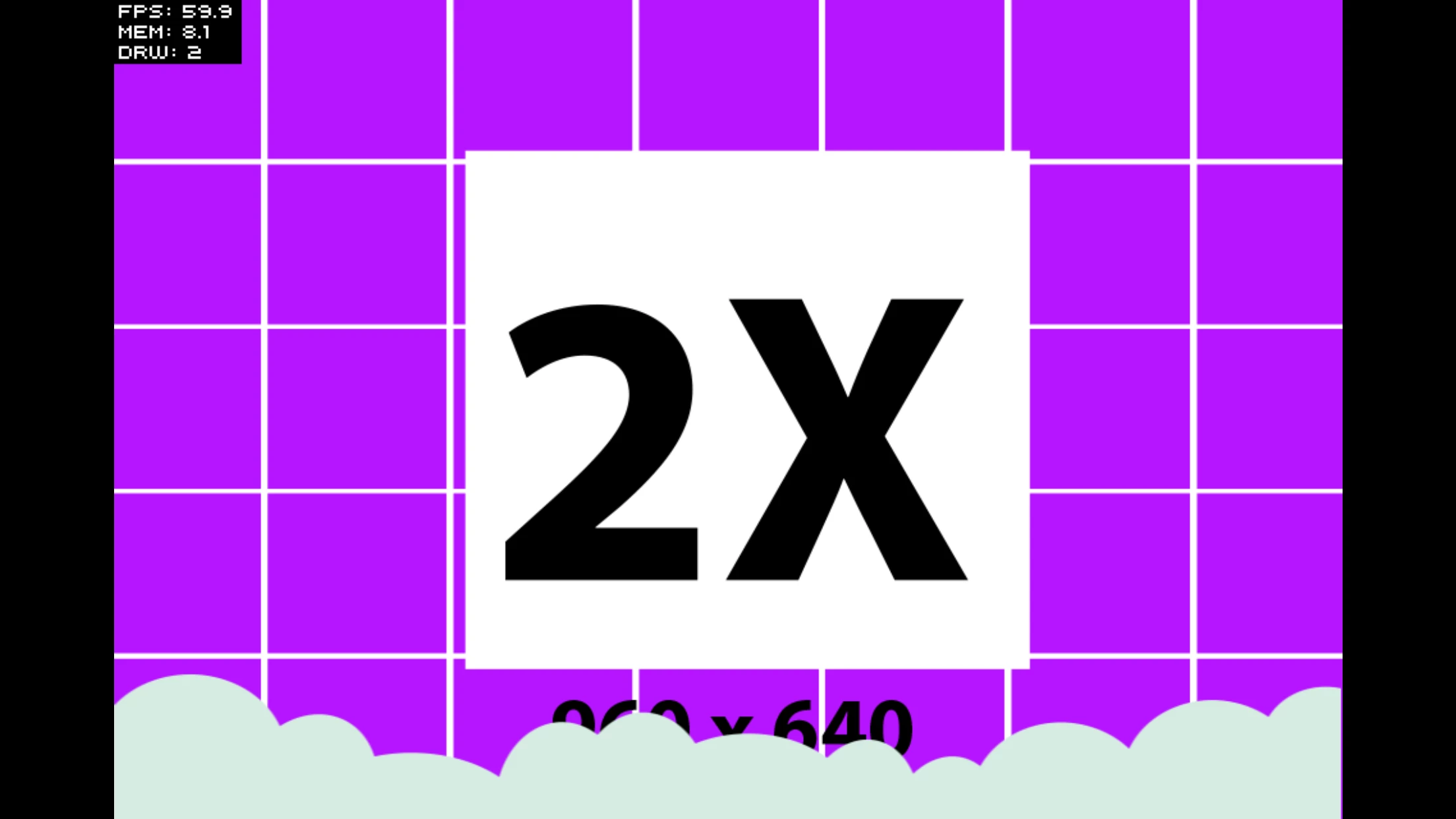
From my research and suggestions in Facebook groups I thought the issue may have been caused by the wrong launch images. I have the following launch images:
- Default-736h@3x.png
- Default-Portrait@2x.png
- Default-Portrait.png
- Default-LandscapeRight@2x.png
- Default-LandscapeLeft@2x~ipad.png
- Default-Landscape@2x~ipad.png
- Default-667h@2x.png
- Default-414w-736h-Landscape@3x.png
- Default-414w-736h@3x.png
- Default-LandscapeRight~ipad.png
- Default-LandscapeRight@2x~ipad.png
- Default-LandscapeRight.png
- Default-LandscapeLeft@2x.png
- Default-Landscape-414w-736h@3x~iphone.png
- Default-Landscape.png
- Default-568h@2x.png
- Default@2x.png
- Default.png
- Default-Portrait-1366@2x.png
- Default-Landscape-1366@2x.png
Questions:
- How can I fix this?
- Is there a problem putting some many launch images?
Here is my code:
Main.as
package
{
import flash.desktop.NativeApplication;
import flash.display.Sprite;
import flash.display.StageAlign;
import flash.display.StageScaleMode;
import flash.events.Event;
import flash.geom.Rectangle;
import starling.core.Starling;
import starling.utils.RectangleUtil;
import starling.utils.ScaleMode;
//import com.demonsters.debugger.MonsterDebugger;
[SWF (frameRate = "60" , backgroundColor = "#ff4434")]
public class Main extends Sprite
{
private static const STAGE_WIDTH:int = 480;
private static const STAGE_HEIGHT:int = 320;
private var _starling:Starling;
public function Main()
{
// Tell Flash not to scale, that will be done by Starling instead
stage.scaleMode = StageScaleMode.NO_SCALE;
stage.align = StageAlign.TOP_LEFT;
// Trigger an event handler when application looses focus (see note in handler).
stage.addEventListener(Event.DEACTIVATE, deactivate);
setupStarling();
}
private function setupStarling():void {
// Get the preferred stage size based on our smallest target resolution
var stageArea:Rectangle = new Rectangle(0, 0, STAGE_WIDTH, STAGE_HEIGHT);
// Get the fullscreen size available
var fullscreenArea:Rectangle = new Rectangle(0, 0, stage.fullScreenWidth, stage.fullScreenHeight);
// Fit the stage to the full screen. ScaleMode.SHOW_ALL ensures that everything will be visible (not croping will occur).
var viewport:Rectangle = RectangleUtil.fit(stageArea, fullscreenArea, ScaleMode.SHOW_ALL);
// Create a new instance and pass our class, the stage and the wished viewport
_starling = new Starling(Test, stage, viewport);
// Show debug stats
_starling.showStats = true;
// Define level of antialiasing,
_starling.antiAliasing = 1;
// Set to our preferred stage size
_starling.stage.stageWidth = STAGE_WIDTH;
_starling.stage.stageHeight = STAGE_HEIGHT;
_starling.start();
}
private function deactivate(e:Event):void {
// Auto-close the application when it looses focus. This is what you want
// to do if you don't want that your application continues to run in the
// background if the user switch program, answer a call or anything else
// that would cause your application to lose focus.
//
// If you want to keep it running you should at least pause it until the
// user returns. That's achieved by calling _starling.stop(). You should
// also add an event listener for the Event.ACTIVATE event that will
// trigger _starling.start() once the application get's focus again.
//
NativeApplication.nativeApplication.exit();
}
//************************ END OF CLASS *****************************
}
//************************ END OF PACKAGE *****************************
}
Test.as
package
{
//Use this to test
import flash.filesystem.File;
import starling.core.Starling;
import starling.display.Image;
import starling.display.Sprite;
import starling.events.Event;
import starling.textures.Texture;
import starling.utils.AssetManager;
import starling.utils.StringUtil;
//This is the splash screen
public class Test extends Sprite
{
private var scaleFactor:int = Math.round(Starling.contentScaleFactor);
private var appDir:File = File.applicationDirectory;
private var assets:AssetManager = new AssetManager(scaleFactor);
private var purpleBackground:Image;
private var bubble:Image;
//Contructor
public function Test()
{
this.addEventListener(Event.ADDED_TO_STAGE, onAddedToStage);
}
private function onAddedToStage(e:Event):void
{
removeEventListener(Event.ADDED_TO_STAGE, onAddedToStage);
trace("Test screen Initialized");
trace ("--------------------------------------");
trace ("(int)scaleFactor is: " + scaleFactor);
trace ("Starling Stage Width is: " + Starling.current.stage.stageWidth);
trace ("Starling Stage Height is: " + Starling.current.stage.stageHeight);
trace (" ");
trace ("Starling Content Scale Factor is: " + Starling.contentScaleFactor);
trace ("Starling Native Stage Width is: " + Starling.current.nativeStage.stageWidth);
trace ("Starling Native Stage Height is: " + Starling.current.nativeStage.stageHeight);
trace ("--------------------------------------");
assets.enqueue(
//appDir.resolvePath("audio"),
appDir.resolvePath(StringUtil.format("assets/{0}x", scaleFactor))
);
assets.loadQueue(function(ratio:Number):void
{
trace("Loading assets, progress:", ratio);
// -> When the ratio equals '1', we are finished.
if (ratio == 1.0)
drawSplashScreen();
});
}
//Creates the first splash scene with Starling movie clips coming from the sprite sheet.
private function drawSplashScreen():void
{
//Purple background
var texture:Texture = assets.getTexture("backgroundPurple");
purpleBackground = new Image(texture);
this.addChild(purpleBackground);
var textureBubble:Texture = assets.getTexture("bubble");
bubble = new Image(textureBubble);
bubble.pivotX = bubble.width / 2;
bubble.pivotY = bubble.height;
bubble.x = stage.stageWidth / 2;
bubble.y = stage.stageHeight +10;
this.addChild(bubble);
}
//************************ END OF CLASS *****************************
}
//************************ END OF PACKAGE *****************************
}
XML file
<?xml version="1.0" encoding="utf-8"?>
<application xmlns="http://ns.adobe.com/air/application/21.0">
<id>com.test.testproject</id>
<versionNumber>1.0</versionNumber>
<supportedProfiles>mobileDevice</supportedProfiles>
<filename>TestProject</filename>
<name>
<text xml:lang="en">TestProject</text>
</name>
<copyright>Me</copyright>
<android>
<manifestAdditions><![CDATA[<manifest android:installLocation="auto">
<uses-sdk android:minSdkVersion="8" />
<uses-permission android:name="android.permission.INTERNET" />
<uses-feature android:required="true" android:name="android.hardware.touchscreen.multitouch" />
</manifest>]]></manifestAdditions>
</android>
<iPhone>
<InfoAdditions><![CDATA[<key>UIStatusBarStyle</key>
<string>UIStatusBarStyleBlackOpaque</string>
<key>UIRequiresPersistentWiFi</key>
<string>NO</string>
<key>UIApplicationExitsOnSuspend</key>
<true />
<key>UIDeviceFamily</key>
<array>
<string>1</string>
<string>2</string>
</array>]]></InfoAdditions>
<requestedDisplayResolution>high</requestedDisplayResolution>
</iPhone>
<initialWindow>
<title>TestProject</title>
<content>TestProject.swf</content>
<visible>true</visible>
<fullScreen>true</fullScreen>
<autoOrients>true</autoOrients>
<aspectRatio>landscape</aspectRatio>
<renderMode>direct</renderMode>
<!--<depthAndStencil>true</depthAndStencil>-->
<!-- required for 3D -->
<systemChrome>standard</systemChrome>
<requestedDisplayResolution>high</requestedDisplayResolution>
</initialWindow>
<icon>
<image29x29>icons/29.png</image29x29>
<image57x57>icons/57.png</image57x57>
<image114x114>icons/114.png</image114x114>
<image512x512>icons/512.png</image512x512>
<image48x48>icons/48.png</image48x48>
<image72x72>icons/72.png</image72x72>
<image50x50>icons/50.png</image50x50>
<image58x58>icons/58.png</image58x58>
<image100x100>icons/100.png</image100x100>
<image144x144>icons/144.png</image144x144>
<image1024x1024>icons/1024.png</image1024x1024>
<image76x76>icons/76.png</image76x76>
<image80x80>icons/80.png</image80x80>
<image120x120>icons/120.png</image120x120>
<image152x152>icons/152.png</image152x152>
<image40x40>icons/40.png</image40x40>
<image180x180>icons/180.png</image180x180>
<image60x60>icons/60.png</image60x60>
<image75x75>icons/75.png</image75x75>
<image87x87>icons/87.png</image87x87>
<image167x167>icons/167.png</image167x167>
</icon>
<!--
AIR options:
<a href="http://livedocs.adobe.com/flex/3/html/File_formats_1.html#1043413" rel="nofollow">http://livedocs.adobe.com/flex/3/html/File_formats_1.html#1043413</a>
AIR mobile options:
<a href="http://help.adobe.com/en_US/air/build/WSfffb011ac560372f-5d0f4f25128cc9cd0cb-7ffe.html" rel="nofollow">http://help.adobe.com/en_US/air/build/WSfffb011ac560372f-5d0f4f25128cc9cd0cb-7ffe.html</a>
iOS icons guidelines:
<a href="http://developer.apple.com/library/ios/#documentation/userexperience/conceptual/mobilehig/IconsImages/IconsImages.html" rel="nofollow">http://developer.apple.com/library/ios/#documentation/userexperience/conceptual/mobilehig/IconsImages/IconsImages.html</a>
Android manifest documentation:
<a href="http://developer.android.com/guide/topics/manifest/manifest-intro.html" rel="nofollow">http://developer.android.com/guide/topics/manifest/manifest-intro.html</a>
-->
<supportedLanguages>en</supportedLanguages>
<description>
<text xml:lang="en">
</text>
</description>
</application>


 AdChoices