AnthonyS82
Inspiring
February 13, 2018
Answered

Animate CC 2015, 2017 & 2018 won't publish or save files on MacOS.

  • February 13, 2018
  • 1 reply
  • 1045 views

Hi Everyone,

I'm currently experiencing issues with all Animate CC versions I have on my MacOS 10.13 laptop.

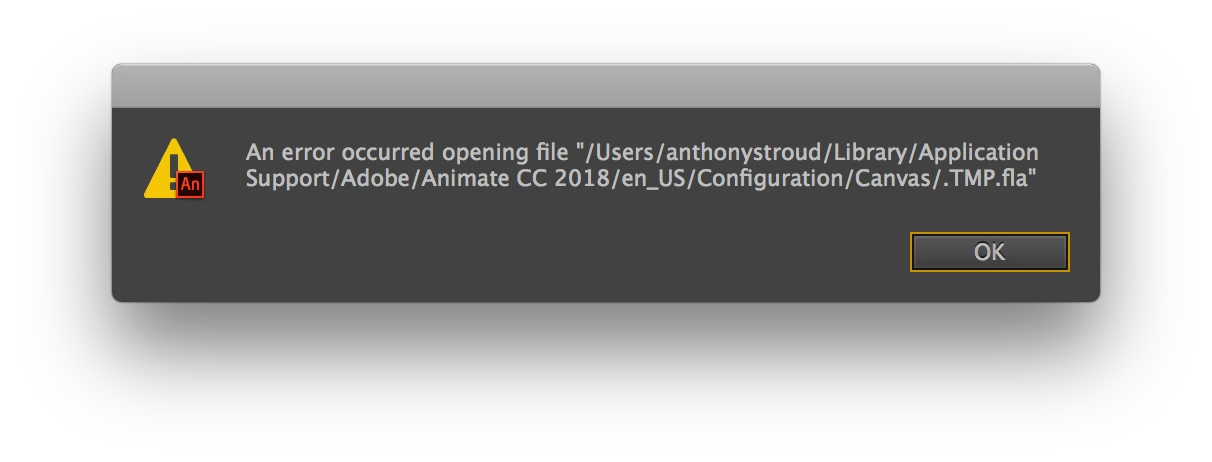
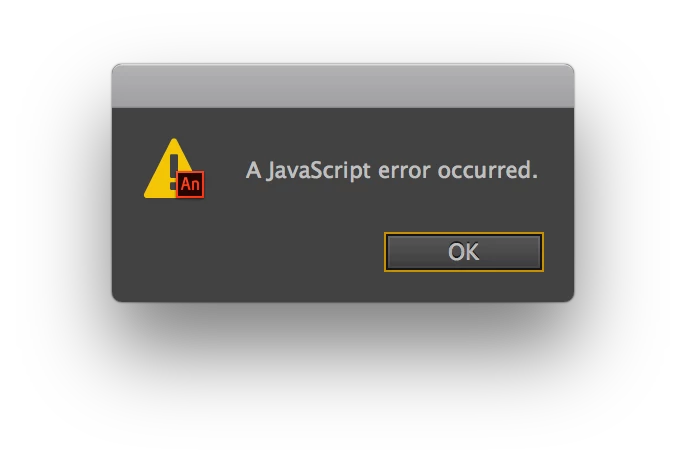
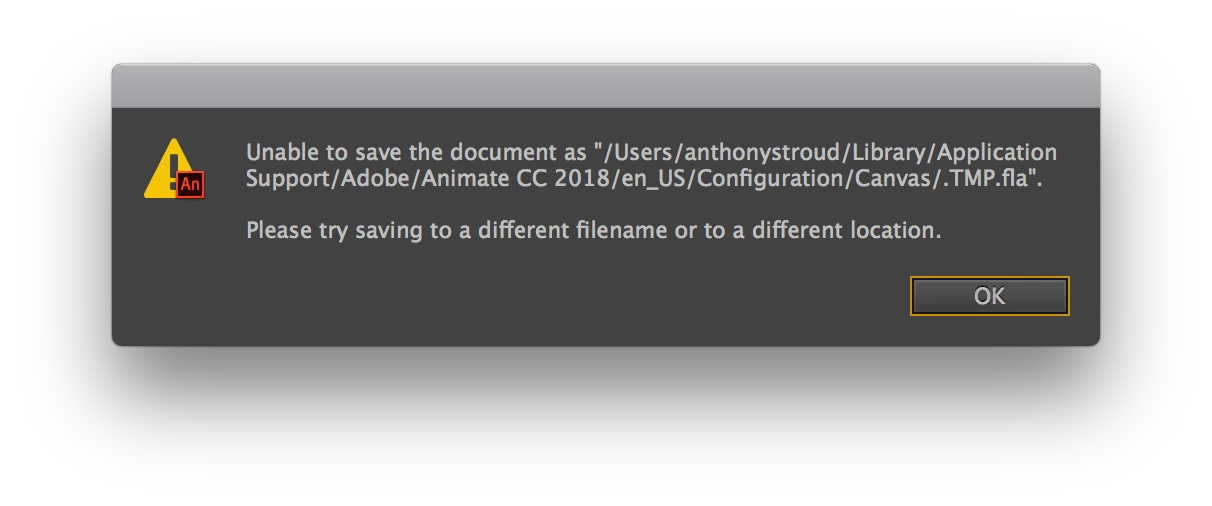
I can install the programs fine, though when I got to create a new HTML5 .fla and publish it, I get the following errors.

This is the same if I open an old .fla and try to publish / test the creative.

I've tried removing Animate CC and reinstall though that didn't work.

I've tried installing older versions of Animate CC, 2015 and 2017 and that didn't work.

Any ideas why this would be happening? I've attached screenshots for reference.

Thanks,

Anthony
    This topic has been closed for replies.
    Correct answer AnthonyS82

    Do let us know how it went.

    Thanks,

    Preran


    Hi Preran,

    I've got Animate CC working again. Had to start fresh and install the OS X from scratch and copy over the files I needed via an external HD.

    My MacBook Pro had several years of installs from different Adobe Animate versions and maybe it just didn't like all the variations.

    Anyway, it's been a good chance to start fresh and only copy over the files I need.

    Thanks for your help with this.

    Cheers,

    Anthony

    1 reply

    ankushr40215001
    Inspiring
    February 15, 2018

    Hey Anthony,

    Please try saving the file as mentioned in this thread - Animate unable to save document and see if that works fine.

    Let us know how it goes.

    Regards,

    Ankush

    AnthonyS82
    Inspiring
    February 16, 2018

    Hey Ankush,

    Thanks for the reply, still having issues saving .fla or .xfl files and unable to publish a blank Canvas HTML5 file that has no code or content within it.

    The issue started to happen once I upgrade to 10.13.3 , though other machines in the office are working fine with the same operating system.

    I might down grade the OS to 10.12 to see if that helps.

    Cheers,

    Anthony

    Preran
    Legend
    February 16, 2018

    Do let us know how it went.

    Thanks,

    Preran