
Inspiring
August 29, 2022
Question

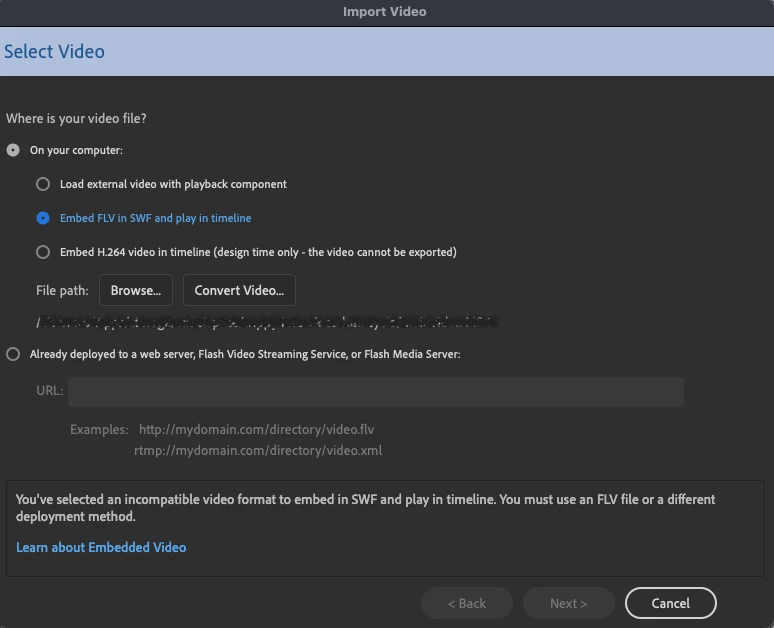
Animate requires FLV video to be shown in timeline, yet Adobe discontinued support for FLV

  • August 29, 2022
  • 2 replies
  • 375 views

Got a problem here that makes no sense. I want to use the option to have a short video on my timeline in Animate. The option I have is an FLV video, although I cannot seem to convert my video to an FLV since Adobe apparently discontinued support to convert a video to FLV


Is Animate just a lazily repackaged Flash, riddled with bugs and missing features? Sure seems like it.

So what's your answer to this, Adobe? 
    This topic has been closed for replies.

    2 replies

    kglad
    Community Expert
    Community Expert
    August 29, 2022

    after posting the above, i tested and found vlc doesn't do a good job converting.  it does convert and it does play in vlc but animate doesn't handle the converted file properly.  so, i'd look for another conversion tool, if it's important.

    Inspiring
    August 29, 2022

    Incredibly, this site worked, and didn't put a watermark on my video: https://www.online-convert.com/result#j=7ce2e3f5-d247-4995-b921-fbc40929295d

    Thanks for looking into it, though.


    Still, extremely sad and pathetic that Adobe doesn't include support for this, since it is a supposed feature to actually get a video on your timeline. If they no longer support encoding into flv, then just let us put an mp4 or something on our timeline. 

    kglad
    Community Expert
    Community Expert
    August 29, 2022

    you're welcome, and thanks for the info.

    kglad
    Community Expert
    Community Expert
    August 29, 2022

    use the free vlc player:


    Steps to Change MP4 to FLV Using VLC Media Player:

    Step 1: Launch VLC Media Player, head over to the “Media” menu, and click on “Convert/Save…”

    Step 2: From the “File” section tab, click on “Add…” to import an MP4 file, expand the “Convert/Save” drop-down menu and select the “Convert Alt+O” option.

    Step 3: VLC does not have a preset MP4 to FLV profile so create one using the “Create a new profile” but and give it a suitable name.


    Step 4: Choose a saving directory, an appropriate filename with the “.flv” extension, and then click on “Start” to convert your MP4 file to FLV format.