
Participant
December 4, 2024
Answered

can i crop the object in this way and still have it all fit on one layer?

  • December 4, 2024
  • 1 reply
  • 261 views

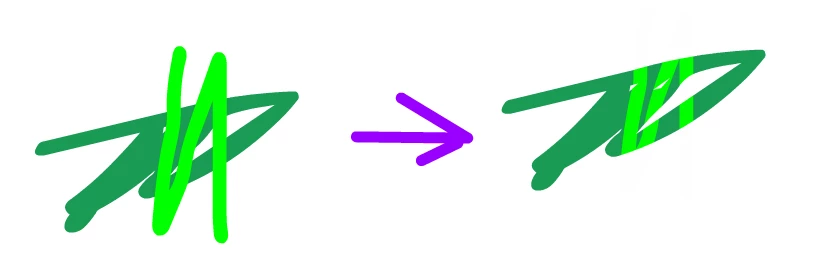
I want, for example, these light stripes to be cut exactly along the outline of the dark green spot (as shown below)
all the methods that I have found lead to the fact that the light stripes and the dark green spot end up on two different layers, but I need it all to be on one layer.
the only solution that I have found so far is to erase everything along the borders myself, but I think there must be an easier way owo
This topic has been closed for replies.
Correct answer Mario_CR

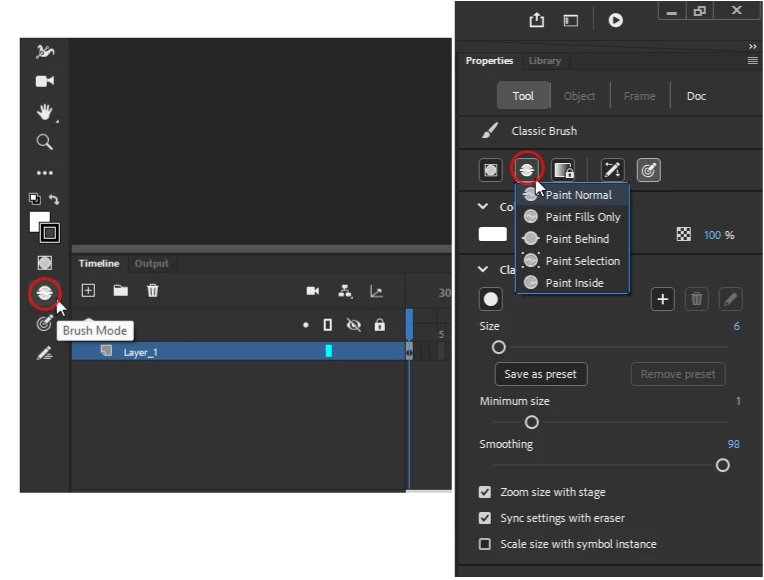
Hi, try using a different brush mode. Click on the Brush Mode icon located at the end of the toolbar (you can also access it from the Properties panel):


Here's a quick video demonstation of how each mode works and what can be done with them:

https://www.youtube.com/watch?v=iY78Fl633Zo


1 reply

Mario_CR
Community Expert
Mario_CRCommunity ExpertCorrect answer
Community Expert
December 4, 2024

Hi, try using a different brush mode. Click on the Brush Mode icon located at the end of the toolbar (you can also access it from the Properties panel):


Here's a quick video demonstation of how each mode works and what can be done with them:

https://www.youtube.com/watch?v=iY78Fl633Zo


Participant
December 4, 2024

oh thanks, i knew about this function for a long time but for some reason i didn't think to use it here pwp
but is it possible to do something like this with lines instead of a brush? or at least draw straight lines using a brush

Mario_CR
Community Expert
Community Expert
December 5, 2024

Not with Brush Modes; when it comes to Strokes, you can isolate parts by crossing it with another Stroke of a different color (these can be removed afterwards) then you can have different colors on the same line.


Or if you prefer, you can convert the Stroke to Fill which will let you use Brush Modes again.