Participant
Feb 7, 2023 5:14 PM UTC
Answered

Change Order of Keyframes in Timeline without Overwriting

For some background, I am an absolute beginner with Animate's interface, but I use After Effects on the regular. My goal is exploring workflows surrounding importing/exporting game sprites while familiarizing myself with Animate's interface. For this little test, I'm importing individual animation frames of a character (they're .PNGs) in Animate, adjusting their timing, and exporting a .SWF Library for use in After Effects.


My question is, is there a way to drag or rearrange the order of keyframes on the timeline without those frames overwriting other keyframes? I apologize, I'm not sure of the correct terms are for wording the question, so I've included my thought process:


  • I've imported the frames onto a layer and "Distributed them to Keyframes." Each keyframe is an indivdual .PNG file.
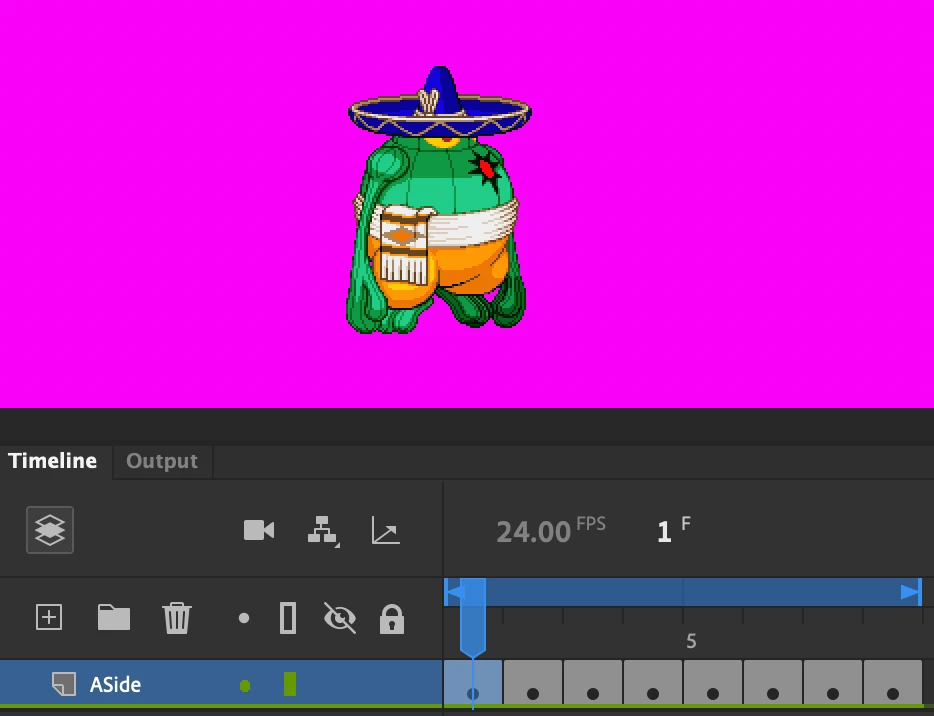
 

  • With this particular animation, I want to drag these three keyframes (see the highlighted selection in the timeline within the screenshot) between keyframes one and two. Anything past keyframe one should shift up the timeline.
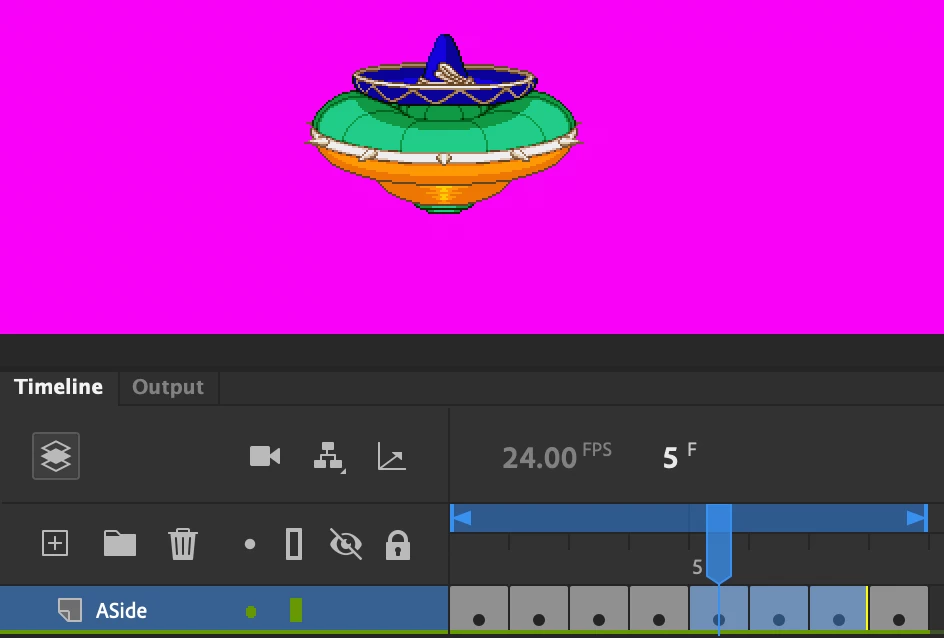
 

  • However, the operation overwrites keyframes two through four. This is not the desired outcome.
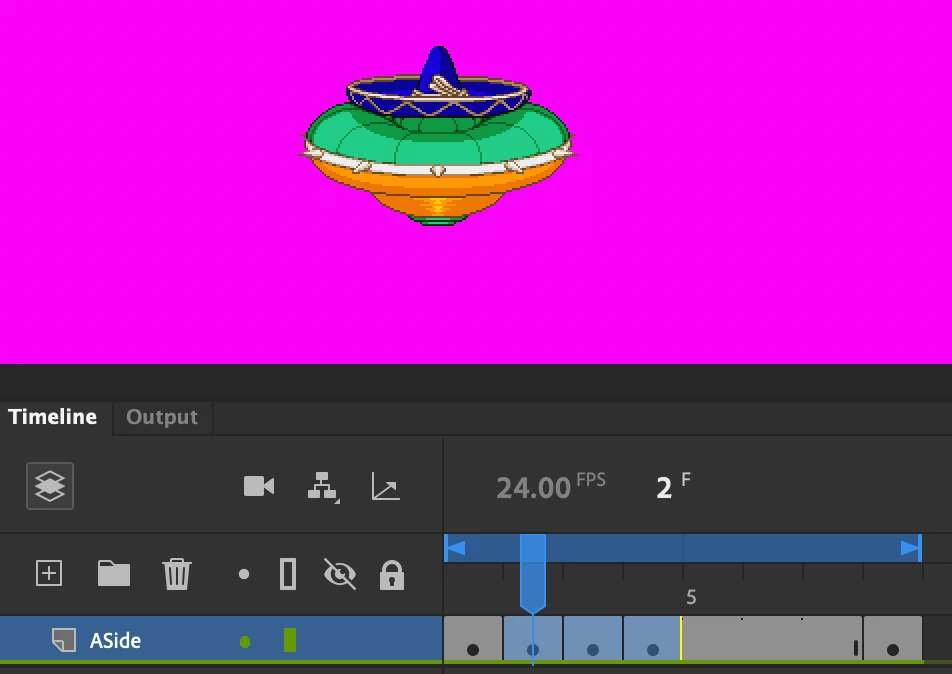
 

I simply wish to change the order of the keyframes on the timeline. So, in theory, if I were to drag a keyframe further down timeline, some of the keyframes would shift further up. Is there a function within Animate that's in the ballpark of this line of thought? Thanks again for the help, I'm sure there's an easy shortcut or something--I just don't know the verbiage.


Thanks,


Joshua


(The sprites in question are Amingo from "Marvel vs. Capcom 2" for those curious.)

This topic is closed to new replies. Start a new post to keep the conversation going.
JoãoCésar17023019
JoãoCésar17023019Correct answer
Community Expert
Feb 8, 2023 11:02 AM UTC

Hi.


The timeline in Animate doesn't shift automatically.


In your case:
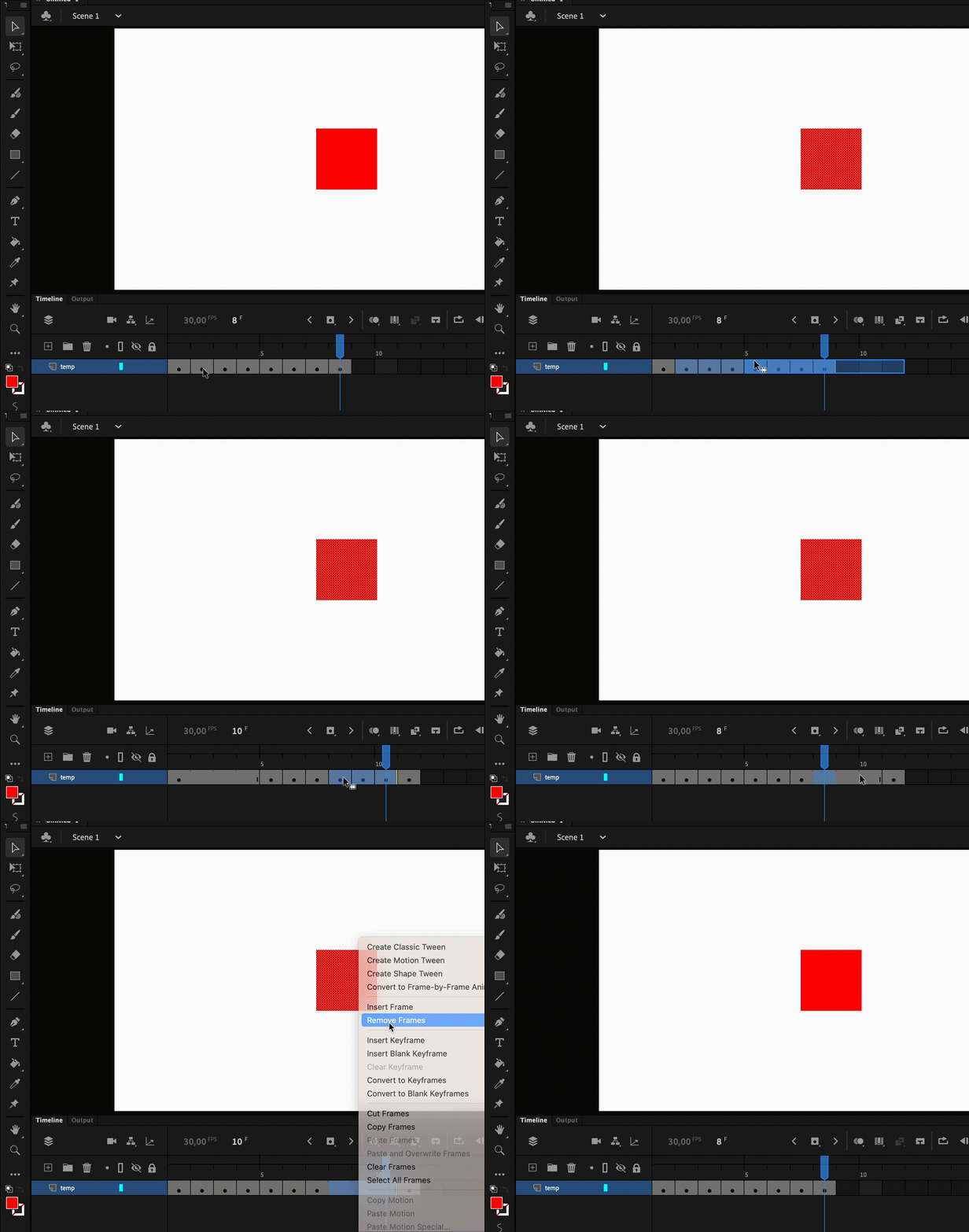
- You would have to click on the second frame;
- Shift click until the last frame;
- Drag the selection three frames to the right;

- And then move the three frames you want to the desired location (second frame).


(Sorry for the GIF slowness)

Regards,
JC

6 replies

JoãoCésar17023019
Community Expert
JoãoCésar17023019Community ExpertCorrect answer
Community Expert
Feb 8, 2023 11:02 AM UTC

Hi.


The timeline in Animate doesn't shift automatically.


In your case:
- You would have to click on the second frame;
- Shift click until the last frame;
- Drag the selection three frames to the right;

- And then move the three frames you want to the desired location (second frame).


(Sorry for the GIF slowness)

Regards,
JC

Translate
RopeAJopeAuthor
Participant
Feb 8, 2023 3:11 PM UTC

Okay, that make sense. Thanks for the help!

Translate
JoãoCésar17023019
Community Expert
Community Expert
Feb 8, 2023 4:22 PM UTC

You're welcome!

Translate
kglad
Community Expert
Community Expert
Feb 7, 2023 5:24 PM UTC

(right click the insert frame and click insert frame) x 3, then move your 3 frames (and replace those 3 new frames).


if you're going to do a lot of that you'll probably want to created shortcuts (edit>keyboard shortcuts>timeline)


or drag all frame, to the right of the insert point, 3 frames to create those 3 new frames.  then drag the 3 you want to move


you can drag select the empty frames > right click > click remove frames

Translate
RopeAJopeAuthor
Participant
Feb 8, 2023 3:12 PM UTC

I see, thank you!

Translate
kglad
Community Expert
Community Expert
Feb 8, 2023 3:23 PM UTC

you're welcome.

Translate