benl13565393
Inspiring
April 3, 2018
Answered

drawWithQuality on rectangle shapes and anti-aliasing on the border

  • April 3, 2018
  • 1 reply
  • 1038 views

I am trying to export images from  a DisplayObject.

I do it from a line of code such as:

render_ = new BitmapData(Math.round(finalSize_.x) * scaleX, Math.round(finalSize_.y) * scaleY, true, 0xFFFF00FF)

render_.drawWithQuality(dobj, matrix, null, null, null, true, StageQuality.BEST)

The problem I'm running into is that when I have a symbol which are shapes which occupy a known rectangular area and I render out the bitmap, the lower edges end up with a bit of magenta mixed in.

Ideally I want to generate the image without this. I have found that if I put those shapes into a symbol and then right click on it and "Generate  Sprite Sheet..." a few things show up:

Border padding and shape padding. Moreover, when I render it out from here, there are no mixed in colors. It comes out as expected.

Below are my results. I scaled it up to make the magenta easier to see.

It doesn't matter if I change colors.

Also note that I can lower the quality and it will go away. The problem is I need to scale to generate larger sizes of the shapes. This results in them looking poorly.

Clearly Animate itself can generate a clean version. I'm wondering if there is a way via Actionscript to do the same.

This topic has been closed for replies.
Correct answer Colin Holgate

One aspect I'm trying to wrap my mind around is strokes and dimensions of DisplayObjects. I've isolated things to 2 issues:

-Usage of strokes and how it affects dimensions of a DisplayObject

-Animate has some issues around borders and how it anti-aliases.

Of course these all could be "user error", "as designed", etc. I'm just trying better understand the course of action to take.

And as a disclaimer. I'm not an artist. I'm the dev. I wrote the full toolchain we are using. So while a stick figure is a bit of a challenge, I know the too itself reasonably well. However, it does not mean I now why you would use a stroke versus fill, etc. I'm basically rolling with the punches from the artwork we get in if it confounds the toolset.

Regarding strokes.

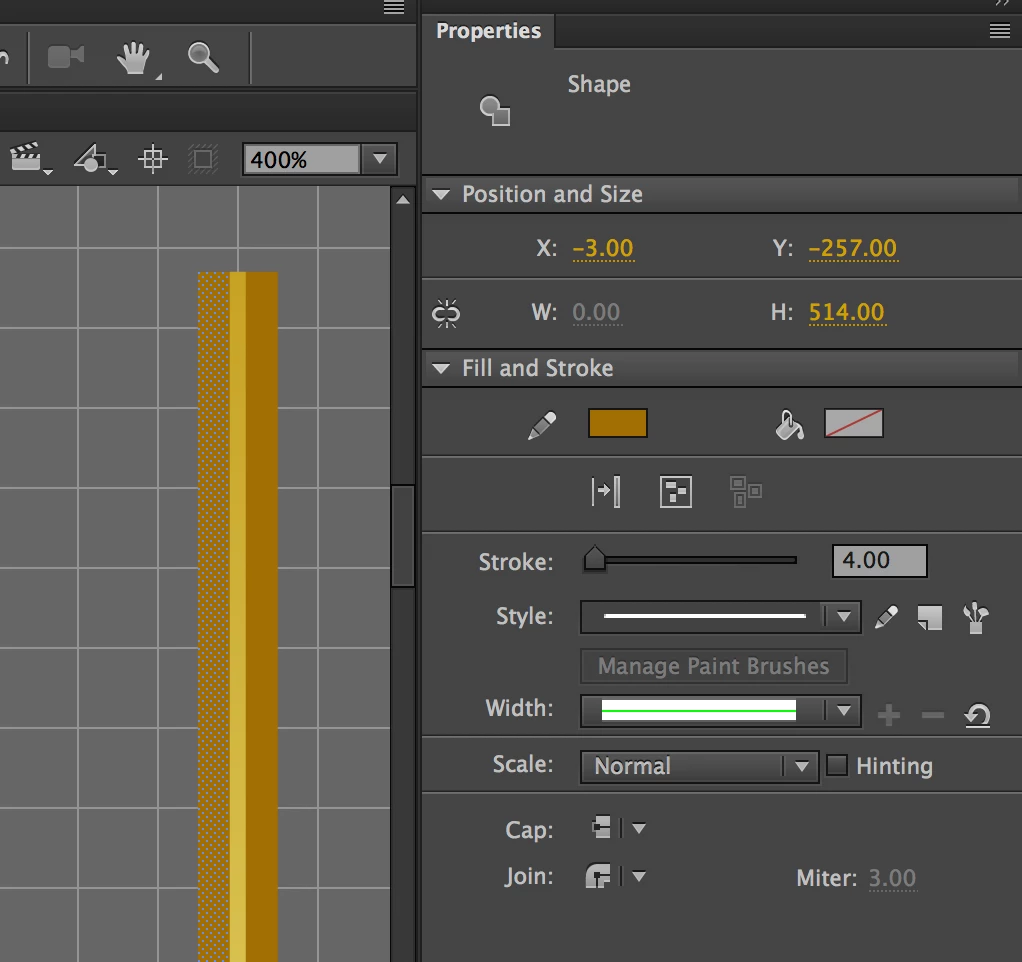
The culprit is these two brown vertical strips. Which are just strokes no fill. I see 2 things with this.

- If I use Generate Sprite Sheet on the symbol, it properly identifies the dimension is 10 wide. However, when it renders out the sprite sheet, this includes a 2 px transparent padding on the top and bottom. The actual brown is 4px wide. The yellow in the middle is 2px. So the overall width should be 4 + 2 + 4 = 10.

-If I print out the dimensions of the symbol in Actionscript, the dimensions are correct in the width. However vertically, it has been padded by 4 px, presumably 2px on top and 2px on bottom.

So these two aspects are at least consistent. However, what I find curious is that visible pixel-wise, Animate renders a different dimensions. So I guess I'm curious why it is only padding in the vertical and why it can't report the proper width.

So the solution I have found is to remove those strokes. By converting those strokes to fill, this padding issue disappears.

This brings our next issue. The border being blended with outside fill colors.

This happens if I use a scaleX/scaleY value in my code that != 1. For example, scaleX = scaleY = 0.89.

We scale to resize the texture. Unless I deliberately turn make the magenta fill color opaque, this results in some blending that happens on the border. This normally doesn't matter. However this particular artwork is for background pieces. Hence we cannot have this occur, or we end up seeing "seams", where the seams are really this border blending issue.

I'm testing a work around for this, but it is a bit of work to do which involves scaling up the background art, exporting a PNG and then rescaling the super size version to the dimension we need. I don't know if this works quite yet, but my first test shows promise. As the artwork is already in vectors, I'd rather not have to do this, because it is slightly tedious.


Some of what you describe is a fact of life with sprite sheets, but that has a work around. See Nate's answer here:

Why is bleed an option?? (black lines around sprites)

1 reply

Colin Holgate
Inspiring
April 4, 2018

Are you filling with a magenta color to exaggerate to issue, so you can spot it?

One thing that seems potentially wrong is that BitmapData wants integers for the width and height, and you're multiplying an integer with a scale, which may not be an integer. This could be better:

render_ = new BitmapData(Math.round(finalSize_.x * scaleX), Math.round(finalSize_.y * scaleY), true, 0xFFFF00FF);

The quality value is any stage quality value, and the best that there was when most examples were written was "best". Now there are better antialiasing options. You could do this:

render_.drawWithQuality(dobj, matrix, null, null, null, true, "16x16");

benl13565393
Inspiring
April 4, 2018

Thanks for the reply.

RE Magenta: Yes it is mainly there for us to better identify the transparent pixels in texture atlases so we can debug them if necessary.

I modified the code for both your suggestion of modifying the order of ops as well as explicit typecasting and using a better quality level.

Changing to int had no difference.

Updating quality had further problems. More specifically, it actually rendered out gradients wrong which are near the outside edges. The problem is when it is anti-aliasing and you're near an edge versus the window (eg. 16x16), it will pull in out of texture values and antialias against those. Or rather that is what it appears it is doing.

If I use LOW, then the problem will disappear, but the rendering of the shapes is really poor.

Colin Holgate
Inspiring
April 5, 2018

Are you able to post a small test file somewhere, that I can try other ideas on?