
Editing the default Publish Settings in Animate
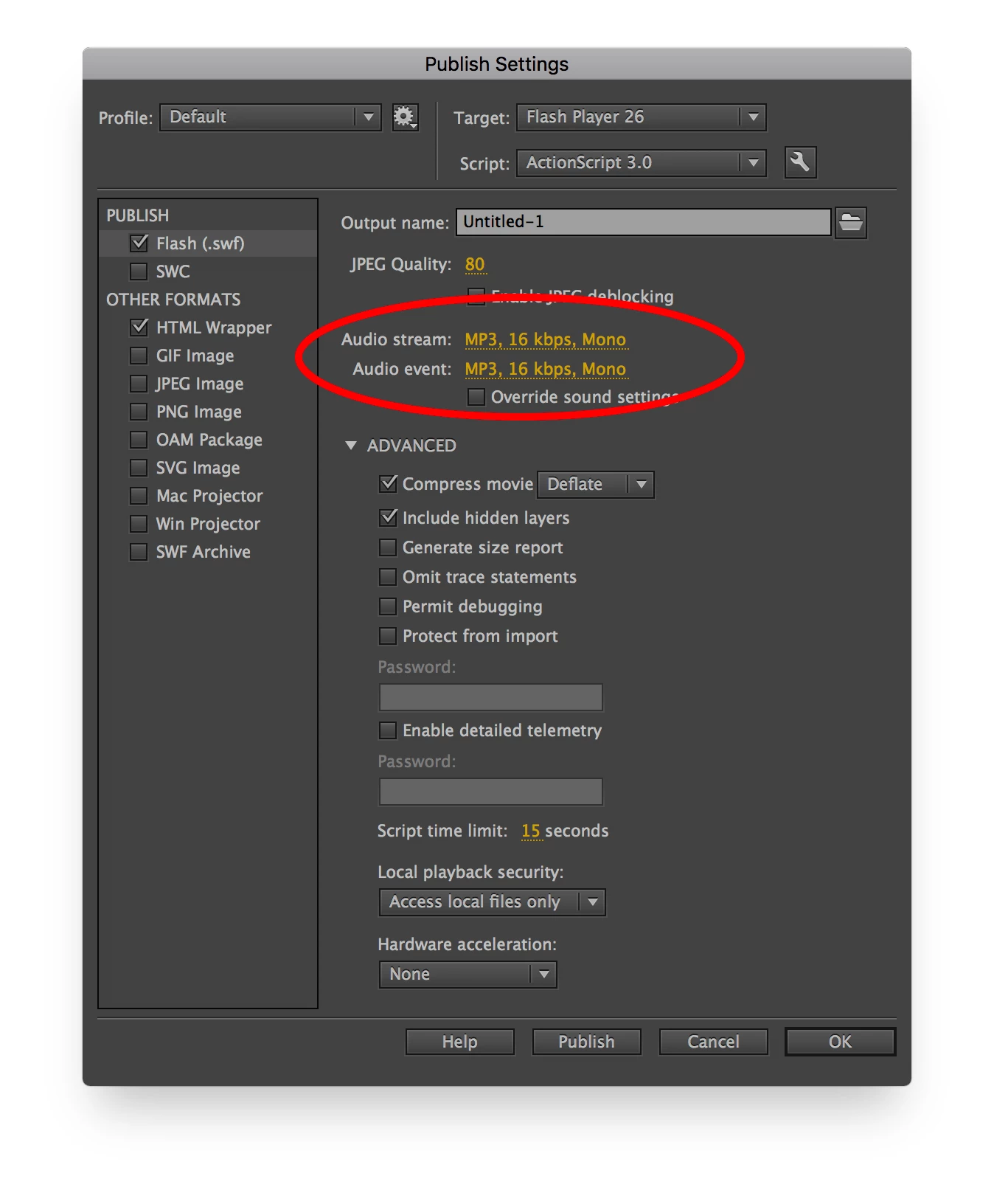
I am trying to edit the default Publish Settings (File > Publish Settings) for Animate, specifically the Audio Stream and Audio Event sections. See screenshot.
I have tracked down the XML file responsible for this at the following location:
~/Library/Application Support/Adobe/Animate CC 2018/en_US/Configuration/Publish Profiles/default.xml
And I have pinpointed the lines that apply specifically to the Audio Stream and Audio Event sections:
<StreamFormat>0</StreamFormat>
<StreamCompress>7</StreamCompress>
<EventFormat>0</EventFormat>
<EventCompress>7</EventCompress>
By default, as you can see, the audio settings are:
MP3, 16 kbps, Mono
Somehow, the numbers 0 and 7 above create these settings.
What I want both audio settings to be are:
Raw, 44kHz, Stereo
So I have to change the numbers 0 and 7 to something else.
I change the numbers (just opening the file in textEdit), create a new blank file, and check the Publish Settings. Whilst I do now have a new pair of settings, I just can’t seem to get my ideal settings right.
I have tried many, many, many different configurations of number-pairs.
Bear in mind that some time ago I did manage to successfully get it right, but recently my hard drive died and I lost my edited settings.
The success I had last time was just pure luck, mixed in with persistence, but this time I can’t seem to get it.
Can anyone help me please?
If you are going to try edit these settings yourself, it only seems to work if you edit a COPY of the file, and then OVERWRITE the file in the Library folder. Editing-and-saving the ACTUAL file itself doesn’t seem to make the edits stick.
Finally, please note that I want to edit the default.xml file – I do not want to create a NEW profile and then select it each time from the dropdown menu. I want the application to load my personalised settings on all new files by default.
Thanks.
 AdChoices